
Overview
We noticed that Windows set the priority level for the ClickShare App restricted to Normal can have an impact on connectivity and performance. Many modern applications especially video and audio-conferencing tools like ClickShare require a significant amount of processing power. On devices with lower performance levels, this can lead to noticeable issues during meetings, such as disconnects or audio/video interruptions.
For optimal performance, we advise to set your conferencing application to a higher priority in Windows.
Keep in mind this is a System Admin setting only but as a test it can be adapted manually to verify its possible improvement,
- Priority changes set through Windows Task Manager are temporary but can be done to verify its impact. They reset after reboot or when the app restarts.
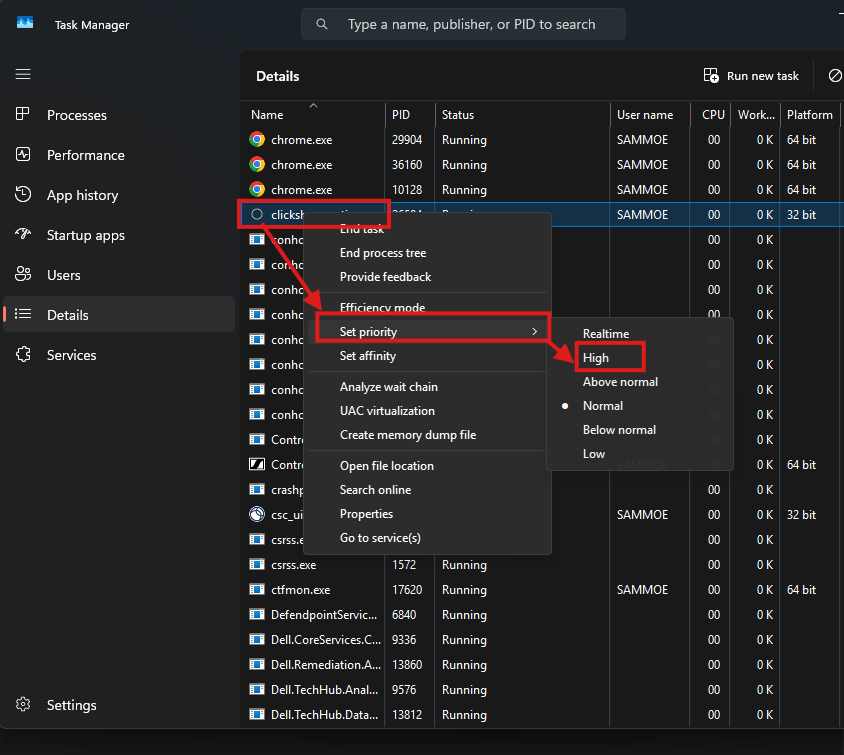
- As a test you can increase the priority for the ClickShare App to High what ensures the app receives sufficient processing resources even when other programs are running.
How-to
In Task Manager, open the Details tab, locate ClickShare.exe and set its priority to High. Example - see the Windows 11 illustrations in the image below:
If this option is restricted or you are unsure how to apply it, please reach out to your IT Administrator for assistance.
To permanently adapt this setting: Can be done by IT Administrators only
If your organization centrally manages devices via Intune, SCCM, or Scripts, IT can enforce higher priority at launch using:
- PowerShell scripts
- Scheduled tasks
- Policy‑based rules
These methods ensure conferencing applications always run with elevated priority without requiring user intervention.

