
The ClickShare Bar Pro supports dual display setups, enhancing collaboration by allowing simultaneous content sharing across two screens. This setup is ideal for both presentations and video conferencing scenarios.
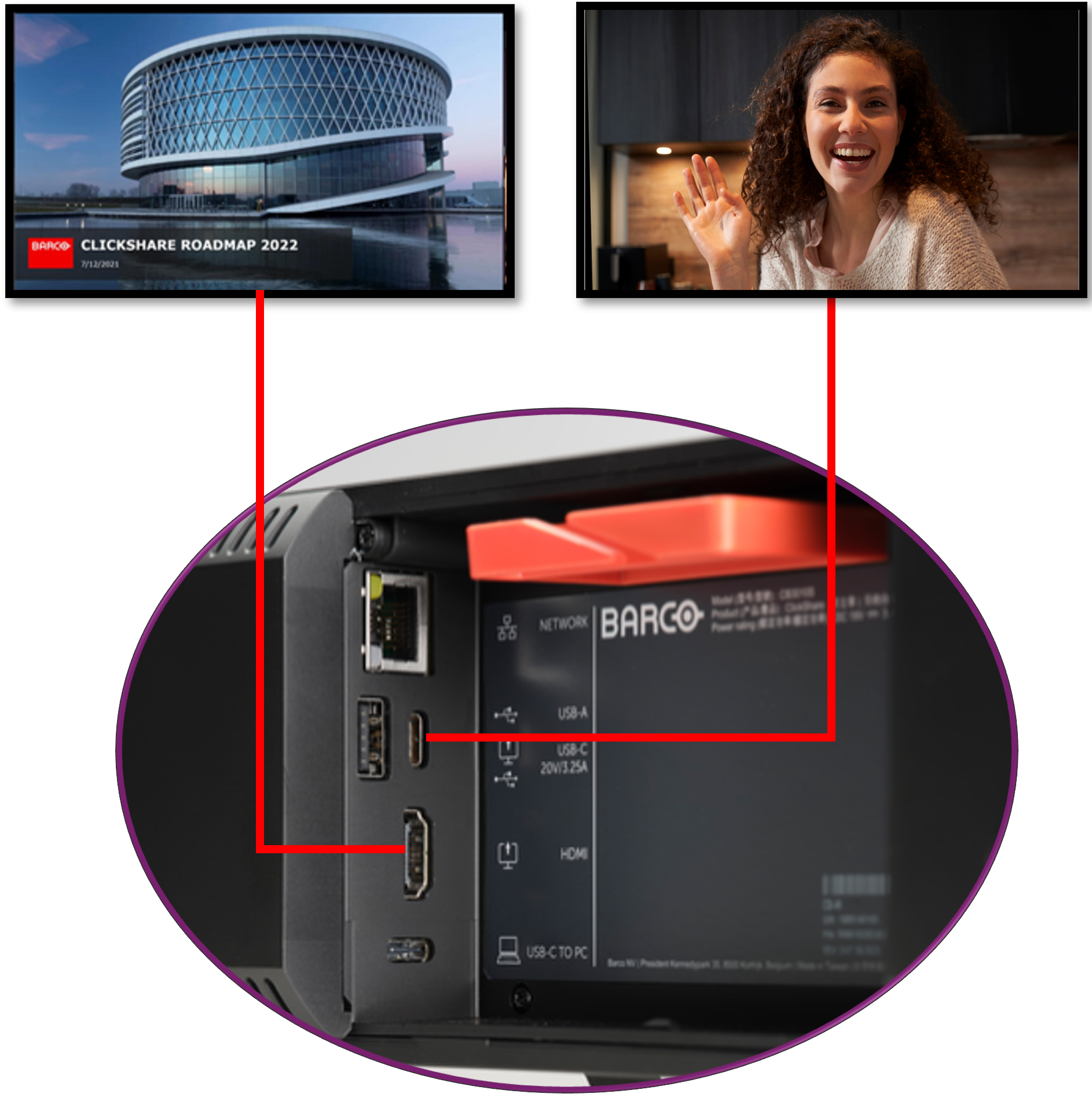
Connection setup overview (illustration only)
-
Bar Pro is running firmware version 2.20 or higher
-
Two displays connected via HDMI™ and USB-C™
-
If using a touchscreen display, it must be connected to the USB-C™ port on the CB Pro
-
Maximum supported resolution for dual display mode is limited to 2K with CB Pro
-
-
ClickShare Buttons / ClickShare Desktop App
Info!
The Extended and Clone display settings described in this article are specific to the Bar Pro configuration. They are not related to the display settings (such as screen extension or duplication) found in your operating system’s device or monitor settings.
Configuring display mode settings
- Log in to ClickShare Configurator of your ClickShare Bar Pro (how-to, see KB2324).
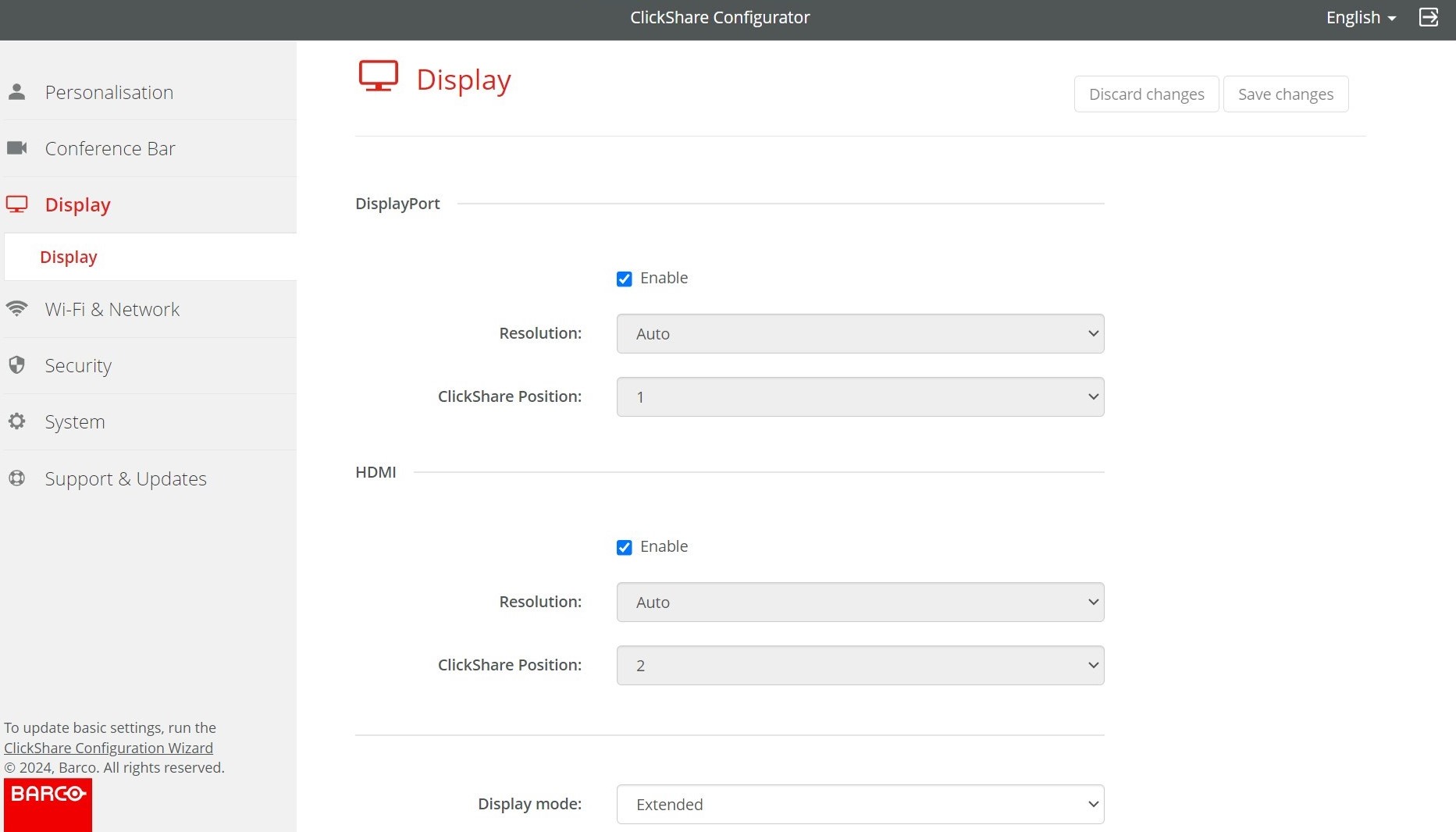
- Navigate to Display > Display.
- Configure the settings for DisplayPort and HDMI™ as illustrated in the image below:
- Select Extended (default mode) or Clone from the Display mode drop-down list.
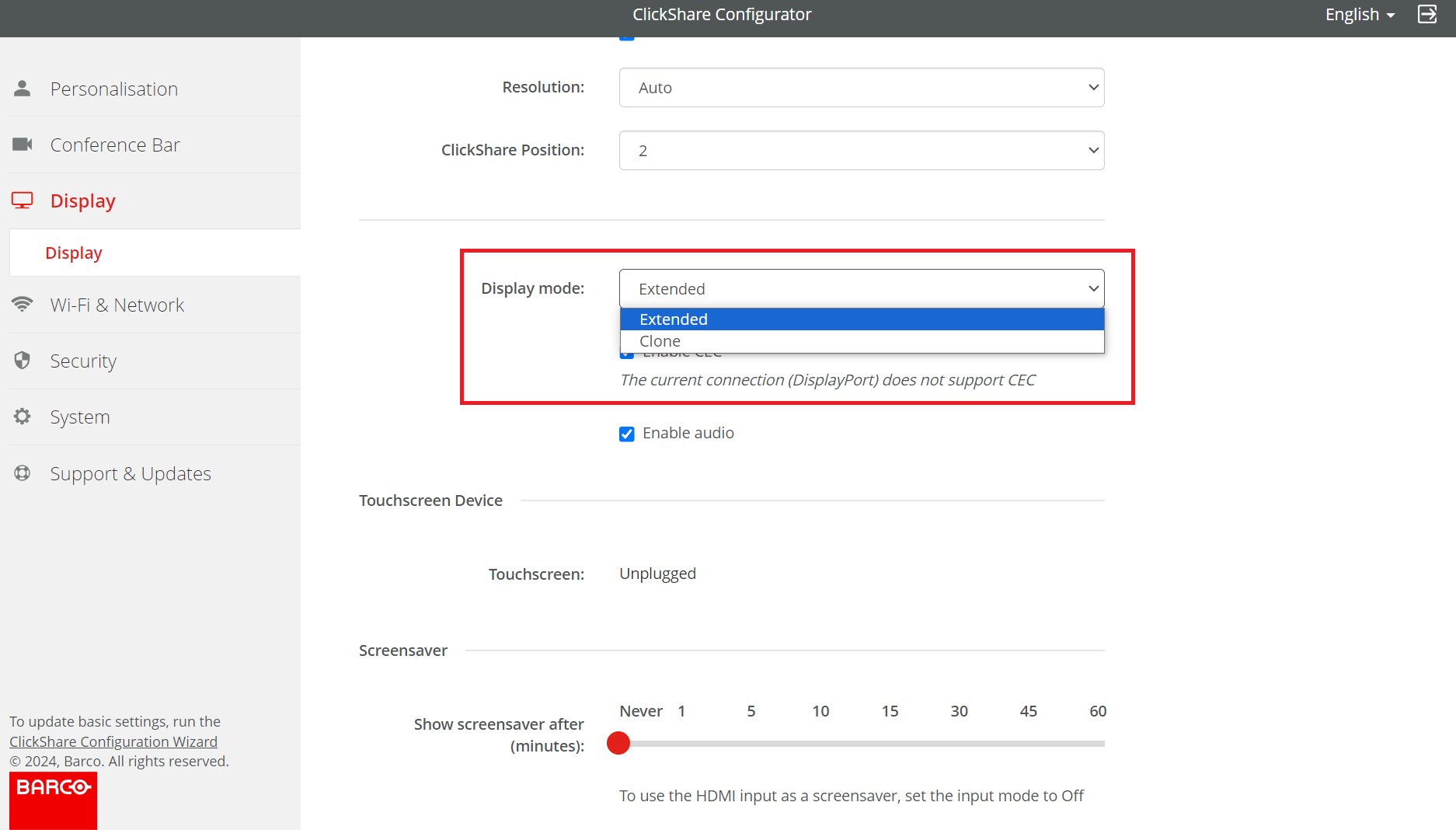
- In Extended mode, the Bar Pro utilizes both connected displays to show different content simultaneously - each content displayed on a separate display, providing a broader visual workspace.
- Dual-source presentations (e.g., content 1 on one screen, content 2 on the other)
- Video conferencing (e.g., meeting room participants on one screen, shared content on the other)
- In Clone mode, the Bar Pro displays the same content across both displays. This mode ensures identical content is shown on both displays, enhancing visibility and accessibility.
Ideal for:- You want consistent visibility for all participants, regardless of seating
- You're conducting presentations or video conferences in larger rooms
Tip: Determine whether Extended or Clone mode is better suited for your meeting room setup and content sharing needs - see the comparison table below.
Note - Touchscreen display
- Always assign ClickShare Position 1 to the connected touchscreen display in the ClickShare Configurator to ensure proper functionality and responsiveness. [See also].
- In Extended mode, the Bar Pro utilizes both connected displays to show different content simultaneously - each content displayed on a separate display, providing a broader visual workspace.
Comparison table - Extended & Clone mode
| |||
|---|---|---|---|
| Modes | Used for | No of sources | |
| 1 source | 2 sources | ||
| Extended (default mode) | Presentation (Content) | 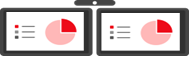 | 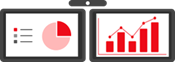 |
| Conferencing (People and content) | 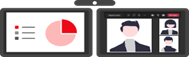 | 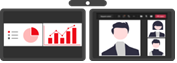 | |
| Wired RoomDock ¹ | 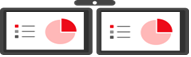 | Not applicable | |
| Clone | Presentation (Content) | 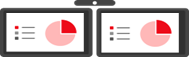 | 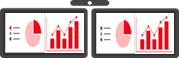 |
| Conferencing (People and content) | 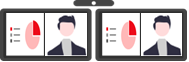 | 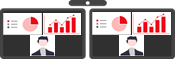 | |
| Wired RoomDock ¹ | 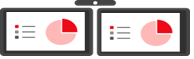 | Not applicable | |

Content 1 (illustration only)

Content 2 (illustration only)

Meeting room participants (illustration only)
¹ Wired RoomDock setup. How-to, see: KB11932.
Related Articles:
- Does ClickShare Bar support Wired RoomDock?
- Setting up and configuring dual screens with a ClickShare CX-50 Gen2
- Touchscreen compatibility matrix for ClickShare devices in dual-screen and dual-sharing setups

