
The list of supported peripherals can be found on the supported peripherals overview page. all USB peripherals, accessories and (touch) displays, that have been validated to work with various ClickShare models as part of the ClickShare Alliance Program.
Note: Looking for the list of peripherals officially supported by ClickShare Hub Core and Hub Pro, click here.
We advise you to always check the supported peripherals overview page for specific remarks and to test the peripheral in combination with the ClickShare Conference products before deployment. In case you find any issues, please let us know via a service ticket. More information on testing your ClickShare peripheral can be found here (how to: see KB2355 for Windows and KB9635 for macOS).
Note: For information on the different certification levels (certified, compatible) for the peripherals in combination with ClickShare Conference, see KB3384.
If your peripheral is not listed on the supported peripherals overview page, there is still a chance that your device may work together with ClickShare Conference, but be advised that support for devices and/or configurations that are not part of the ClickShare Alliance Program might be limited.
Please be aware of the following limitations
For the camera and the speakerphone, all ClickShare models support generic USB devices. Note that the peripherals attached require the following characteristics to work with a ClickShare Conference setup:
-
In order to make use of the conferencing peripherals when only using the ClickShare app (no Button), Installation of the ClickShare app & app-based conferencing driver is mandatory. Please be aware that mic mute is not synced when not using a ClickShare Button.
-
If two or more users are connected with Clickshare, the peripherals can be controlled on a first come first served basis. If a user stops using the conferencing devices (Room Camera / Room Speakerphone), the peripherals can be taken over by another user.
-
For cameras that also expose a microphone without exposing a speakerphone (e.g. Logitech webcams or Huddly cameras), only the camera functionality will be used by the system.
-
Separate mics and speakers are not supported. ClickShare Conference only supports speakerphone devices, which contain both microphones and speakers in one peripheral. Separate microphones (e.g. speakerphone in combination with an all-in-one camera) or USB speakers are not supported. Some devices (e.g. the Cisco Room Kit mini) do not expose a speakerphone, but the audio class device with input and output streaming interface. This works too, as long as the peripheral can do echo cancellation
-
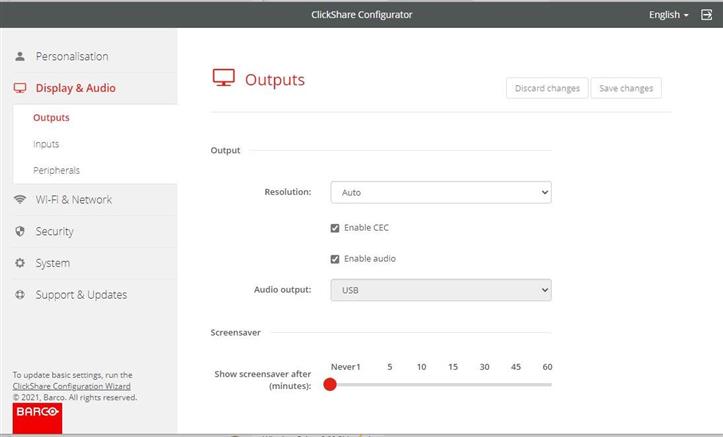
Sound jacks and HDMI™ audio on the Base Unit are un-usable (to eliminate any chance of acoustic echo). They are greyed out on the configuration interface as soon as the USB is displayed.
-
-
Speakerphone devices with echo-cancellation built-in are required. Since the Base Unit will not process the sound to cancel echo, devices with built-in echo-cancellation are required to offer a good experience to the end-user of the system.
-
Only one camera and one speakerphone can be attached to the Base Unit at this moment. Behaviour, when multiple such devices are attached to the Base Unit, is not defined. Please note that all-in-one cameras and a separate speakerphone are not supported today.
-
USB peripherals only: cameras connected via the HDMI™ input and speakerphones connected via the jack are not supported. All devices require a USB connection to be used for Conferencing.
-
Only peripherals with USB 2.0 power can be powered directly by the Base Unit. In case the peripheral requires to draw more power, either connect it to the USB-C connector (if this is indicated in the list to work) or use a powered USB hub in between. See KB4662 for more information on USB connections.
-
Cameras with USB 2.0 data rates are required on ClickShare Conference Gen1 models. Since the CX-20, CX-30, and CX-50 operate with USB-2.0 ports, the camera needs to support USB 2.0 data rates.
-
Make sure to keep your peripherals up to date. We strongly recommend keeping both peripherals and ClickShare Base Units up to date. Compatibility and support are only given to either specific versions (if marked in the notes as only working with a specific firmware version) or the latest firmware version for a peripheral.
-
Only features running directly on the conference peripheral are supported. Peripheral features managed by dedicated software running on the connected device (e.g. Logitech RightSight) are not supported.
-
It is advised to use the ClickShare Units in ECO-standby only for best interaction with the Peripherals to avoid USB detections issues when peripherals boot to slow from Standby.
Subscribe to Barco email alerts
By subscribing to ClickShare products, you’ll receive email notifications about new documents, firmware releases, and updates to the list of supported peripheral devices. For instructions, see KB2423.

