Sympton
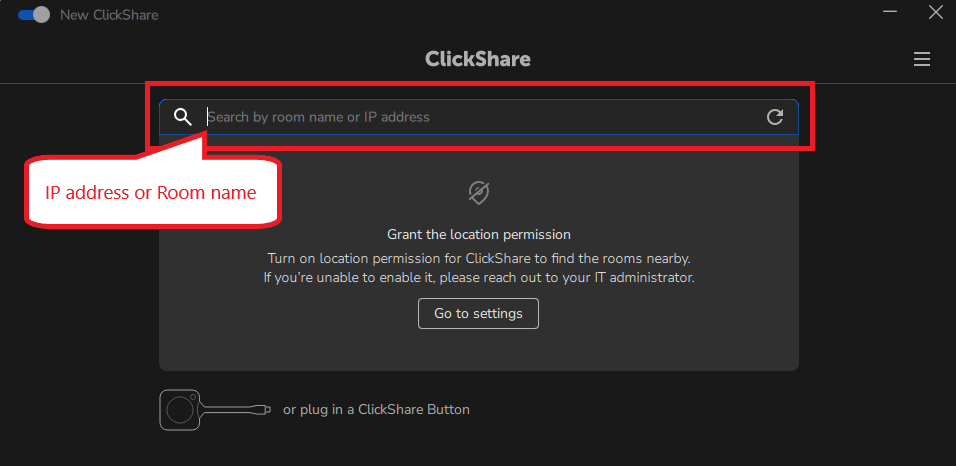
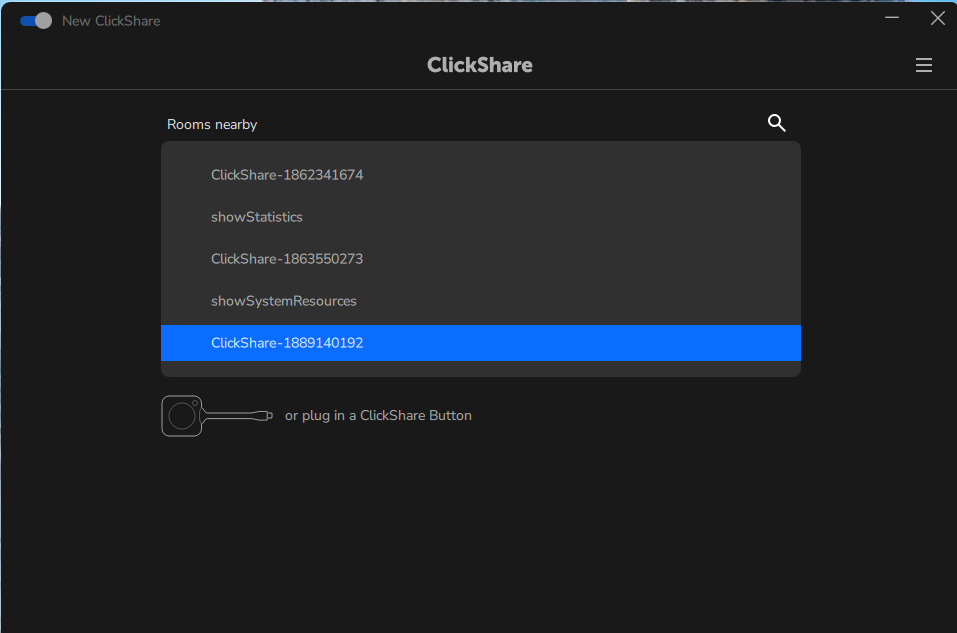
The ClickShare Desktop App performs Wi-Fi scanning for device discovery. Starting with Windows 11 version 24H2, Microsoft treats Wi-Fi scanning as a location-related activity. This means the Location Service must be enabled for the ClickShare Desktop App to populate the "Rooms nearby" list.
When you do a new installation or update to Windows 11 24H2, you may see the following popup:
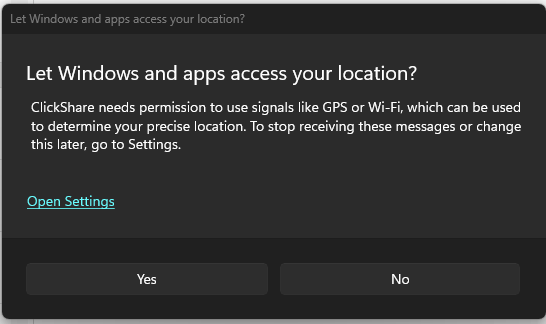
This is part of the enhanced location privacy controls introduced in Windows 11 24H2:
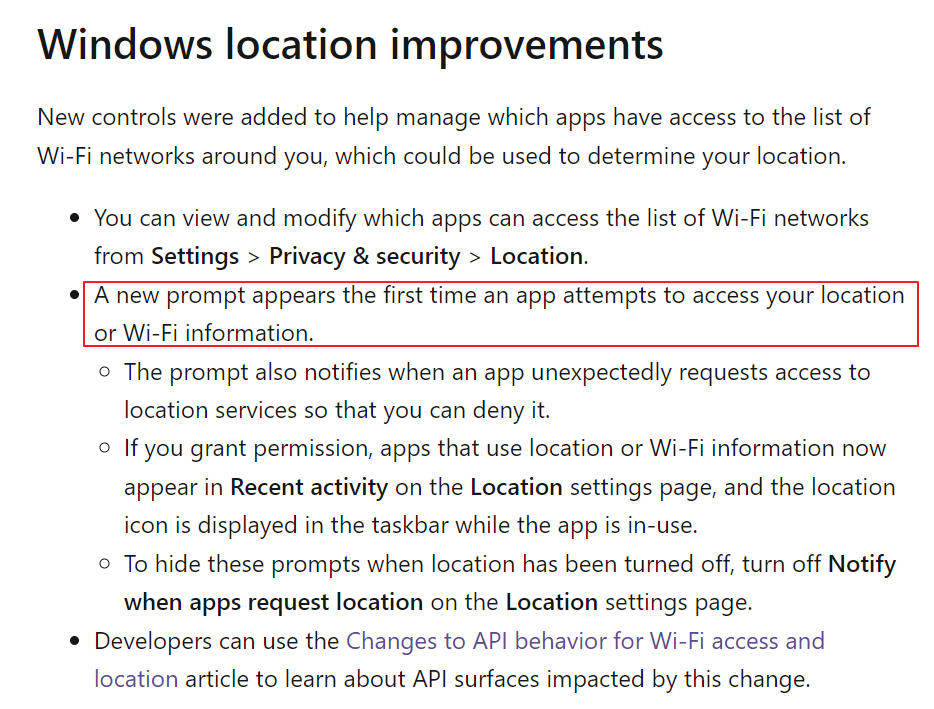
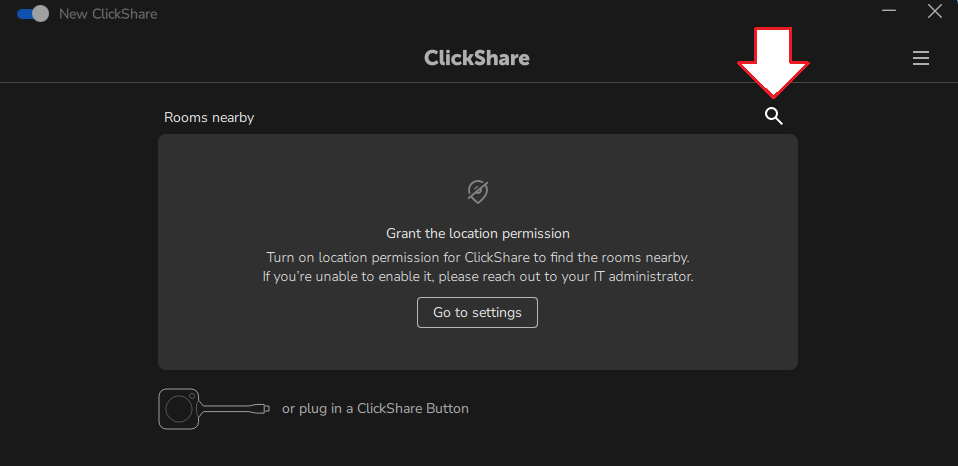
From ClickShare Desktop App version 4.41 onwards, this Windows popup has been suppressed. However, if the app still lacks access to Location Services, "Rooms nearby" will not populate correctly and a notification will appear when the app starts.
Note: You may also notice the Windows Location Service indicator appearing periodically in the taskbar while the ClickShare Desktop App is running. This is expected behavior, see KB15329 for details and workarounds.
Why ClickShare requires a global location toggle
ClickShare Desktop App is a non-packaged (Win32) application — installed via a traditional .exe or .msi installer, not through the Microsoft Store. In Windows 11 24H2, non-packaged apps do not carry individual App IDs for location permissions. They share a single global on/off permission. You cannot grant location access to ClickShare individually.
This means the only way to allow location access for ClickShare is to enable location for all non-packaged desktop apps.
For a full explanation of why per-app App ID management does not work for ClickShare, see KB15463.
Solution
Since ClickShare Desktop App is a non-packaged app, the fix is to enable location at both the system level and the non-packaged apps level.
Users with admin access
Open Settings > Privacy & security > Location and ensure:
- Location services (the master toggle) is turned On.
- Let Desktop Apps access your location (the non-packaged apps toggle) is turned On.

Users without admin access
- Contact your IT team to enable these settings remotely. IT administrators can push these via Group Policy or MDM (e.g., Microsoft Intune)
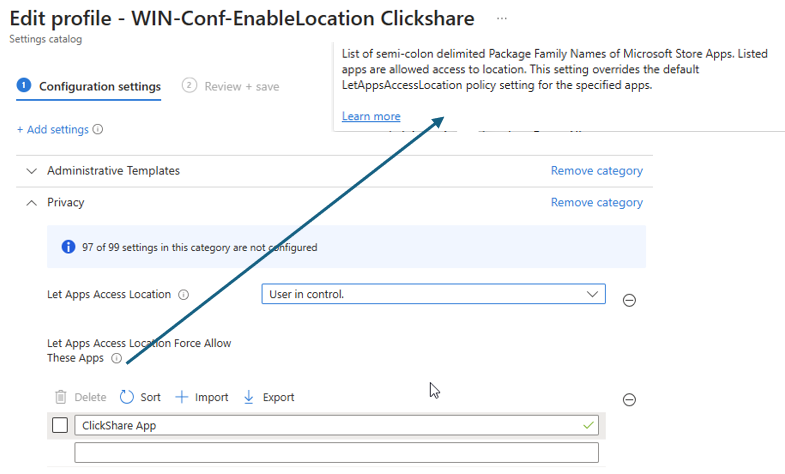
- Once both toggles are enabled, "Rooms nearby" will populate correctly again and the startup notification will no longer appear.
Manual connection (workaround if Location Services remain disabled)
If your organization's policy does not allow enabling Location Services, you can still connect to a ClickShare device manually:
- Click on the magnifier icon to open the text bar.
- Manually enter the IP address or Room (or SSID) name.