
Overview
On macOS Catalina (10.15) and later — including Ventura, Sonoma, and newer versions — the ClickShare Desktop App requires explicit system permissions to enable screen sharing and touchback functionality.
Without these permissions, content sharing may fail or show a black screen.
Required permission
To use the ClickShare Desktop App correctly, enable:
- Screen Recording (also labeled Screen & System Audio Recording in newer macOS versions) → Required for sharing your screen
- Accessibility → Required for touchback features
How to enable permissions (macOS Ventura, Sonoma, and later)
- Open System Settings.
- Go to Privacy & Security.
- Scroll to and select:
- Screen & System Audio Recording (or “Screen Recording”)
- Enable ClickShare
- Then go to:
- Accessibility
- Enable ClickShare
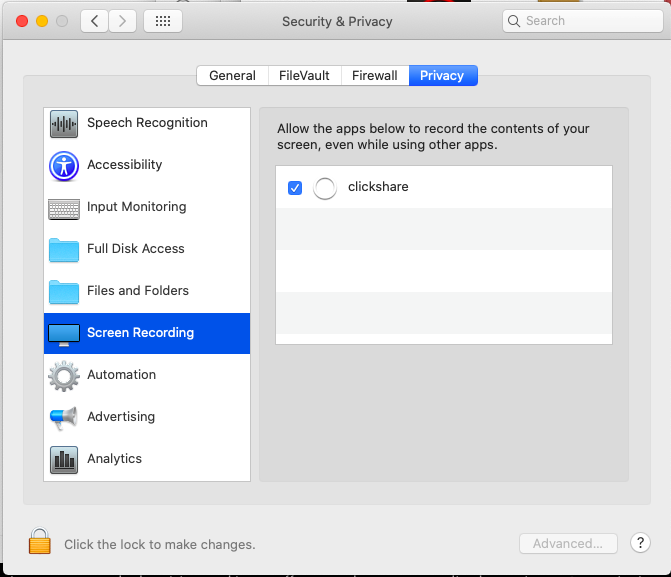
Enabling permissions on (macOS Catalina -Monterey)
How-to: click to open and view
- Open your System Preferences and go to Security & Pri
- vacy.
- Select the tab Privacy.
- In the left-hand menu, select Screen Recording or Screen & System Audio Recording.
- Enable the checkbox next to ClickShare (required for screen sharing).
- In the left-hand menu, select Accessibility.
- Enable the checkbox next to ClickShare (required for Touchback).

Troubleshooting
If screen sharing does not work (or activate immediately), toggle the ClickShare checkbox Off and back On again under Screen Recording / Accessibility to refresh macOS permissions and then ensure ClickShare must appears in both lists.
If issues persist after enabling the required permissions, refer to KB7993 for additional troubleshooting guidance.

