Availability
- Operating system: Android and iOS
- Base Unit: C-5, C-10, CX-20, CX-30, CX-50, C-5 Gen2, C-10 Gen2, CX-20 Gen2, CX-30 Gen2, CX-M, CX-50 Gen2, CB Core and CB Pro
- Room feature: N/A

Screenshots allow any connected mobile device to capture the room display content. These captures are always saved within the Mobile App and can be exported or deleted with the review window or on the home screen notices. For more information, see “Home screen notices”.
The user device must be connected to the ClickShare. For more information, see “Mobile App connection”.
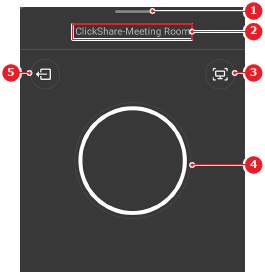
Tap the screenshot menu (reference 3).

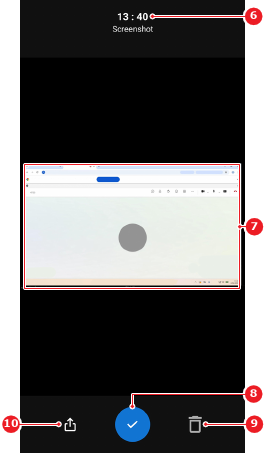
A review window is shown.
Decide what must be done with the screenshot from the review window.
The screenshot is added as a notice on the home screen. For more information, see “Home screen notices”.