6.2 Conference view

Conferencing app
A conferencing application sends audio, video and content over the internet to and from the participants. Joining a meeting through a conferencing app is seen as being a remote participant.
Availability
About conference view

Conference view combines the content sharing from the connected device with showing the cameras of the remote participants. This combination is shown on the meeting room displays. When the connected device shares content, then different layouts of content and participants can be chosen depending on the user preference.

Dual screen conference view

Conference view on dual screen setups always shows content shared by the device on the primary display and the cameras of the remote participants on the second display. This layout cannot be modified. If the connected device is not sharing, then the conferencing app is shown on both displays.

Prerequisites

The device that wants to share and at least one remote participant with the camera functionality enabled must have joined through a conferencing app. For more information, see the documentation of the conferencing app.

How to use
  1. Is the connection with the ClickShare system already made?

    • If yes, go to step 3.
    • If no, go to next step.
  2. Connect to ClickShare using one of the following methods:

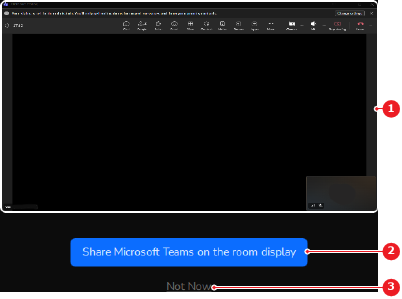
    The conference view pop-up is shown.

  3. Is a conference view pop-up shown?

    • If yes and the sharing must happen now, click the share button (reference 2) to start conference view. Go to step 5.
    • If yes and the sharing must happen later, click Not Now (reference 3). Go to next step.
    • If no, go to next step.
    Image 6–5 Example of the conference view pop-up using the Microsoft Teams conference app
    1
    Conferencing app preview
    2
    Share button
    3
    Skip conference view button

    The meeting room displays show the conferencing app.

  4. Click Share to start the conference view pop-up in the Desktop App or Button App (reference 2). Go to previous step.

    Image 6–6 Example of conference view using the Microsoft Teams conference app
    1
    Conferencing app preview
    2
    Share button
    4
    Connected meeting room name

    The conference view pop-up is shown.

  5. Must the connected device share content?

    • If yes, share the desired content using the conferencing app. For more information, see the documentation of the conferencing app. Go to next step.
    • If no, no further actions required.
    Tip: The content being shared on the meeting room display is synced to the content being shared in the conferencing app. When a different screen or window is shared, no actions are needed in the Desktop App or Button App.
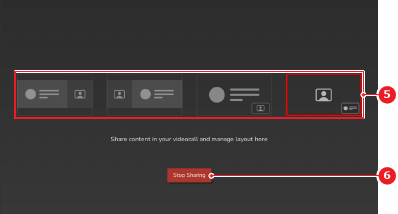
  6. Click on the desired layout in the Desktop App or Button App (reference 5).

    Note: The layout cannot be changed when two displays are connected to the ClickShare.
    Tip: The Desktop App or Button App is minimized when conference view is started.
    Image 6–7
    5
    Layout options
    6
    Stop conference view

    The layout is changed on the meeting room display.