11.1 Button logging

Autorun
Autorun starts a program automatically when it is connected to a device. Some security measures prevent applications from starting without user interaction. If these measures are active, autorun will not work and the program must be started manually.
About logs

Logs provide additional context and information about the ClickShare system at the point of failure. This can be used by the service team to diagnose potential problems with the ClickShare or the configuration. It is recommended to share logs whenever a service ticket is created.

Prerequisites

The Button must be disconnected and the Desktop App must be closed before the logging mode can be activated. For more information, see:

How to enable
  1. Is autorun allowed?

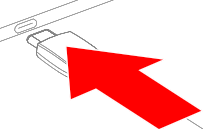
    • If yes, connect the Button as illustrated while depressing the ‘shift’ key. Go to step 3.
    • If no, connect the Button as illustrated. Go to next step.
    Image 11–1
  2. Open the .exe file (Windows) or the .pkg file (MacOS) on the ClickShare drive. while depressing the ‘shift’ key using one of the following methods.
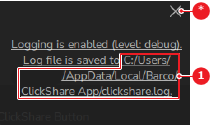
  3. Copy or save the folder location (reference 1) from the pop-up.

    Image 11–2
    1
    Logs folder path
    *
    Close button
  4. Recreate the issue, bug or problem.
  5. Create a .zip file of all files in the folder location (reference 1, Image 11–2).

    Tip: By default, the folder location is located at %localappdata%/Barco/ClickShare App (Windows) or ~/Library/Application Support/Barco/ClickShare Launcher/ (MacOS).
  6. Create a support ticket on the Barco support page (https://www.barco.com/en/support) with the zipped folder attached.