Availability
- Operating system: Windows, MacOS and Linux[3]
- Room system: Microsoft Teams Rooms
- Base Unit: Hub Core and Hub Pro
Room feature:
- Certified room hardware
- 5th gen Button

Room feature:
Room system configurations require the meeting room account to join the meeting in the conferencing app. Meetings without inviting the room account or that use an incompatible conferencing app are limited. In this situation, ClickShare temporarily switches the configuration to remove these limits. After the meeting, ClickShare automatically switches the configuration back to the room system.

The user device must be connected to the ClickShare using a Button before joining the meeting. For more information, see “Button connection”.
Select the ClickShare room peripherals as camera, microphone and speaker. For more information, see the documentation of the conferencing app.
The Control Panel switches to conference mode.
Use the room peripherals during the meeting:
 (reference 2) to mute or unmute the microphone.
 (reference 3) to increase the volume, the
  (reference 6) to decrease the volume and
  (reference 4) to mute or unmute the speakers.
 (reference 7) to show or hide the room camera feed in the meeting.
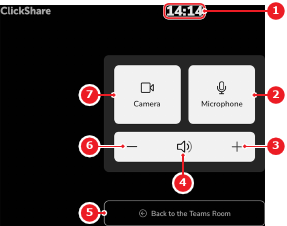
Return to the room system configuration using one of the following methods:
The Control Panel switches to room system mode.
[3] Only when using a 5th gen Button