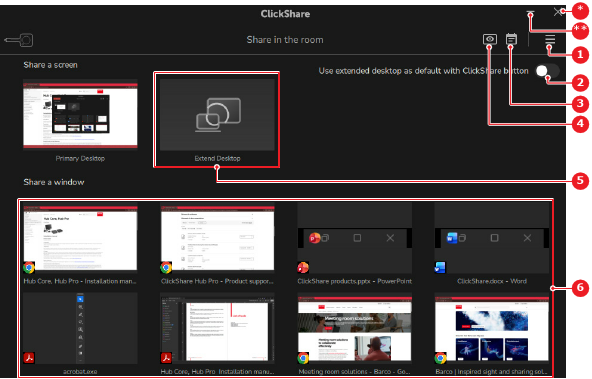
5.1.3 Extending the desktop

Availability
About extending the desktop

Extending the desktop simulates a new screen being connected to the device. This means that the operating system of the device will create an additional desktop for each room display.

Prerequisites

The device must be connected to the ClickShare system. For more information, see:

How to extend
  1. Is the Button used to connect to the ClickShare?

    • If yes, enable the toggle button after Use extended desktop as default with ClickShare Button (reference 2) and press the share button. Go to step 3.
    • If no, go to next step.
    Note: For more information on the location of the share button, see “The ClickShare Button”.
    Tip: If the Button is not being used, then the Button icon is replaced by a Disconnect button and the Use extended desktop as default with ClickShare Button toggle (reference 2) is hidden.
    Image 5–3 Example of the Button App on Windows
    1
    Options menu
    2
    Default Button behavior toggle
    3
    Calendar integration menu
    4
    View meeting room display button
    5
    Extend desktop option
    6
    Window share options
    *
    Close button
    **
    Minimize window button
  2. Click on Extend Desktop (reference 5, Image 5–3).

    Each display is added as a new screen to the computer.

  3. Drag the desired application or window to the extended screen.