5.6.7 Wired video input connection

About wired video input

Wired video input allows a device to connect to the display with a wired connection through ClickShare. All peripherals connected to the ClickShare are unavailable while using wired video input. Meaning, only the local sharing to the connected displays as an extended screen is supported.

Wired charging

A connected device can be charged over the wired connection through the following options:

Note: Charging is not possible over an ‘HDMI’ connection.
DisplayPort Alt Mode
DisplayPort alternate mode allows compatible USB-C ports to function as DisplayPort ports. These ports can send DisplayPort signals alongside any other data or power that is normally supported by standard USB ports.
How to connect
  1. Which connection method is used?

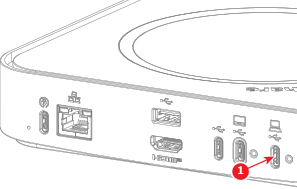
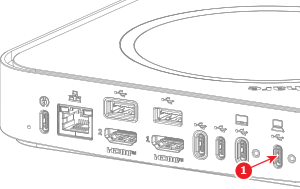
    • In case of ‘HDMI’, connect the USB-C input convertor to the ‘USB-C’ port (reference 1) of the Base Unit. Go to step 4.
    • In case of a direct ‘USB-C’ connection over DisplayPort Alt Mode, connect a ‘USB-C’ cable to the ‘USB-C’ port (reference 1) of the Base Unit. Go to step 5.
    • In case of USB-C Extension over CAT kit, go to next step.
    Tip: Secure the ‘USB-C’ cable to the‘ USB-C’ port with the USB-C cable locker. For more information, see “Securing USB-C cables to the Base Unit”.

    For Hub Core:

    Image 5–81

    For Hub Pro:

    Image 5–82
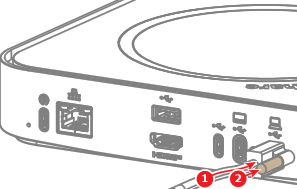
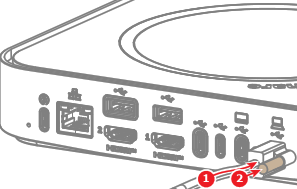
  2. Connect the ‘USB-C’ cable to the ‘USB-C’ port (reference 1) of the Base Unit and tighten the screw lock (reference 2). Use the ‘USB-C’ cable with a screw lock on both connectors.

    For Hub Core:

    Image 5–83

    For Hub Pro:

    Image 5–84
  3. Is the USB-C Extension over CAT kit already installed?

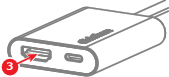
  4. Connect an ‘HDMI’ cable to the ‘HDMI’ port (reference 3) of the USB-C input convertor.

    Image 5–85
  5. Position the other end of the cable in an easy accessible location in the meeting room.