
By default, QAWeb Enterprise locks access to the OSD (On-Screen-Display) Menu of the Barco Diagnostic Imaging Monitor.
However, in some cases, access to the OSD menu of the monitor might be necessary:
- Verifying some display related information
- Performing a Factory Reset of the monitor (see KB9717)
- Verifying the Firmware Version of the monitor (see kb7755)
- Performing a USB Firmware Upgrade of the monitor (contact the Barco Customer Service)
Important: The unlocking action of OSD menu can be performed once all automated tasks in the background are completed and you see this message in the QAWeb Agent. You can also find the information on how to unlock the display menu (OSD) in the user manual of the QAWeb Enterprise Agent (see attached User Guide, page 17, or click on this online manual weblink)
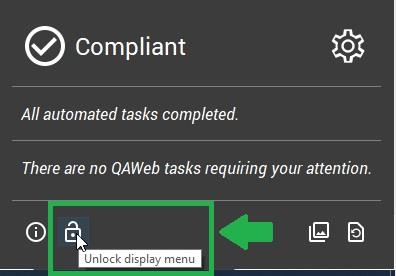
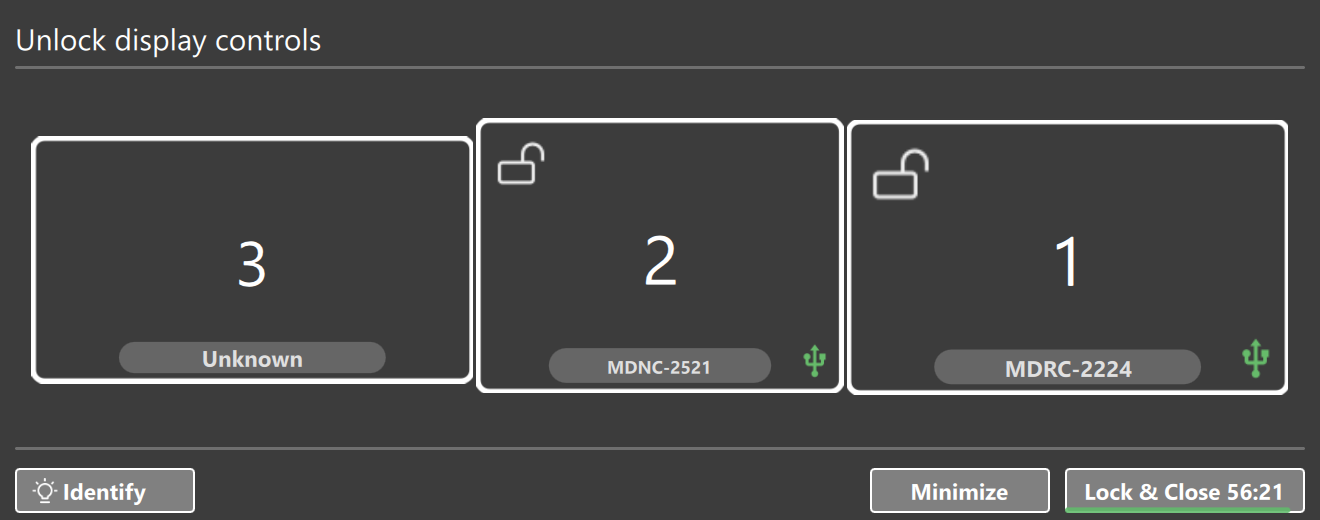
An information message appears, prompting the user to confirm before proceeding. After confirming, a pop-up shows the detected displays and an unlock icon, indicating the OSD menu is now accessible. A countdown in the bottom-right corner shows how much time remains before it automatically locks again (default: 1 hour).
Note: If the OSD Menu remains locked while QAWeb Enterprise Software has been uninstalled on the workstation, please refer to this Knowledge Base Article: https://www.barco.com/en/support/knowledge-base/2616-how-to-unlock-an-osd-menu-of-a-diagnostic-clinical-review-or-digital-pathology-display

