
Yes, Dual-screen presenter view in Microsoft PowerPoint for Windows is supported by ClickShare. You can use this feature through two different methods; both are described below:
- Method 1: applicability and requirements
- Applicable to ClickShare CX/C-series and CS(E)-series (running firmware version 1.9 or higher)
- ClickShare Desktop App is installed on your Windows PC
- ClickShare Extension Pack is installed on your Windows PC
- Method 2: applicability and requirements
- Applicable to CS(E)-series (running firmware version below 1.9)
- Can only be performed with ClickShare Button
- ClickShare Extension Pack installed on your Windows PC
Note: ClickShare also supports Presenter Mode in Microsoft PowerPoint, both on macOS and on Windows without the need to install the extension pack (how-to, see KB2386).
Method 1
- Connect to your meeting room Base Unit by plugging the ClickShare Button to laptop or using the ClickShare Desktop App.
- Enable the ClickShare as your Extended desktop (how-to, see KB2588).
- Start Presenter View and make sure that you select the correct monitor as illustrated in the image below:

- Press the (virtual) ClickShare Button to present the extended desktop with your full-screen presentation on the main display.
Method 2
- Plug-in the Button, this will automatically start the ClickShare client on the Button when the extension pack is installed.
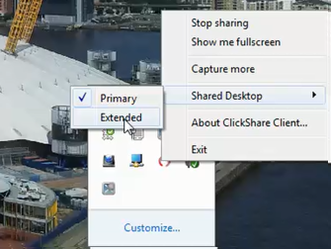
- Once running, enable ClickShare as your Extended desktop: by right clicking the ClickShare tray icon and selecting the Extended option in the Shared Desktop menu.
- Start Presenter View and make sure that you select the correct monitor as illustrated in the image below:

- Press the ClickShare Button to present the extended desktop with your full-screen presentation on the main display.

