
ClickShare ConferenceView allows you to show both meeting participants (video gallery) and shared content on your meeting room display when joining a Microsoft Teams or Zoom meeting from your laptop.
It works through the ClickShare Desktop App connected to a compatible ClickShare device:
- CX Series: CX‑20, CX‑30, CX‑50, CX‑50 Gen 2
- CB Series: Bar Core, Bar Pro
Requirements:
- ClickShare Desktop App v4.39 or higher
If using a version before v4.44, make sure the new interface is selected. The interface toggle was removed starting in v4.44.0. - Windows 10 and 11
- Latest desktop versions of Microsoft Teams and Zoom. Web versions are not supported.
Important Notes:
- Do not run Microsoft Teams and Zoom simultaneously — they may interfere by both detecting meeting room devices.
- For Zoom users, you need to stop remote sharing before entering ConferenceView.
- For Microsoft Teams users, if remote sharing is active, entering ConferenceView will share both the content and the live participants to the room display.
How to Start ConferenceView
- Connect your laptop to the ClickShare device through the ClickShare Desktop App.
- Join your Microsoft Teams or Zoom meeting.
- The ClickShare Desktop App will redirect you to enable the ConferenceView by displaying the following notification:
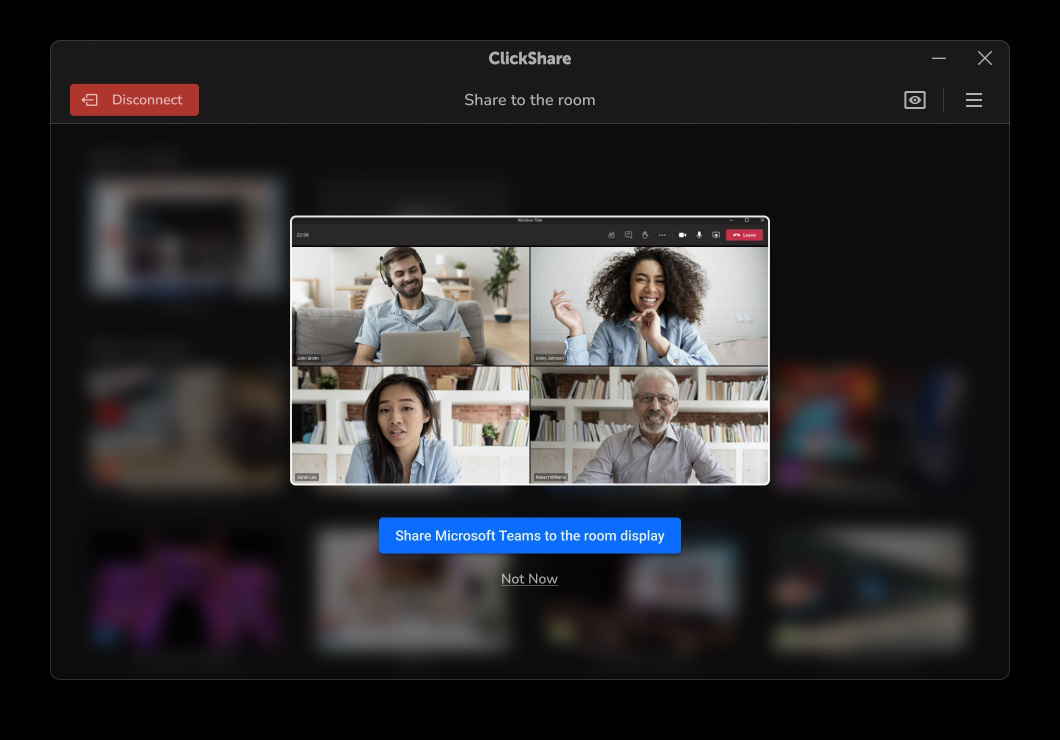
Starting ConferenceView with Microsoft Teams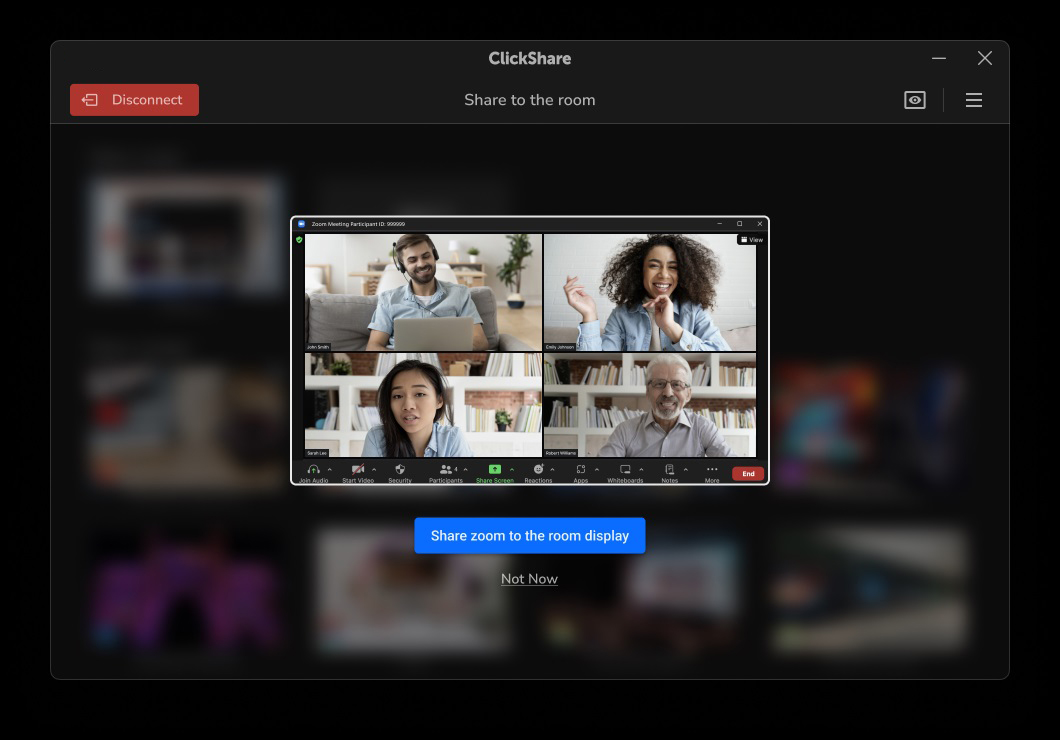
Starting ConferenceView with Zoom - Choose one of the two options:
- Share Microsoft Teams / Zoom to the room display → Starts ConferenceView
- Not Now → Skip ConferenceView and use standard ClickShare screen sharing
When “Share Microsoft Teams / Zoom to the room display” selected
When clicking this option, you are about to experience ClickShare ConferenceView.
- The ClickShare Button LED turns purple (indicating ConferenceView).
- The meeting room display shows:
- Live video participants
- Your shared content (when applicable)
- The ConferenceView layout interface appears in the ClickShare Desktop App. Layout differs depending on single vs dual displays connected to a ClickShare device. To be noted, dual displays are supported only with CX-50 Gen2 and Bar Pro.
In ClickShare Desktop App version 4.44.0 and later, the Stop Sharing button will be also appear in the layout.
Please note that no action is required from the user here.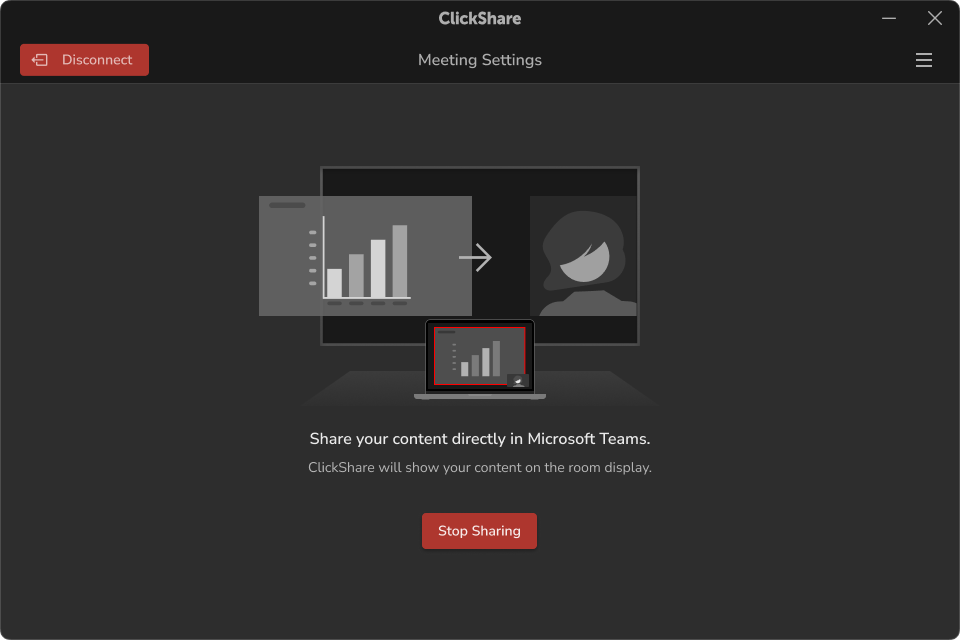
Guide to sharing content directly in Microsoft Teams (single display)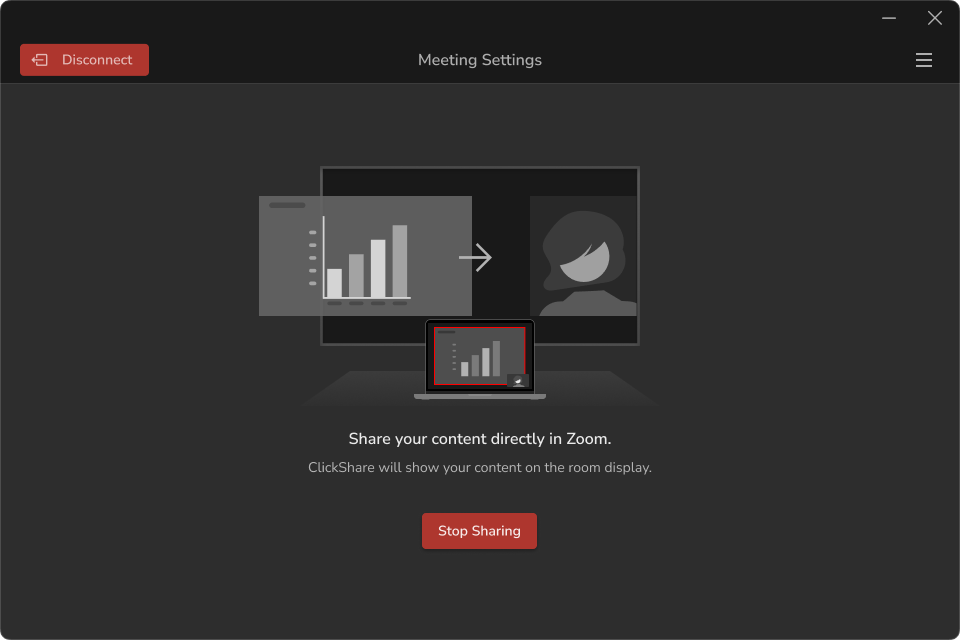
Guide to sharing content directly in Zoom (single display)
Sharing content during ConferenceView
Now you only need to interact with Microsoft Teams / Zoom app during the entire call. This feature is called Sync-sharing (Direct-sharing). Content selected to share directly in Microsoft Teams/Zoom (not in the ClickShare Desktop App) will also be directly visible on to the screen in the content/live participant split of ClickShare.
When start Sync-sharing (Direct-sharing) from Microsoft Teams / Zoom, the interface of the ClickShare Desktop App will change to layout page as follows:
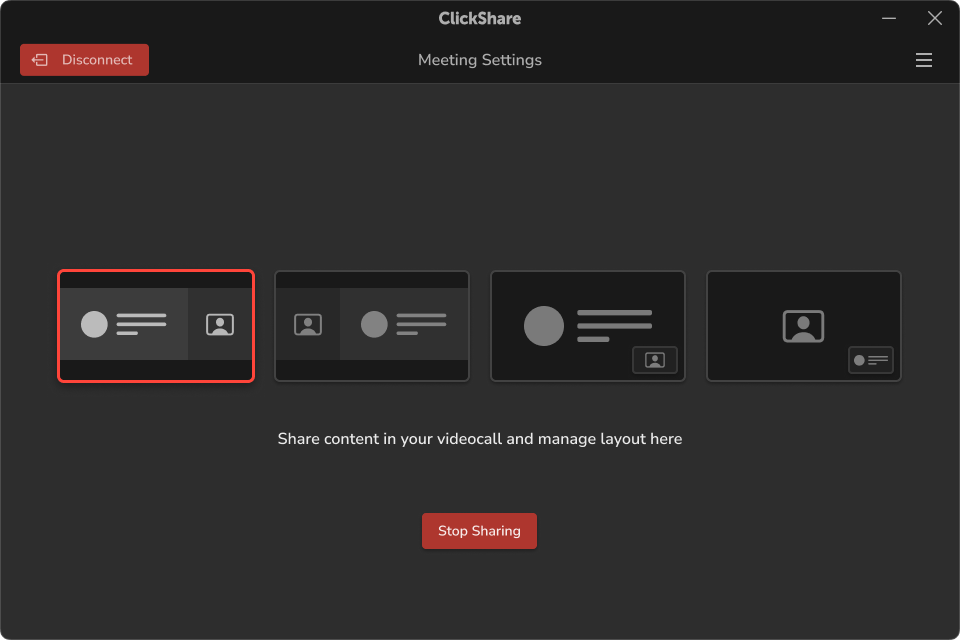
Single display participant video and content layout control
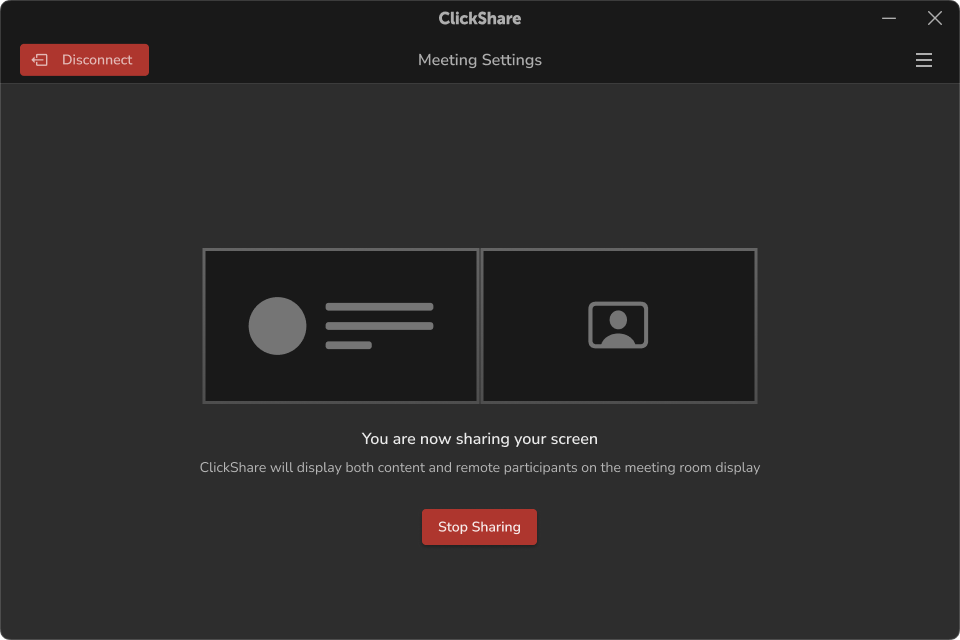
Dual displays participant video and content layout control
Sync-sharing (Direct-sharing) types, including typical “Desktop sharing” and “Window sharing,” are supported for both Microsoft Teams and Zoom. However, some advanced sharing options in Zoom, such as sharing a portion of the screen, files, AirPlay, and a second camera, are not supported in ConferenceView. Instead of relying on ConferenceView to handle these options, users can share their entire desktop via the notification prompt or use the button as alternatives to share content to the room display.
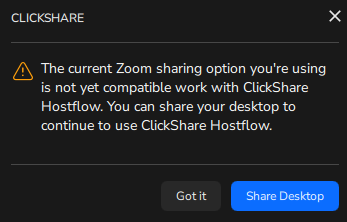
If you stop sharing in Microsoft Teams or Zoom, the content shared on the room display will also be removed and ConferenceView will return to showing only the live participant's window.
Note: During ConferenceView, it is advised not to use the ClickShare Button to share content.
How to Exit ConferenceView
- Leave the online meeting in Microsoft Teams or Zoom, or
- Click Disconnect in the ClickShare Desktop App, or
- Click Stop Sharing on the layout page of the ClickShare Desktop App (available only in version 4.44.0 and later).
When "Not Now" selected
Use this option when you do not want to use ClickShare ConferenceView feature. This will return to the standard ClickShare Desktop App sharing experience. Within the ClickShare Desktop App interface, the thumbnail list lets you select the content you want to share, or you can simply press the ClickShare Button to share your desktop to the Room Display.
For detailed information on how to share using ClickShare Desktop App and ClickShare Button, see KB2607 and KB2898 respectively.
Important considerations & known behaviors:
- Microsoft Teams or Zoom meeting room window shared without using ConferenceView (applicable to ClickShare Desktop App version prior to 4.44.0):
Sharing the Microsoft Teams or Zoom meeting room window from the ClickShare thumbnail list without using the ConferenceView can lead to a poor local and remote sharing experience. It's recommended to share your entire Desktop or use ConferenceView to facilitate your meeting.
If you select to share only the Microsoft Teams or Zoom meeting room window in the ClickShare Desktop App, it will display the live participant. However, as soon as you select content to share within Microsoft Teams or Zoom, you may encounter inconsistent and poor sharing experiences.
With Microsoft Teams, the meeting room window will minimize, the live participant on the room display will freeze and the ClickShare Desktop App will display a "Sharing is paused..." warning message.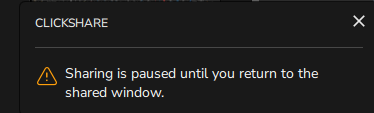
With Zoom, the meeting room window will switch to a mini window, causing the live participant on the room display to show a white screen since the previously shared content is no longer valid for sharing on the room display.
To return to the live participant, you need to stop sharing in Microsoft Teams or Zoom, then stop and restart sharing over ClickShare to resume the live feed of participants. - Content sharing limitation during ConferenceView:
During a ConferenceView call, only the user hosting the conference through ClickShare can share content into the meeting. If additional users in the same room want to share content in the active call, they must join the meeting separately as participants. ClickShare does not support sharing content from more than one in‑room participant at the same time during an active call.
- Returning to the selection popup for ConferenceView:
- ClickShare Desktop App version prior to 4.44:
- There is no way to go back to the selection popup for ConferenceView unless the user rejoins the online meeting or reconnects to the ClickShare Base Unit.
- ClickShare Desktop App version 4.44 and later: User can return to the selection popup for ConferenceView by:
- Clicking the Share button embedded within the banner that reads 'Ready to Share Microsoft Teams / Zoom...' on the ClickShare Desktop App interface

- Stop sharing Microsoft Teams / Zoom content, click on the Microsoft Teams / Zoom window thumbnail on the ClickShare Desktop App interface
- Clicking the Stop Sharing button on the layout page of the ClickShare Desktop App

- Clicking the Share button embedded within the banner that reads 'Ready to Share Microsoft Teams / Zoom...' on the ClickShare Desktop App interface
- ClickShare Desktop App version prior to 4.44:
- If the user has installed the ClickShare MSI Installer and selected the option for virtual extended desktop, it is not possible to select the virtual extended desktop when sharing a screen in Microsoft Teams or Zoom.
- If the user has a physical second monitor attached, then this can be sent as normal.
- When using ConferenceView in a Microsoft Teams or Zoom call, you cannot switch between content and people streams on dual monitors.
- If the Microsoft Teams / Zoom meeting window thumbnail does not appear in the ClickShare Desktop App interface, bring the meeting window to the foreground or enlarge it to restore the thumbnail. Note that the meeting window will be automatically minimized during sharing.
- When receiving content in a Teams or Zoom call using ConferenceView in a dual display configuration, both displays will show the same content layout. People and content only split between the displays when sending content.

