
Each Teams Room account must have a Teams Rooms Basic or Teams Rooms Pro license assigned in the Microsoft 365 Admin Center.
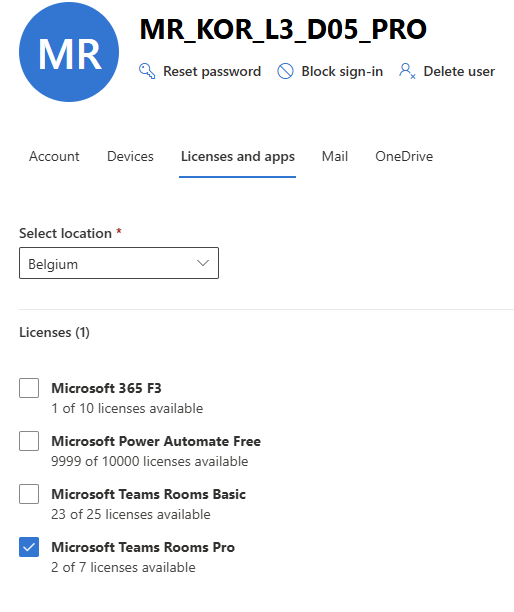
In the example below, some devices have Basic and others have Pro licenses applied.

Note: If the Room Account does not have a Teams Rooms license assigned, a warning will appear on the monitor and control panel stating that no license is assigned.
Check via Microsoft 365 Admin Center
-
Log in to Microsoft 365 Admin Center.
-
In the left navigation pane, go to Users → Active users.
-
Search for the account (e.g., the resource account for the Teams Room).
-
Click the username to open account details.
-
Under Licenses and Apps, verify if Microsoft Teams Rooms Basic or Microsoft Teams Rooms Pro is listed and toggled ON.
Check via Control Panel
-
Navigate to More → Settings → About.
-
The license type will be displayed as either Teams Rooms Basic or Teams Rooms Pro.
For more detailed information, refer to the official Microsoft documentation:
https://learn.microsoft.com/en-us/microsoftteams/rooms/rooms-licensing for Microsoft Teams Rooms licenses overview
https://learn.microsoft.com/en-us/microsoftteams/hybrid-meetings-device-config-assign for assigning a meeting room license
https://learn.microsoft.com/en-us/microsoftteams/rooms/resource-accounts for resource accounts and license status

