
For best content sharing experience, we advise to use the "ClickShare Room Camera/Speakerphone" in your Zoom Audio and Video settings.
You can configure this when you're starting or joining a new Zoom conference meeting (Method1) or while you already are in a Zoom conference meeting (Method2).
Info!
Make sure that you are connected to the ClickShare device using either a ClickShare Button or the ClickShare Desktop App.
Method1: you're starting or joining a new Zoom conference meeting
-
Join your Zoom meeting from an invitation or start a new meeting. A pop-up window appears to test or change your computer audio settings or to immediately join the session with the current computer audio.

Tick Automatically join audio by computer when joining (see 1 in the image above) to skip this pop-up in the future.
-
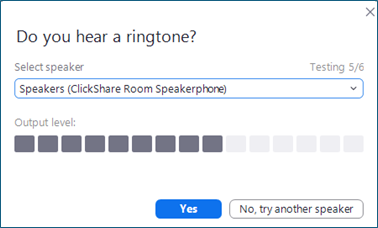
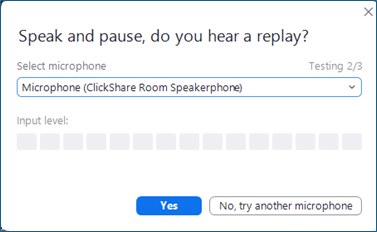
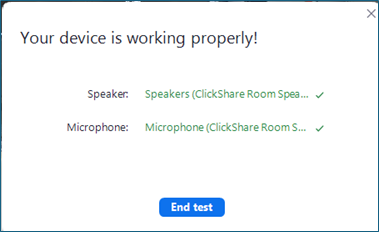
Select Test speaker and microphone (see 2 in the image above) and set the drop-down entries to ClickShare Room Speakerphone.
Avoid using the System Setting for ClickShare Room Speakerphone, as it might need to be changed at the system level for other applications.
-
Adjust the speaker and microphone settings if necessary and end the test when done.
-
Now join the Zoom meeting.
Method2: you're already in the Zoom conference meeting
-
Start and join your Zoom meeting.
-
Hover your mouse over the bottom part of the video window to brings up the control bar.

-
Select the drop-up button of the video section to show the dialog where the required video device can be selected.

Select Video settings… to change camera or camera settings.


-
Select the drop-up button in the audio section to open the dialog for selecting audio speaker and microphone peripherals.

Click the Audio settings… button to open the Zoom settings dialog, where you can choose audio peripherals, test device compatibility with Zoom, and adjust settings for audio quality and user interface.


