
This article provides troubleshooting tips for when your device is not detecting and/or connecting to the SSID (Wi-Fi name) of your ClickShare device.
Contact Clickshare Administrator
If you're an end user and encounter difficulty performing specific troubleshooting tips provided here, please contact your ClickShare Administrator with details of the issue, including reference to KB5454, for the necessary assistance.
ClickShare SSID is not showing
Check the following locations where the ClickShare Base Unit SSID (Wi‑Fi name) is typically visible:
- On the ClickShare wallpaper (on meeting-room screen)
- In your device’s Wi‑Fi network list
- On the Wi‑Fi settings page of the ClickShare Configurator
- For a complete overview, see KB9670.
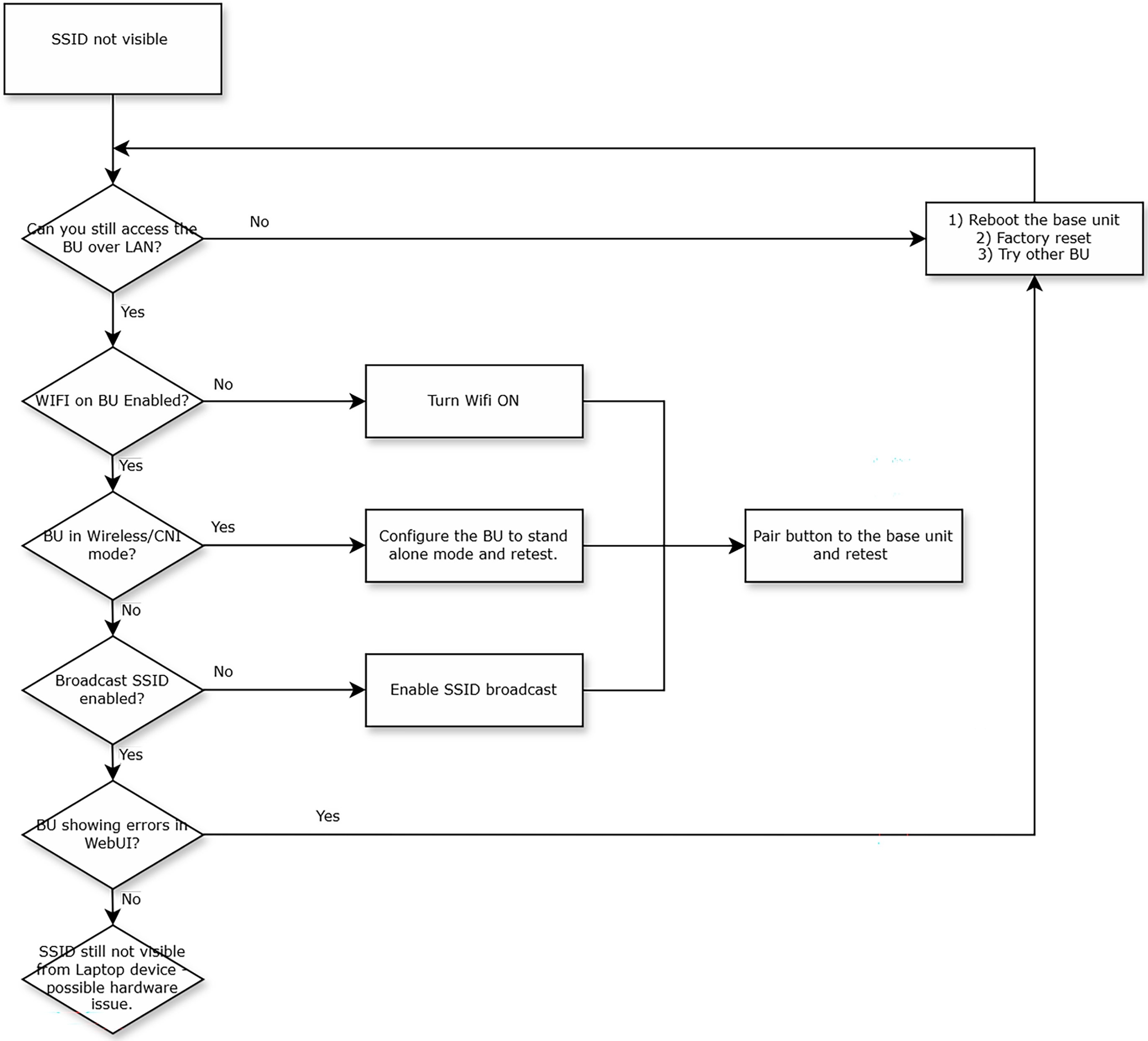
If the SSID does not visible in any of these locations, proceed with the flowchart or the troubleshooting steps below:
Flowchart:
Troubleshooting steps:
-
Check Wi-Fi on your device:
Ensure the Wi‑Fi on your laptop or mobile device is switched ON. If it is OFF, enable it and try again. -
Verify the ClickShare device status:
Ensure that the ClickShare Base Unit is powered on and operating without errors. The ClickShare LED status is either static white or static red). For full details on LED statuses and their meaning, see KB9320. -
Check wireless settings on your devices:
Ensure the Wi-Fi settings on your device are configured to the same frequency band and channel as those selected in the ClickShare Configurator of your Base Unit. The standard setting is 5 GHz and Channel 36.
For iOS mobile devices, please adhere to the following specific guidelines:
-
Only iPhone 5 and upwards support 5GHz Wi-Fi channels.
-
Only iPad2 and upwards support 5GHz Wi-Fi.
-
Set the frequency in the Base Unit to 2.4 GHz for connecting with the older device.
-
-
Test LAN access to the Base Unit:
On your laptop, check if the ClickShare Base Unit can be accessed over LAN connection. If not, make sure that the option Broadcast SSID is not set to hidden in the ClickShare Configurator.
-
Verify ClickShare Configurator settings:
Connect to the ClickShare Configurator of your ClickShare device (how-to, see KB2324), and check for the following and take appropriate actions as needed:-
Option Show network info is enabled in the ClickShare Configurator. If disabled, go to Personalisation > On-Screen ID > Show network info and enable it.
-
ClickShare Wi-Fi setting is enabled in the ClickShare Configurator. If disabled, go to Wi-Fi & Network > Wi-Fi Settings and enable the Wi-Fi.
-
Option Broadcast SSID is enabled in the ClickShare Configurator. If disabled, go to Wi-Fi & Network > Wi-Fi Settings and enable it.
-
Check with your ClickShare admin that the Base Unit has NOT been set into Wireless Client of Network Integration mode.
-
ClickShare SSID is not connecting
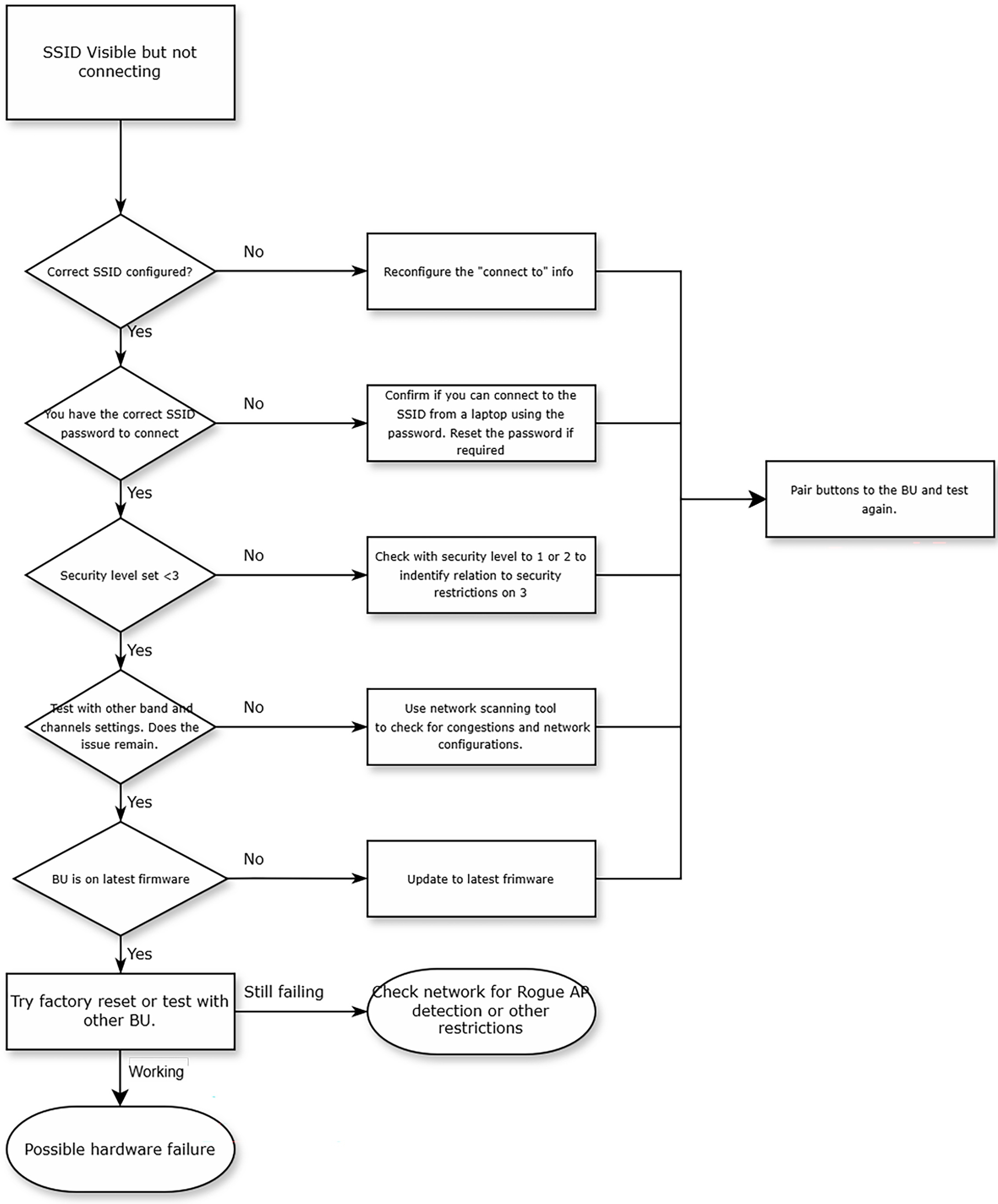
If you are experiencing issues connecting to the SSID of your ClickShare device, follow the flowchart or the troubleshooting steps below.
Caution!
If the ClickShare Wi-Fi (i.e. wireless interface) setting is turned off in the ClickShare Configurator of the Base Unit, you won't be able to connect to the ClickShare SSID.
Flowchart:
Troubleshooting steps:
-
ClickShare SSID is not visible on your device, click here for the solution.
-
ClickShare SSID is visible:
-
Incorrect SSID selected: Make sure that the correct SSID is selected (default SSID is ClickShare-<serial base number>) from the Wi-Fi network list on your device (laptop or mobile devices).
-
Security level set to level 3: In the ClickShare Configurator, go to Security > Security Level and change the security settings to level 1 or level 2, see KB5930 for details.
-
Incorrect password: Make sure that the correct password is entered when connecting to the Base Unit Wi-Fi. The default Wi-Fi password is "clickshare".
Note: Check with your "ClickShare administrator" for the correct password or to reset the Base Unit SSID password, for details see KB4292.
-
When using an AirPlay, Google Cast or Miracast connection, the Mobile Device settings are by default disabled and it will not appear in the list of available devices. In the ClickShare Configurator, go to Wi-Fi & Networks > Services > Mobile Devices and ensure that the required mobile services are enabled.
-
-
ClickShare Wi-Fi has a weak signal strength:
-
Wireless congestion: Use wireless network scan tools to look for free or the least congested channels. Select a new channel or change the used band in the ClickShare Configurator and connected device to see if it improves, see KB4370 for details.
-
Check Base Unit placement.
-
Move the Base Unit closer to the meeting room participants.
-
Move the Base Unit away from obstructions. For example mounted close to other Wi-Fi hardware at the back of a screen or any shielding that reduces the broadcasting.
-
Wrong antenna orientation if still applicable like with CSE devices, in this case reorient the Base Unit antennas.
-
-
-
ClickShare Wi-Fi has been detected but is unable to connect:
-
Android device: Most Android smartphone supports a smart Wi-Fi switcher. This enables the Wi-Fi connection when a network with internet access is detected and switches to a data connection (3G/4G/5G) when there is no Wi-Fi or weak Wi-Fi.
In case the message Error, host unknown is shown, follow the steps below:
-
Close the ClickShare Mobile App, go to the Wi-Fi settings and select the ClickShare SSID of your Base Unit (or swipe down from the top on the home screen and long-press the Wi-Fi icon).
-
If you have been connected before, select 'forget network'.
Otherwise, connect and enter the default password clickshare.
-
Pay attention to your notification center.
You will receive a 'Wi-Fi has no Internet access. Touch for options' notification.
Touch the notification and set 'stay connected' to "YES".
-
In the ClickShare Mobile App, the Base Unit should now be detected.
-
-
iOS device: Apple has an internal process to determine the preferred network to send data over. The iOS device will discover the Base Unit when connected directly to the Base Unit's internal Wi-Fi. However, the iOS device may switch to the cellular data plan if it determines that the cellular network is the preferred network for data activity. This results in a "no connection" state. No screen sharing is possible. The IP of the cellular network will not connect with the IP of the Base Unit.
To stop the cellular network from being the most preferred for Clickshare, go to iOS settings, then cellular (wait for the screen to load) --> disable ClickShare from using the cellular data network. For detailed information on how to, see here.
Note: This issue has low occurrence when the Base Unit is network-integrated as the iOS Wi-Fi has connected to the corporate network (assuming IP routing is set up to enable this), iOS usually selects the corporate Wi-Fi AP as the preferred network.
-
Additional troubleshooting steps
If the issue persists after completing the troubleshooting steps above, consider performing a factory reset of your ClickShare device. This can help resolve issues caused by conflicting or incorrect configuration settings.
- For C-series, CX-series, and Bar Core/Hub, see KB2327
- For CS(E)-series, see KB2937
Additionally, please make sure to update your ClickShare device with its latest firmware version, as the issue you are currently experiencing may have been resolved in the recent firmware. For how-to instructions, see KB5923.

