
ClickShare Buttons can be paired with a ClickShare Base Unit by connecting them directly to one of the Base Unit's USB ports. The pairing process consists of three simple steps.
Prerequisites
- Physical access to the Base Unit is necessary for pairing.
- Ensure the Base Unit is powered ON before pairing the Button.
Note: Looking for the information on Button LED behavior, see KB4022.
How to steps
-
Insert the ClickShare Button into a USB port on your Base Unit:
Bar Core & Bar Pro: USB-C port on the right-side of the Base Unit (click to open and view)
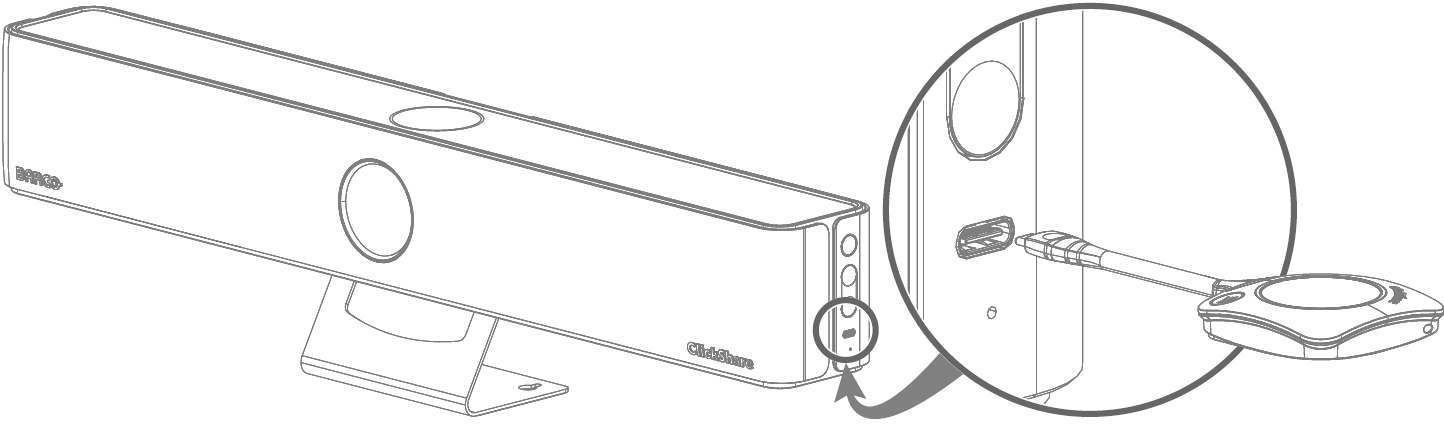
Bar Core/Pro right-side USB-C portCX-20/30 (Gen1 & Gen2) and C-5/10 (Gen1 & Gen2): USB-C port on the front-side of the Base Unit (click to open and view)
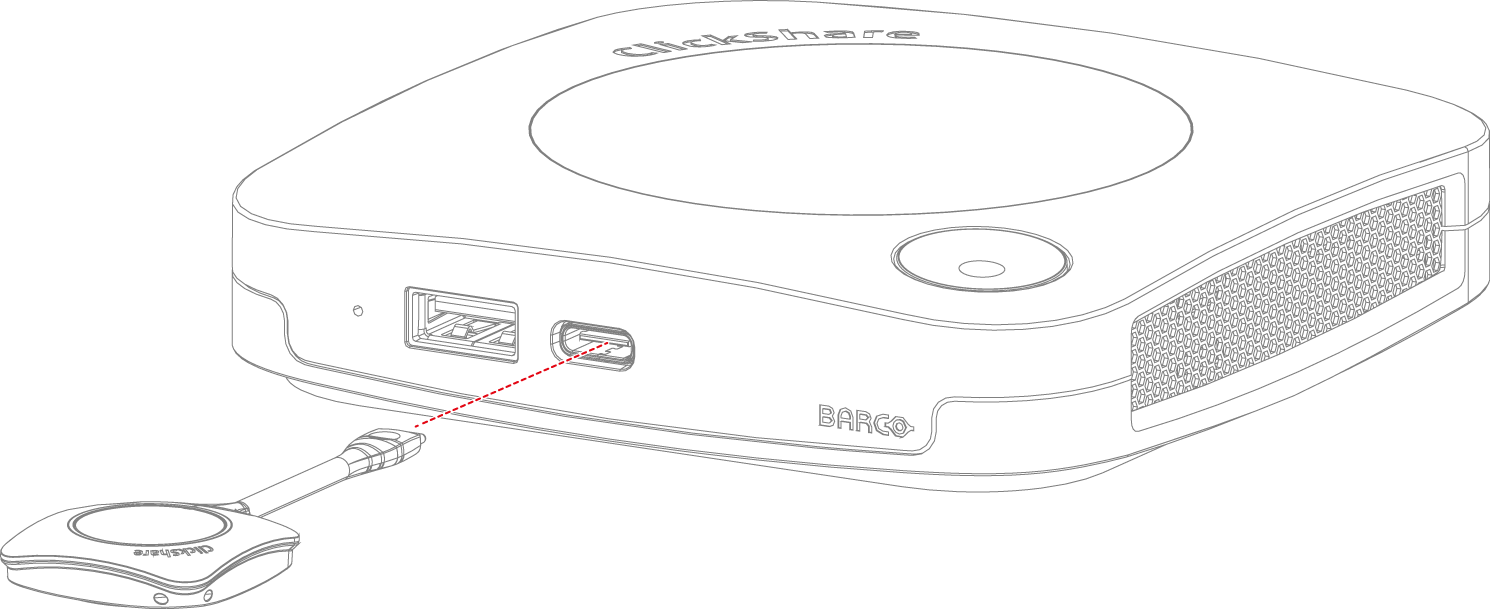
C-5/10 and CX-20/30 front USB portCX-50 (Gen1 & Gen2): CX-50 Gen1 has a USB-C port on the rear-side, while the CX-50 Gen2 has two USB-C ports on the front and rear sides (click to open and view)
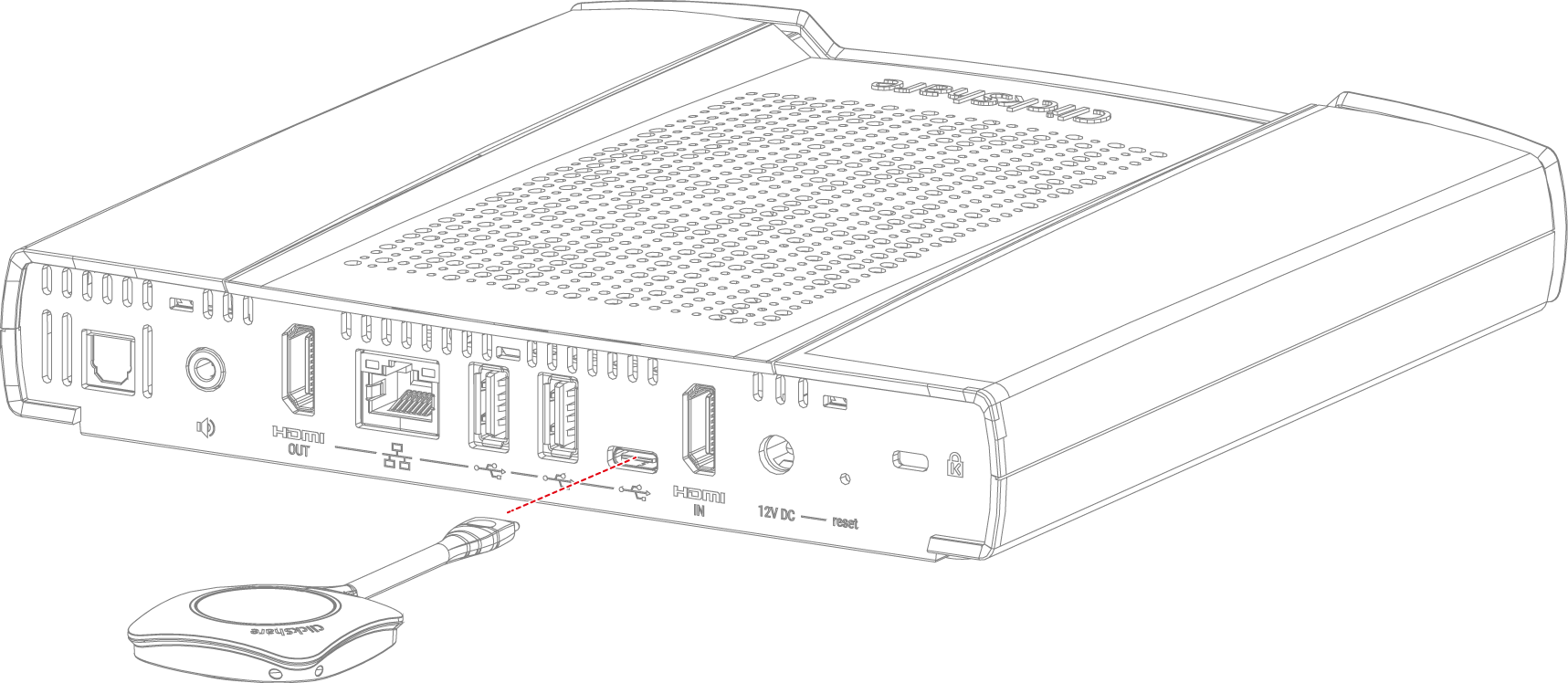
CX-50 Gen1 rear USB port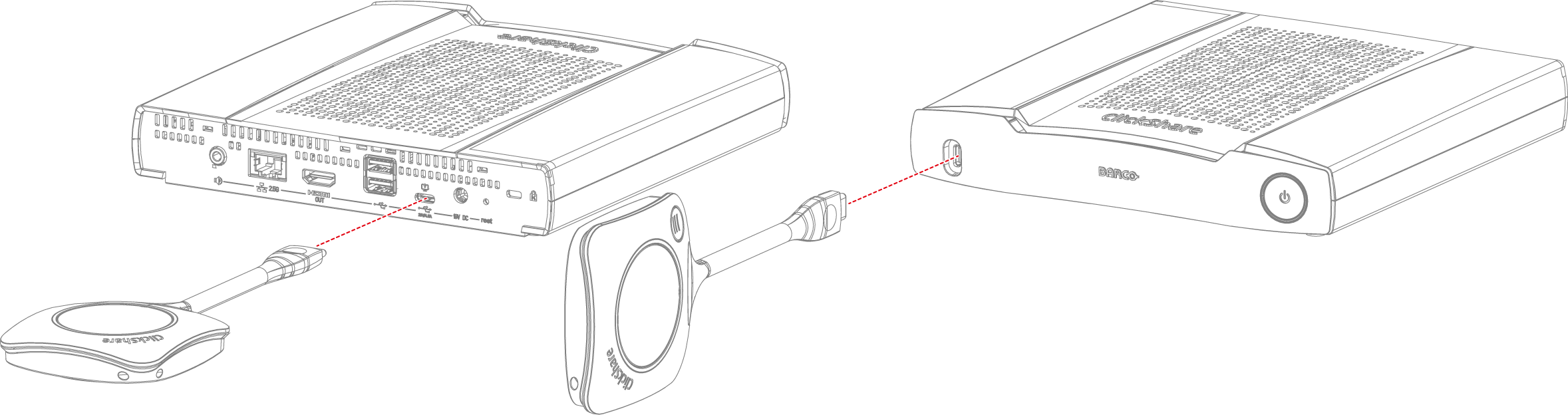
CX-50 Gen2 USB-C ports (front and rear)CS-100(Huddle), CSE-200(+) & CSE-800: any USB ports available on the Base Unit (e.g.: Button connected to the front-side USB port) (click to open and view)
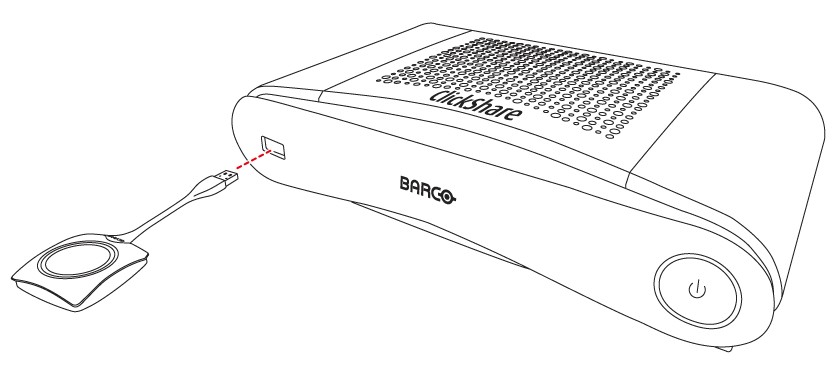
CS-100 (Huddle) front USB port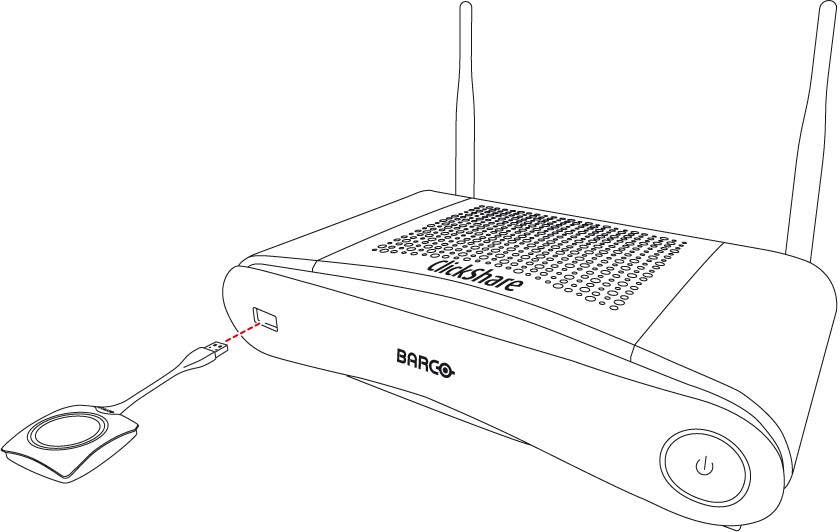
CSE-200 front USB port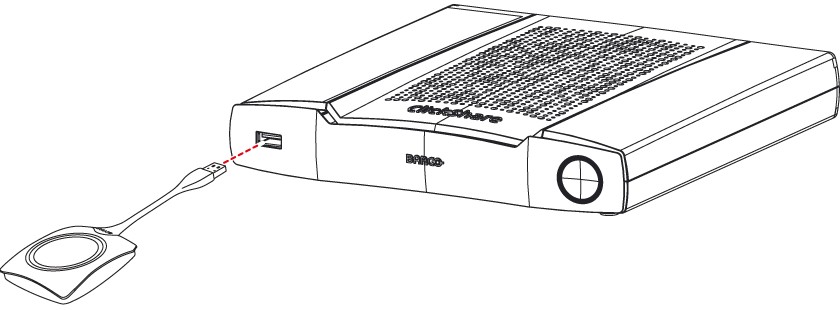
CSE-200+ front USB port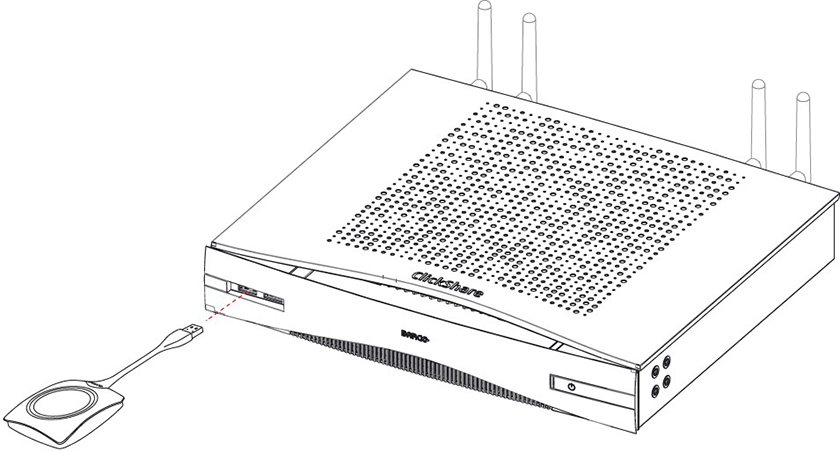
CSE-800 front USB portCSC-1 & CSM-1: USB port on the front-side of the Base Unit (click to open and view)
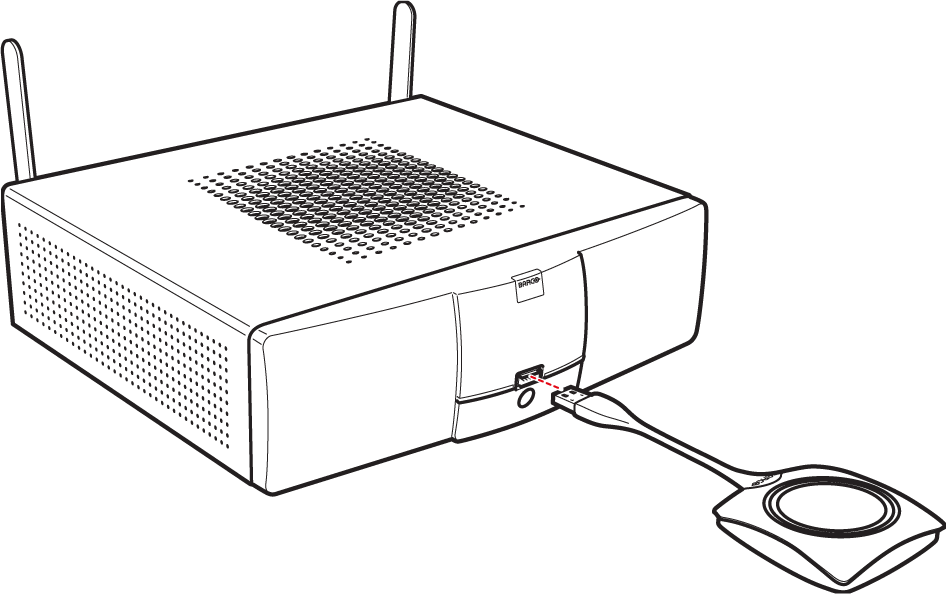
CSC-1 front USB port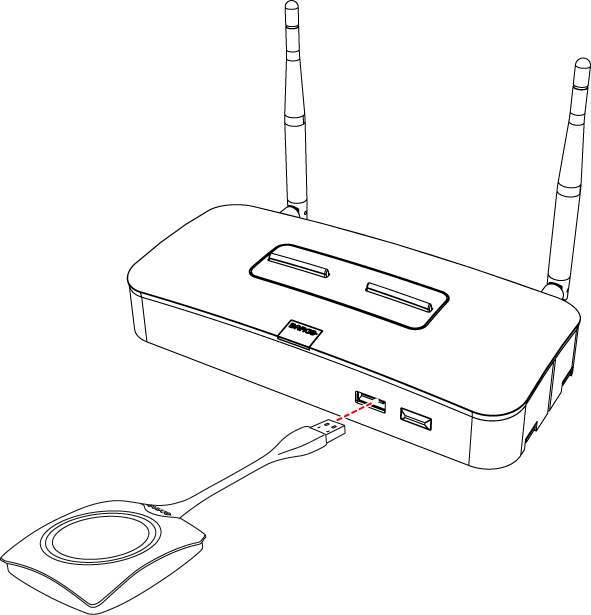
CSM-1 front USB port
The pairing process starts automatically. A message Busy pairing and updating appears at the bottom of the connected display. You will also notice the following LED behavior on the Button and the Base Unit:-
C-5/10, CX-20/30/50 & Bar Core/Pro: The Button's LED ring will start filling up, while the Base Unit's LED will blink white (on CX-20/30/50 and C-5/10) or blink green (on Bar Core/Pro) indicating that the pairing process is underway.
-
CS-100(H), CSE-200(+)/800, CSM-1 & CSC-1: Approximately 7 seconds after inserting the Button, the LEDs on both the Button and the Base Unit will start blinking white, indicating that the pairing process is underway.
-
-
Wait for the Button pairing process to complete. Once pairing is complete, a message Finished pairing and updating Button appears at the bottom of the connected display. You will also notice the following LED behavior on the Button of your Base Unit indicating that the Button is paired:
-
C-5/10, CX-20/30/50 & Bar Core/Pro: the Button's LED turns solid green.
-
CS-100(H), CSE-200(+)/800, CSM-1 & CSC-1: the Button's LED turns static white. If the Button's LED turns static red, it indicates that the Button is paired and also the software has been updated.
-
-
Unplug the Button from the Base Unit. The Button is now ready for use.
Additional information
-
By pairing the Buttons with the Base Unit, you link the Button to the Base Unit so that it only connects with that Base Unit.
Two different actions will be undertaken by the system when pairing a Button:-
Transfer connection information (e.g. the network to connect to, SSID of the Base Unit, IP address of the Base Unit) as well as configuration information (availability of peripheral endpoints in the Button).
-
Update the Button firmware and the ClickShare application on the Button to the latest version.
Once the Button is paired with a Base Unit, updating the configuration information and installing the latest firmware/software on the Button is done in the backend when the Button is in use. This means that once the Button is paired with the Base Unit, you do not need to re-pair the Button whenever a new firmware version is installed on the Base Unit. This will happen automatically without disturbing the end-user. When changing connectivity information (e.g. SSID) of the Base Unit or when you want to use the Buttons with another Base Unit, re-pairing the Buttons with the Base Unit is required.
-
-
Please note that not all ClickShare Buttons are compatible with every Base Unit. Generally, Buttons are designed to work only with their specific product family. For detailed information on which Buttons are compatible with which Base Units, see KB3998.
-
When using a USB-C Button with a Base Unit that does not have a USB-C port, a USB-A male to USB-C female adapter is required for pairing. The adapter is not included with the product and must be purchased separately. The CSE-200+ has a USB-C port at the rear.
How to videos
See the videos below for the instructions how to pair the Buttons manually with ClickShare CS-100(Huddle), CSE-200(+), CSE-800, C-series and CX-series Base Units.
| CS-100(Huddle), CSE-200(+) and CSE-800 | C-series and CX-series |
Related Articles
- How to pair ClickShare 5th Gen Buttons with a ClickShare Hub Base Unit?
- Tips to troubleshoot the ClickShare Button not pairing
- How does Button connect and when to pair the Button in dual network scenario?
- My CSM-1 or CSC-1 Buttons (R9861006D01) do not pair with my CS-100(H) CSE-200(+) and CSE-800
- How to update the firmware on ClickShare Button?

