
Screen sharing from your macOS device to ClickShare Base Unit is possible using AirPlay. Here’s how you can do it:
ClickShare Base Unit is connected to the LAN
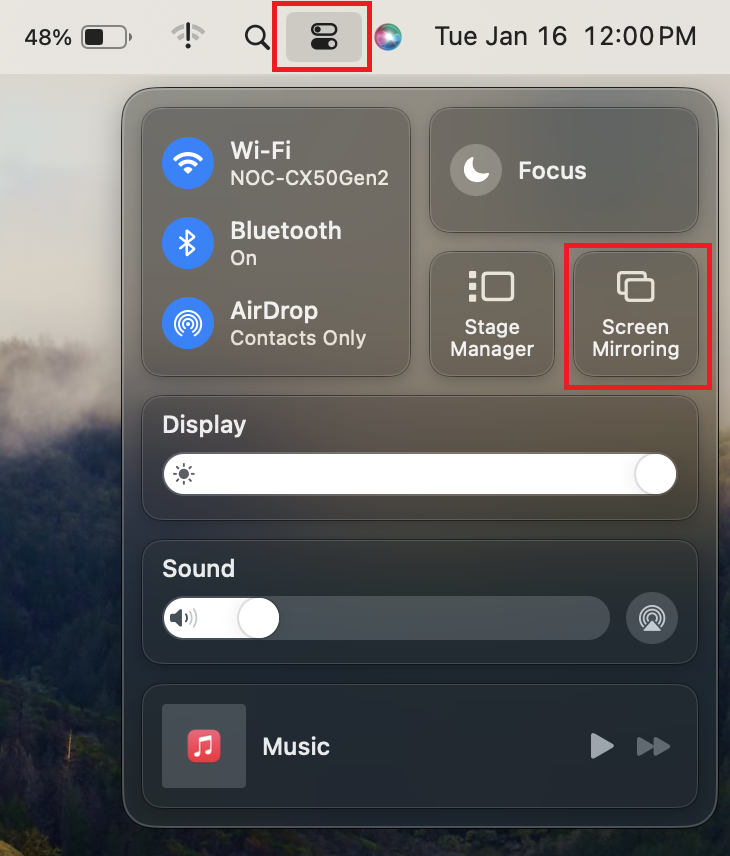
- Enable casting by opening the control center and opening the menu by selecting Screen Mirroring.
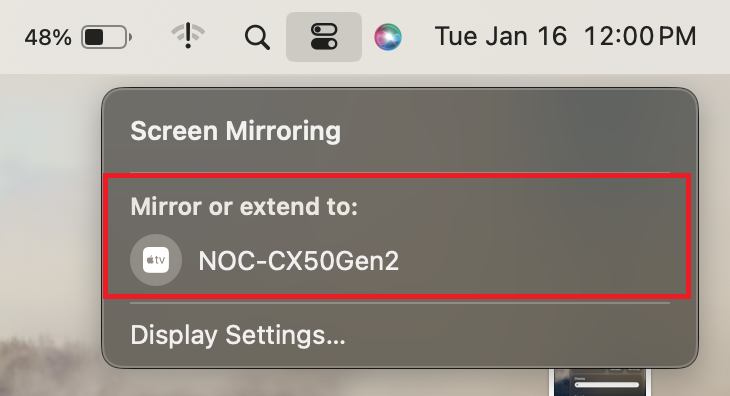
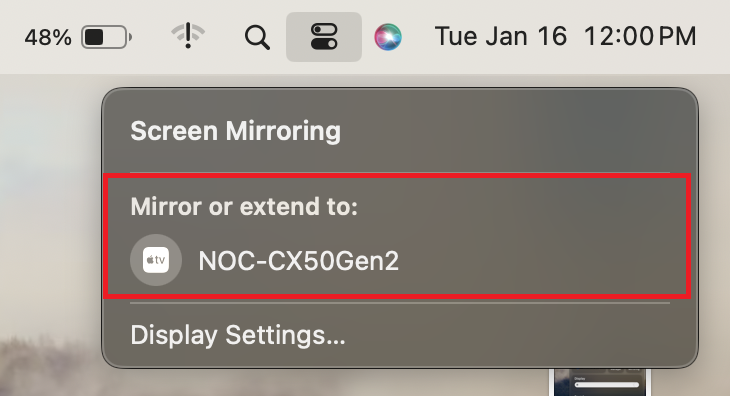
- Select the ClickShare Base Unit you would like to cast to.
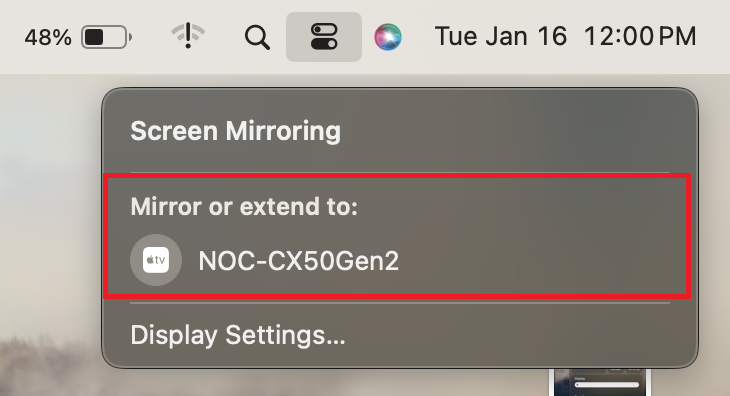
Note: If your ClickShare Base Unit isn't showing up in the list, it might not be connected to the LAN and could be operating in standalone mode. In this case, first connect your macOS device to the ClickShare Base Unit's Wi-Fi network and then follow the procedure outlined here.
- If prompted, enter the 4-digit passcode (if the passcode usage is enabled on the Base Unit) that appears on the meeting room screen, see KB9091 for details.
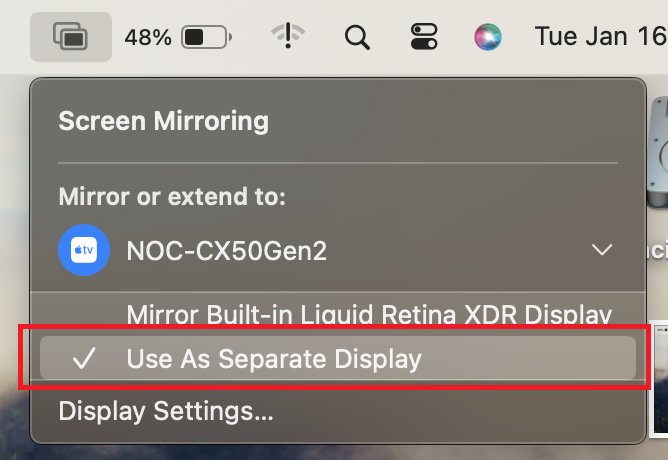
Your macOS device screen is now shared to the meeting room screen. - If you want to cast a virtual secondary (extended) desktop on macOS, select Use As Separate Display.
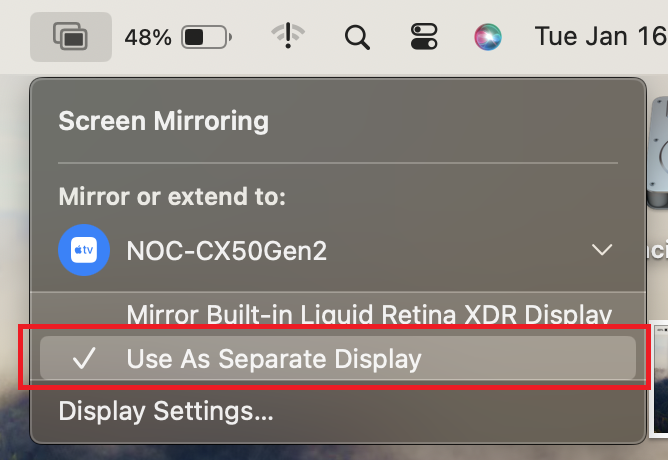
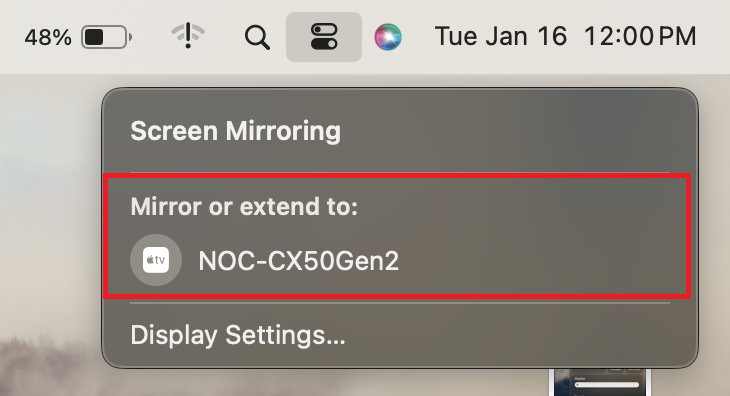
- To stop sharing your macOS device, click the Base Unit in the screen mirroring menu.
ClickShare Base Unit is operating in standalone mode
Note: By connecting to the ClickShare Base Unit's Wi-Fi, you will lose your internet connection over the network. To maintain internet access, ensure that your macOS device is connected to the LAN via a wired connection.
- Connect to the ClickShare Base Unit Wi-Fi (how to: see KB2675).
- Enable casting by opening the control center and opening the menu by selecting Screen Mirroring.
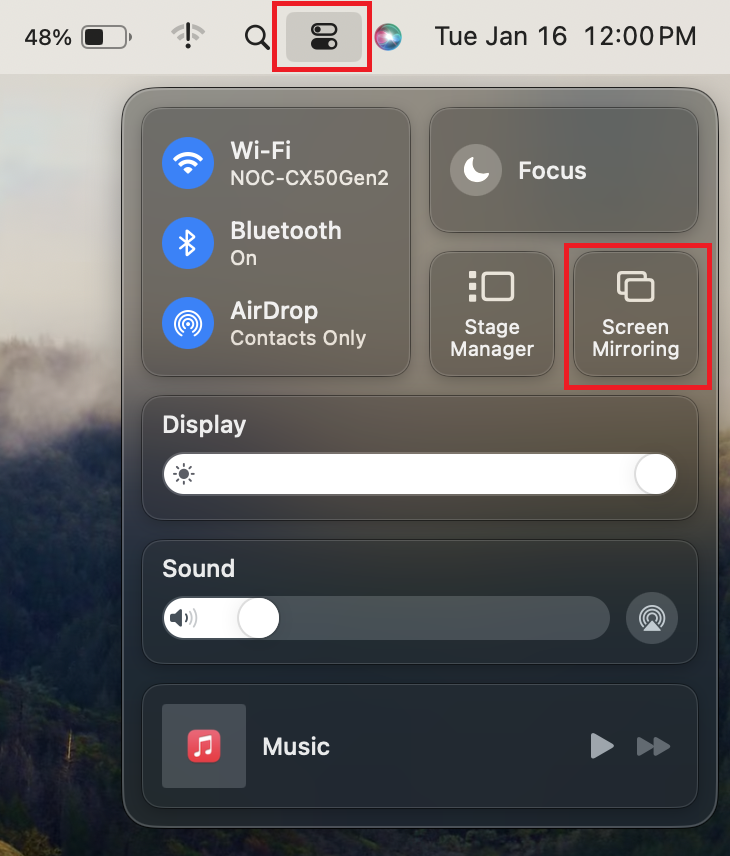
- Select the ClickShare Base Unit you would like to cast to.
- If prompted, enter the 4-digit passcode (if the passcode usage is enabled on the Base Unit) that appears on the meeting room screen, see KB9091 for details.
Your macOS device screen is now shared to the meeting room screen. - If you want to cast a virtual secondary (extended) desktop on macOS, select Use As Separate Display.
- To stop sharing your macOS device, click the Base Unit in the screen mirroring menu.
Contact ClickShare Administrator
If you're an end user and encounter difficulties with any of the steps or actions outlined in the procedures above, please contact your ClickShare admin with details of the issue, including reference to KB2890, for the necessary assistance.