8.19.3 Widget link

Location
  1. Navigation side bar: Widget
  2. Right panel: Widget Settings
About using a widget

Widgets can be used on any network device with a browser, on the front panel or using the web page. For more information, see “Widget panel” of the front panel or “Widget panel” of the web page. To use the widgets with Event Master Toolset, open the settings category and use the widgets through the web page. For more information, see “Unit web page”.

Note: Google Chrome is the browser recommended by Barco.
How to get the link
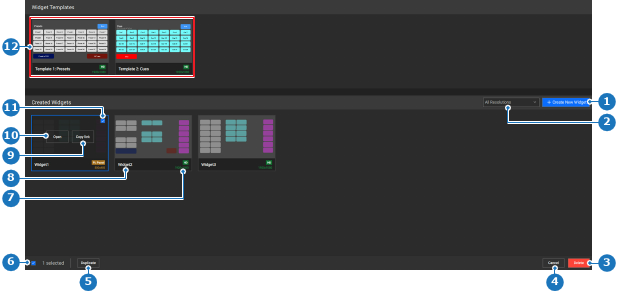
  1. Click Open (reference 10) on the desired widget or template.

    Tip: The Open (reference 10) button appears when hovering over the widget.
    Image 8–184
    1
    New widget button
    2
    Resolution filter drop down
    3
    Delete selected widget
    4
    Cancel selection
    5
    Duplicate selected widget
    6
    Deselect button
    7
    Widget name label
    8
    Widget resolution label
    9
    Copy link to widget button
    10
    Open selected widget button
    11
    Widget selection check box
    12
    Widget templates

    The widget detail page is shown.

  2. Click on the desired page (reference 20) in the bottom bar.

    Image 8–185
    20
    Page button
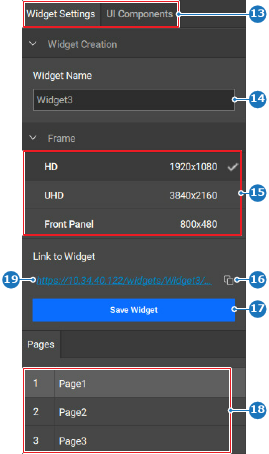
  3. Copy the link to the widget from Link to Widget (reference 16) by clicking the copy icon ().

    Image 8–186
    13
    Category selection
    14
    Widget name input field
    15
    Widget resolution options
    16
    Copy link button
    17
    Save widget button
    18
    Widget page options
    19
    Hyperlink to the selected widget page
  4. Paste the link in a browser of choice on the desired device.

    Note: Google Chrome is the browser recommended by Barco.
    Tip: The widget link can be protected by a password. For more information, see “Security”.
  5. Click or tap on any button to activate the function.