5.2.3 Firmware upgrade

Location

System > Firmware Upgrade

About software upgrade

In addition to updating the software, it is also possible to reload the current version or to downgrade. Keep in mind that downgrading a system can cause issues. Barco recommends creating a backup before upgrading the software. For more information, see:

Required parts

8GB+ USB stick formatted in FAT32.

How to update
  1. Store the desired software file in a folder ‘em’ on the USB stick.
  2. Insert the USB stick in the desired port:
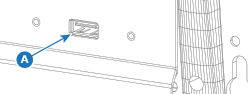
    • ‘USB-A’ port (reference A) at the front.
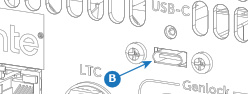
    • ‘USB-C’ port (reference B) at the back.
    Image 5–6
    Image 5–7

    A list of detected software versions is shown.

  3. Select the desired software version from the list (reference 4).
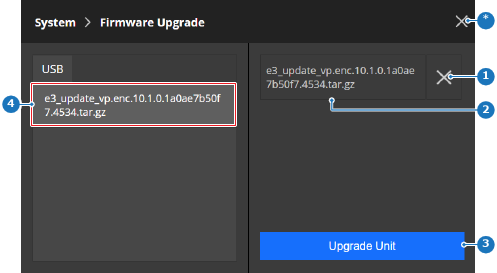
    Image 5–8
    1
    Deselect software button
    2
    Selected software label
    3
    Upgrade buttons
    4
    Detected software list
    *
    Close button
  4. Verify the correct software file is chosen (reference 2, Image 5–8).

    Tip: An unwanted selection can be removed by tapping the x (reference 1, Image 5–8) after the name
  5. Is the system linked to another Encore3?

    • If yes and both units must be updated, tap on Upgrade Host and Client (reference 3, Image 5–8) to upload the software to both Encore3 units.
    • If yes and one unit must be updated, tap on Upgrade Unit (reference 3, Image 5–8) to upload the software to the Encore3.
    • If no, tap on Upgrade Unit (reference 3, Image 5–8) to upload the software to the Encore3.
    Note: It is strongly advised to have both host and client on the same software version.

    The units install the new firmware and reboot. This may take several minutes.

  6. Remove the USB stick.