5.5.6 Standalone peripheral connection

About audio video peripherals

ClickShare supports a variety of audio video peripherals. Only one of each peripheral category can be connected at a time. For example, It is not possible to connect two microphones directly to the Base Unit. Connecting a speaker and a microphone, is possible as long as enough USB ports are available. For more information on the connection capabilities of the peripheral, see the manual of the manufacturer.

Tip: Be mindful of peripherals that cover more than one category. These peripherals block dedicated hardware. For example: a camera with a built-in microphone will, even if the built-in microphone is not intended to be used, block a dedicated microphone peripheral from working.

An up to date list of officially supported peripherals can be found on the Barco website: https://www.barco.com/products/clickshare-conferencing-collaboration/room-systems-video-conferencing/compatibility-and-certification.
About control peripherals

ClickShare supports all USB and Bluetooth keyboards and mice. For more information on how to connect the Bluetooth peripherals, see “Pairing a device”.

Reserved ‘USB-C’ ports

Most ‘USB-C’ ports of the Base Unit are multipurpose. Some of those ‘USB-C’ ports are intended or required for specific features. When those features are not used, then those ports can be used for other features. See the following table for more information:

PortFeaturePriorityLink
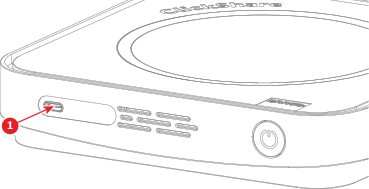
Front ‘USB-C’ portPairing the ButtonRecommendedPairing the Button
Control Panel ‘USB-C’ portControl Panel supportRequiredControl Panel connection
How to connect
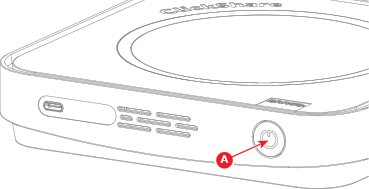
  1. Is the Base Unit powered on?

    • If yes, press the standby button (reference A) at the front of the Base Unit.
    • If no, go to next step.
    Image 5–60
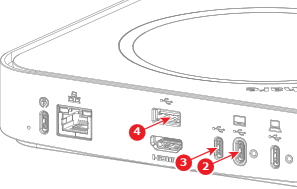
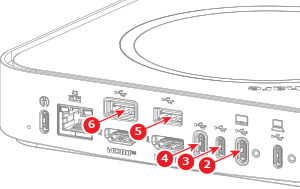
  2. Connect the peripheral to any of the free ‘USB-A’ or ‘USB-C’ ports (reference 1 to 6) of the Base Unit.

    Tip: Barco recommends using the peripheral ‘USB-C’ port (reference 3 for Hub Core and reference 3 or 4 for Hub Pro) or the peripheral ‘USB-A’ port (reference 4 for Hub Core and reference 5 or 6 for Hub Pro).
    Image 5–61
    Image 5–62 For Hub Core
    Image 5–63 For Hub Pro
  3. Must additional peripherals be connected?

    • If yes, repeat step 2.
    • If no, no further actions required.
  4. Wake the Base Unit. For more information, see “Waking the Base Unit”.