Product revision
- Firmware: 04.03.00

ClickShare
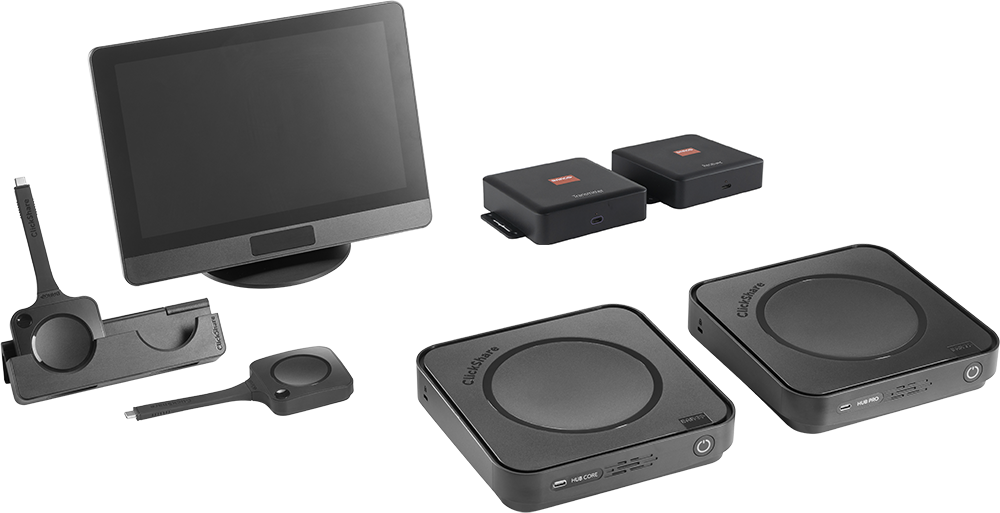
Installation manual
All rights reserved. No part of this document may be copied, reproduced or translated. It shall not otherwise be recorded, transmitted or stored in a retrieval system without the prior written consent of Barco.
Brand and product names mentioned in this manual may be trademarks, registered trademarks or copyrights of their respective holders. All brand and product names mentioned in this manual serve as comments or examples and are not to be understood as advertising for the products or their manufacturers.
Barco provides this manual 'as is' without warranty of any kind, either expressed or implied, including but not limited to the implied warranties or merchantability and fitness for a particular purpose. Barco may make improvements and/or changes to the product(s) and/or the program(s) described in this publication at any time without notice.
This publication could contain technical inaccuracies or typographical errors. Changes are periodically made to the information in this publication; these changes are incorporated in new editions of this publication.
The latest edition of Barco manuals can be downloaded from the Barco website https://www.barco.com.
This product is covered by patents and/or pending patent applications. For more info: https://www.barco.com/en/about-barco/legal/patents.
As a global technology leader, Barco is committed to deliver secure solutions and services to our customers, while protecting Barco’s intellectual property. When product security concerns are received, the product security incident response process will be triggered immediately. To address specific security concerns or to report security issues with Barco products, please inform us via contact details mentioned on https://www.barco.com/psirt. To protect our customers, Barco does not publicly disclose or confirm security vulnerabilities until Barco has conducted an analysis of the product and issued fixes and/or mitigations.
The screenshot images used in this manual are example illustrations and should be treated as such. While the name of the product displayed in the images may be different from the product model currently used, the menu lay-out and functionality is identical.
Carefully read the following terms and conditions before using this software. Any use of this software indicates the acceptance of this license agreement and warranty.
Terms and Conditions:
Disclaimer of Warranty:
This software and the accompanying files are sold “as is” and without warranties as to performance or merchantability or any other warranties whether expressed or implied. In no event shall Barco be liable for damage of any kind, loss of data, loss of profits, business interruption or other pecuniary loss arising directly or indirectly. Any liability of the seller will be exclusively limited to replacement of the product or refund of purchase price.