The last card slot on the E2 Lite processor may be either a normal Output slot or a dedicated Multiviewer. (See the description of the Setup tab in “Configuration Menu > Adjustment > Unit Configuration” for instructions on how select this slot as either an Output slot or a Multiviewer slot.)
A Multiviewer enables multiple sources (inputs, Backgrounds, outputs) to be displayed on one or two monitors. Screen Destinations (Program and Preview) can be used up to two times in any Multiviewer Output. The position of the window for each copy can be different, but the size of the window for each copy is always the same." Multiviewer Menu is the module used to setup the Multiviewer outputs.
Description
This menu is accessible by clicking the Multiviewer icon in the menu bar on the left side of the UI.
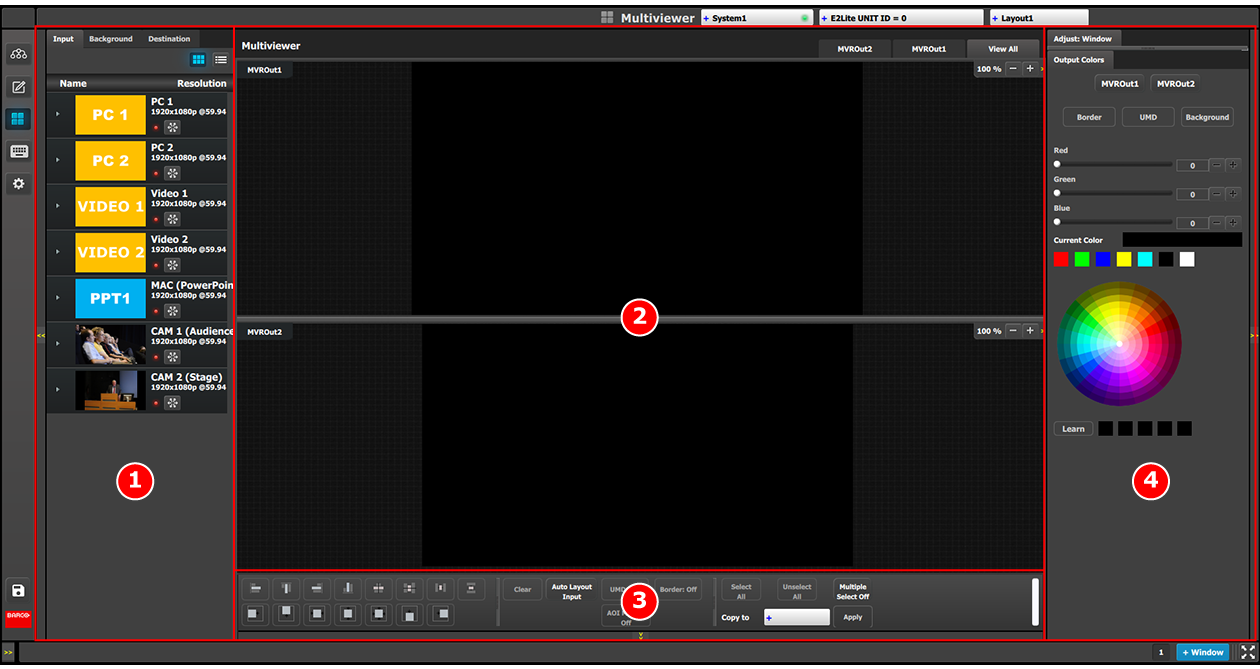
The three drop-down menus in the title bar select the system, unit or layout displayed in the multiviewer. For release one, only one system and one unit are supported.
The Multiviewer page is divided in four parts.
Image 6–62Multiviewer Menu Overview
1
Resources area
Lists the resources available to be displayed in the Multiviewer: Inputs, Backgrounds and Program/Preview Destination Outputs.
2
Multiviewer Layout area
The two multiviewer outputs are composed, viewed and managed individually or as a group.
3
Modifier area
Alignment adjustments and controls to manage the multiviewer outputs
4
Adjustment area
Color and sizing adjustments for the windows in each PIP.
The following sections describe each part of the Multiviewer page in detail:

 This menu is accessible by clicking the Multiviewer icon in the menu bar on the left side of the UI.