8.16.2 Restore

Location
  1. Navigation side bar: ShowFile
  2. Top panel: Restore
About restore

Restore applies device configurations and user created shows from a ShowFile to the Encore3. Restoring overwrites any current configurations and shows that are present on the Encore3. Barco recommends creating a backup before restoring a ShowFile. For more information, see:

Note: Usage of the USB stick is only supported in Event Master Toolset for the EC-210.
Required parts

8GB+ USB stick formatted in FAT32.

How to restore
  1. Is the restore feature being accessed from an EC-210?

    • If yes, store the desired ShowFile file in a folder ‘EM\backup\sys’ on the USB stick. Go to next step.
    • If no, go to 3.
  2. Insert the USB stick in the desired port:
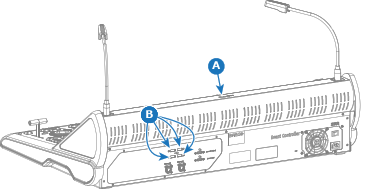
    • ‘USB-A’ port (reference A) at the top.
    • any free ‘USB-A’ ports (reference B) at the back.
    Image 8–164
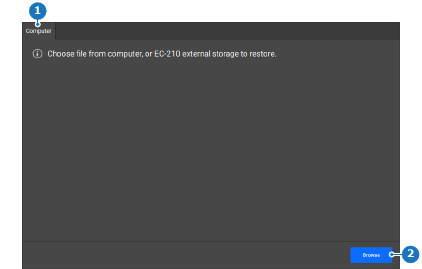
  3. Click Browse (reference 2).

    Image 8–165
    1
    Computer tab
    2
    Import button

    A pop-up window is shown.

  4. Navigate to and open the desired ShowFile using the pop-up window.

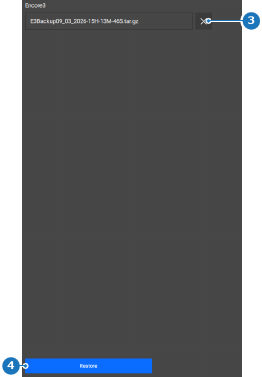
    The ShowFile is loaded into the memory of the Encore3 and appears on the right side.

  5. Click Restore (reference 4).

    Image 8–166
    5
    Remove selected ShowFile button
    6
    Restore selected ShowFile button

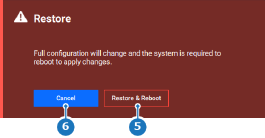
    A confirmation pop-up is shown.

  6. Click on Restore & Reboot (reference 5) to recall all settings from the ShowFile.

    Note: All the current settings will be overwritten. This action cannot be undone.
    Tip: If only certain settings must be restored, then see “ShowFile editor”.
    Image 8–167
    5
    Confirm button
    6
    Cancel button

    The ShowFile settings are applied and the Encore3 reboots.

  7. Remove the USB stick.