6.4.5 Restore (USB)

Location

Tools > Restore

About restore

Restore applies device configurations and user created shows from a ShowFile to the Encore3. Restoring overwrites any current configurations and shows that are present on the Encore3. Barco recommends creating a backup before restoring a ShowFile. For more information, see:

Required parts

8GB+ USB stick formatted in FAT32.

How to restore
  1. Store the desired ShowFile file in a folder ‘EM\backup\sys’ on the USB stick.
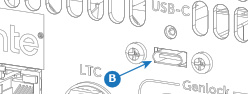
  2. Insert the USB stick in the desired port:
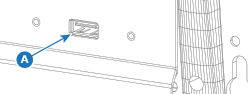
    • ‘USB-A’ port (reference A) at the front.
    • ‘USB-C’ port (reference B) at the back.
    Image 6–14
    Image 6–15
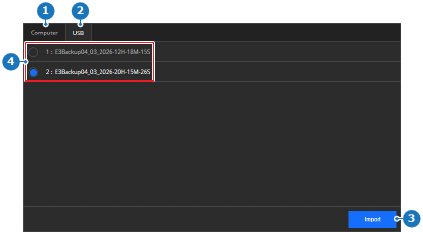
  3. Select USB (reference 2) in the main window.

    Image 6–16
    1
    Computer tab
    2
    USB tab
    3
    Import button
    4
    Detected ShowFile list
  4. Select the desired ShowFile to restore from the list (reference 4, Image 6–16).
  5. Click Import (reference 3, Image 6–16).

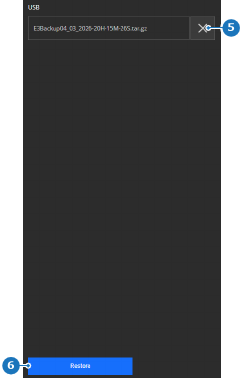
    The ShowFile is loaded into the memory of the Encore3 and appears on the right side.

  6. Click Restore (reference 6).

    Image 6–17
    5
    Remove selected ShowFile button
    6
    Restore selected ShowFile button

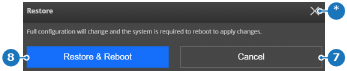
    A confirmation pop-up is shown.

  7. Click on Restore & Reboot (reference 8) to recall all settings from the ShowFile.

    Note: All the current settings will be overwritten. This action cannot be undone.
    Tip: If only certain settings must be restored, then see “ShowFile editor”.
    Image 6–18
    7
    Cancel button
    8
    Confirm button
    *
    Close button

    The ShowFile settings are applied and the Encore3 reboots.

  8. Remove the USB stick.