6.5.1 Use JSON

JSON
JavaScript Object Notation is a standardised way of writing commands or small programs to and from devices.
REST API
REpresentational State Transfer Application programming interface is a protocol that allows other devices to be controlled by the Encore3 or control the Encore3 with other devices.
Location

Help > Use JSON

About JSON

The Encore3 allows for remote interaction with the software through API calls in the form of JSON requests. These requests can be sent by automated systems to control or gather info about the Encore3. It is possible to test these commands one by one to get a better understanding of the commands functionality.

Note: These tests must be executed by the desired device to get a proper response. Be mindful of the state of the device and the command that is being tested.

API calls can be blocked by the security settings of the Encore3. For more information, see:

About command documentation

All Barco developed devices will communicate to Event Master Toolset using the REST API. For more information, see the the Barco website:

How to test
  1. Select a desired command (reference 2) from the desired category (reference 1) in the menu on the left. (optional)
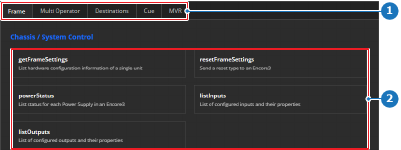
    Image 6–27
    1
    Category selection
    2
    Command selection

    The command is entered in the menu on the right.

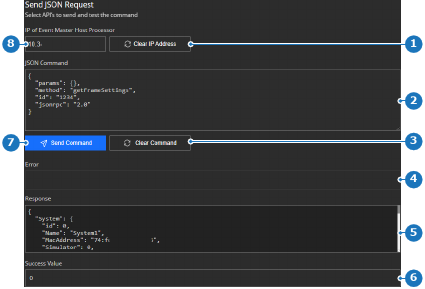
  2. Is the IP address (reference 8) correct?

    • If yes, go to next step.
    • If no, click the button Clear IP Address (reference 1) and enter the desired IP address (reference 8).
    Tip: For more information on how to find the IP address, see “Unit ID, IP address” or “Network configuration”.
    Image 6–28
    1
    Clear IP address button
    2
    Entered or selected command input field
    3
    Clear command button
    4
    Error message label
    5
    Command response label
    6
    Success value label
    7
    Send command button
    8
    IP address input field
  3. Modify or enter the command in the input field after JSON Command (reference 2, Image 6–28). (optional)

    Tip: The command window size can be changed by dragging the bottom right corner of the window.
  4. Click Send Command (reference 7, Image 6–28) to run the command.

    The results of the command are printed in the corresponding field:

    • Error (reference 4, Image 6–28), details what went wrong with the command.
    • Response (reference 5, Image 6–28), shows what the command returns.
    • Success value (reference 6, Image 6–28), shows ‘0’ if the command was successful and has no return value.
  5. Must other commands be tested?

    • If yes and a new command must be tested, click on Clear Command (reference 3, Image 6–28) and go to step 1.
    • If yes and the command must be modified, go to step 3.
    • If no, no further actions are required.