Supported operating system
Windows and MacOS.

Windows and MacOS.
The Desktop App is a computer program that allows the user to connect to and manage a ClickShare system. An installation is required before the Desktop App can be used. In cases where an installation is not desired, the Button App can be used. For more information, see “The Button App”.
The Desktop App requires the use of drivers for some ClickShare Windows features. These drivers increase the size of the Desktop App. For this reason, a basic and advanced installer are available. The advanced installer allows for sharing or extending the desktop without requiring a Button to be connected. For more information, see “Desktop App sharing” or “Extending the desktop”.
The user device must comply with the installation requirements. For more information, see “Installation requirements”.
Download the Desktop App from the Barco website:
Run the installer with the file extension from the chosen variant.

Is the advanced variant being installed?
Click (reference 2) to start the installation.
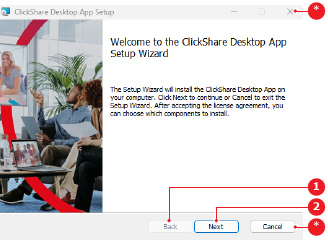
The license page is shown.
Read the Barco end user license agreement (reference 5).

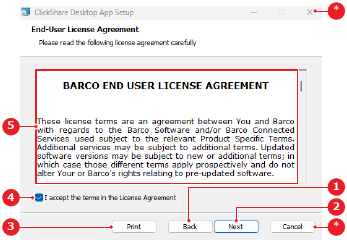
Check the check box in front of (reference 4, Image 4–2) to agree to the terms.
Click (reference 2, Image 4–2).
The component page is shown.
Select the installation option for each component from the drop down in front of the component (reference 6).
 Install the selected feature.
 Install the selected feature when required.
 Do not install the selected feature.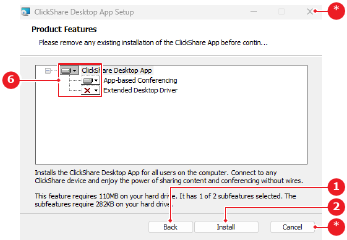
Click (reference 2, Image 4–3)
The chosen configuration is installed. This may take several minutes. The confirmation page is shown when the installation is completed.
Click (reference 2) to complete the installation.
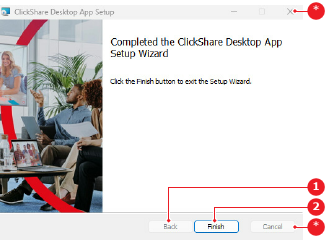
The advanced Desktop App has been successfully installed.