Availability
- Operating system: Windows
- Base Unit: C-5, C-10, CX-20, CX-30, CX-50, C-5 Gen2, C-10 Gen2, CX-20 Gen2, CX-30 Gen2, CX-M, CX-50 Gen2, CB Core and CB Pro
- Room feature: N/A

Screen sharing mirrors the entire screen of the user device to the room displays. Every action or change done on the user device is represented on the meeting room displays in real time.
When a specific window is being shared, then any actions or changes done to other windows or the desktop of the user device are not visible to meeting room participants. Allowing the user to do actions in another window or make notes without the attendees seeing these actions on the connected displays. No content is changed on the meeting room displays as long as the window remains open on the user device. If the window is minimized, then ClickShare automatically pauses the sharing. For more information, see “Pause sharing”. If the window is closed, then ClickShare automatically stops sharing. For more information, see “Stop sharing”.
By default, ClickShare shares content to all connected displays. The shared content is identical on each display. If the content must be different per display, see “Side-by-side sharing” or “Dual screen sharing”.
The user device must be connected to the ClickShare system. For more information, see: “Desktop App connection”.
Must a specific window be shared?
Open the application that must be shared.
The opened application is added to the available sharing options in the ClickShare App.
Click the content that must be shared (reference 4 or 5).


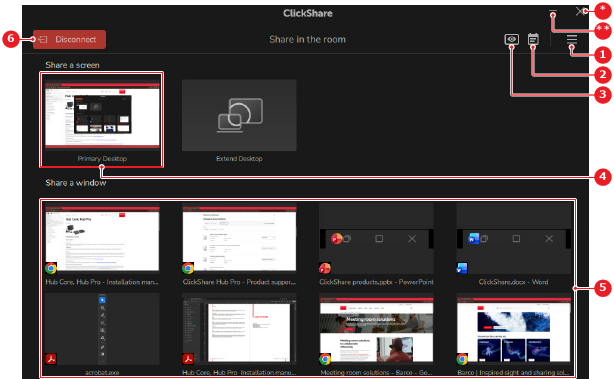
The selected content is shown on the meeting room displays. On the user device, a green border is added when a specific window is being shared.