Availability
- Operating system: Windows, MacOS and Linux[3]
- Base Unit: CX-50 Gen2, CB Pro, Hub Pro
Room feature:
- Two displays
- 4th gen Button or 5th gen Button (optional)

Room feature:
ClickShare supports up to two displays. By default, any shared content is duplicated onto both displays.
Both displays connected to the ClickShare can be used to share different content from one connected user device. The first content shared is considered the main content. The second content is added next to the main content. The display connected to the primary display connection on the Base Unit shows the main content, the other display shows the second content. If the content on each display must be shared by different user devices, see “Side-by-side sharing”.
Content shared first is always displayed on the primary display. Depending on the installation, the primary display can be on the right or the left. There is no built-in indication for which display is the primary display. If the secondary content is being shown on the wrong display, then the sharing must be stopped and the procedure must be repeated completely. For more information, see “Stop sharing”.
The main content must be shared to the displays. For more information, see:
Click the plus button (reference 1).
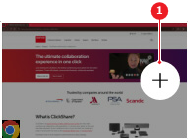
The main content is shared on the primary display and the second content is shared on the second display.
[3] Only when using a 5th gen Button