
Zurück
Organizations investing in meeting room technology need solutions that are easy to use, easy to manage, and consistent across every space. Microsoft Teams Rooms has become a popular choice because it brings the familiar Microsoft Teams experience into the meeting room itself.
But what exactly is a Microsoft Teams Room, how does it work, and what should organizations consider before deploying one?
This guide explains everything you need to know about Microsoft Teams Rooms, including room components, deployment options, licensing, room design considerations, and how to support flexible meeting workflows.
Microsoft Teams Rooms is a dedicated meeting room system that brings the Microsoft Teams meeting experience into a physical meeting space.
Rather than relying on participants to connect their own laptops and peripherals, the room runs Microsoft Teams natively on dedicated, certified devices. Meetings can be joined with a single touch, while audio, video, and content sharing can be managed as one integrated experience.
The goal is to create a consistent and reliable meeting experience, regardless of which room people use.
A standard Microsoft Teams Rooms setup often combines:
Depending on the solution, some or all of these components may be integrated into a single device. For example, many video bars combine the compute platform, camera, microphones, and speakers into one unit.
Whether deployed as separate components or as an all-in-one solution, these elements work together to create a consistent user experience across meeting spaces.




Microsoft Teams is the collaboration app used for chat, meetings, calling, and content sharing across devices.
Microsoft Teams Rooms refers to the platform itself, including the software experience, management tools, and certification ecosystem.
A Microsoft Teams Room is the physical meeting space equipped with certified devices running the Microsoft Teams Rooms platform.
Many organizations choose Microsoft Teams Rooms because they deliver a consistent meeting experience while simplifying room management.
Users can walk into a room and join meetings with a single tap. There is no need to connect cables or spend time troubleshooting room technology.
Organizations can manage users, devices, policies, and room settings through familiar Microsoft administration tools.
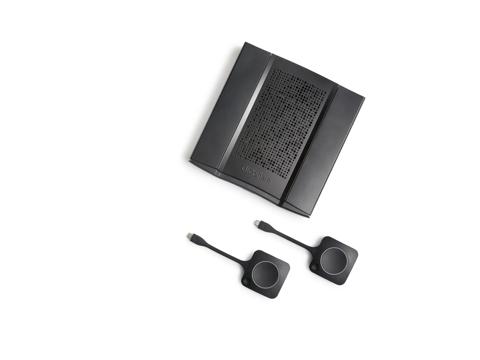
Devices certified for Microsoft Teams, such as the ClickShare Hub bundles, are tested for compatibility, quality, and performance, helping ensure a reliable user experience.
Microsoft Teams Rooms includes AI-enhanced capabilities, such as IntelliFrame and Facilitator AI, designed to create a more inclusive meeting experience for remote and in-room participants.
As Microsoft continues to invest in AI-powered collaboration, organizations should consider not only current meeting needs but also future platform capabilities when selecting room systems.
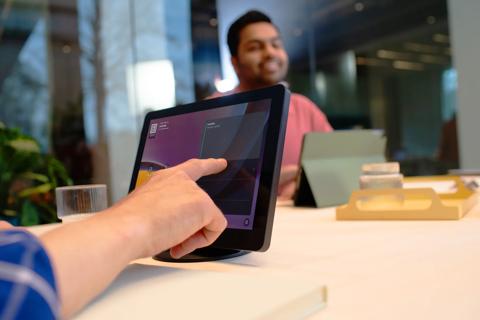
Microsoft Teams Rooms can run on either Windows or Android. Both deliver a consistent core Teams experience, with differences in deployment and management approaches.
Windows systems are often selected when organizations require:
These deployments are commonly used in larger meeting rooms, training spaces, and specialized environments.
Android-based systems are typically designed around streamlined deployment and simplified management.
Benefits include:
Organizations seeking efficient deployment across multiple rooms often consider Android-based solutions.
The Microsoft Device Ecosystem Platform (MDEP) is Microsoft's enterprise Android platform for shared devices.
For Microsoft Teams Rooms devices built on MDEP, the platform provides a common foundation for:
It's important to note that not all Android-based Microsoft Teams Rooms devices are built on MDEP.
In general:
The key is to match the platform to the actual room requirements rather than assuming Windows is always for complex setups, or Android is always for simple setups.

Every Microsoft Teams Room requires a license.
Teams Rooms Basic includes:
This license is available for up to 25 Microsoft Teams Rooms per tenant.
Teams Rooms Pro adds:
In practice, many organizations standardize on Teams Rooms Pro when managing multiple meeting spaces at scale.
*Availability of specific AI-powered features may depend on room hardware, licensing, Microsoft Teams Premium, Microsoft 365 Copilot licensing, administrative settings, and regional availability.
Successful meeting rooms start with understanding room requirements before selecting technology.
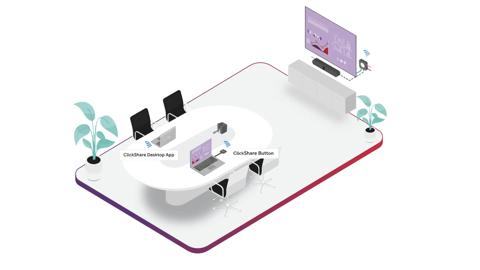
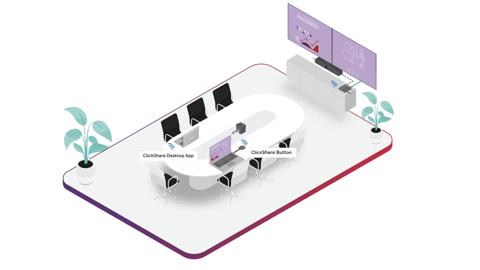
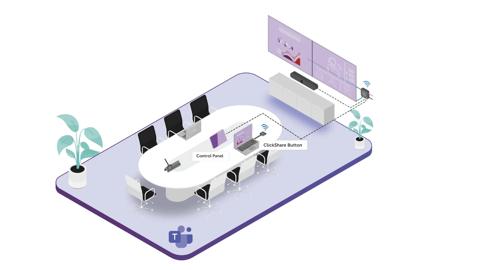
Regardless of room size:
A good meeting is not about technology. It is about how people connect.
What good looks like:

Smart audio enhancements
Microsoft Teams uses AI-based audio technologies such as echo cancellation, dereverberation, and voice isolation to improve speech clarity and help participants be heard more clearly, even in challenging meeting spaces.*
*Actual availability and performance can depend on the Teams client, room device, microphones and speakers, room acoustics, admin settings, and feature availability.
Organizations should avoid:
If users struggle to be seen or heard, adoption can decrease quickly.
As room deployments scale, management and security become increasingly important.
Microsoft Teams Rooms Pro provides tools to:
Deploying devices certified for Microsoft Teams helps ensure:
When evaluating meeting room solutions, organizations should consider:
Once requirements are understood, organizations can define standards for devices, room layouts, and management practices.
Microsoft Teams Rooms helps organizations create consistent meeting experiences built around simplicity, reliability, and centralized management. Whether you choose Windows or Android, video bars or modular systems, the most successful deployments start with a clear understanding of user needs and room requirements.
For organizations that also need wireless presentation, guest-friendly collaboration, or BYOD flexibility, solutions such as ClickShare can complement the Microsoft Teams Rooms experience while helping keep meeting spaces consistent, secure, and easy to manage.