
ClickShare 5th Gen Button(s) must be paired with a ClickShare Hub Base Unit before they can function. An unpaired Button will not be able to connect to the Hub Base Unit or share content.
The pairing process consists of three steps.
Requirements
- Physical access to the Base Unit is necessary for pairing.
- Base Unit must be powered ON and active before a Button can be paired.
Step by step instructions
-
Connect the Button to any free USB-C port (reference 1 to 4) of the Base Unit.
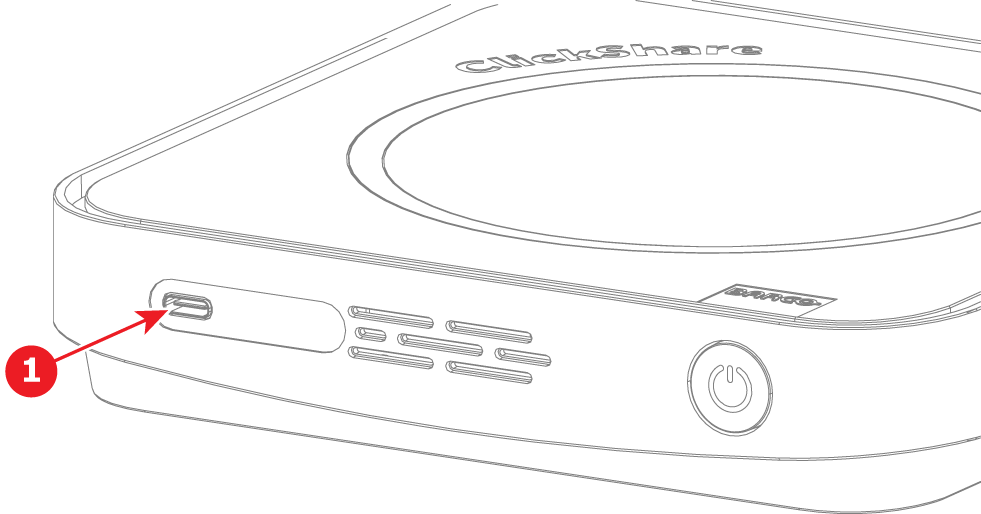
Hub Core & Pro front USB-C port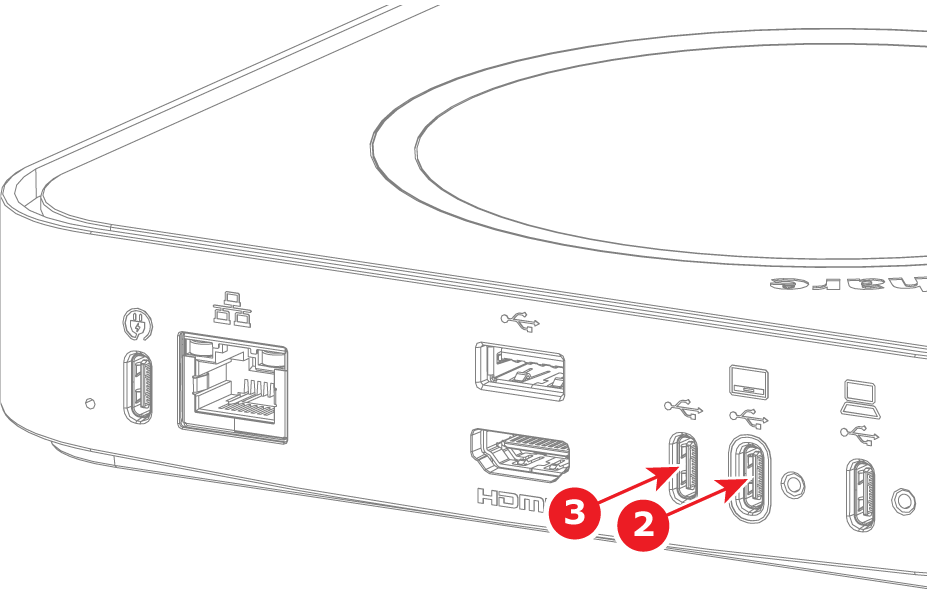
Hub Core rear USB-C ports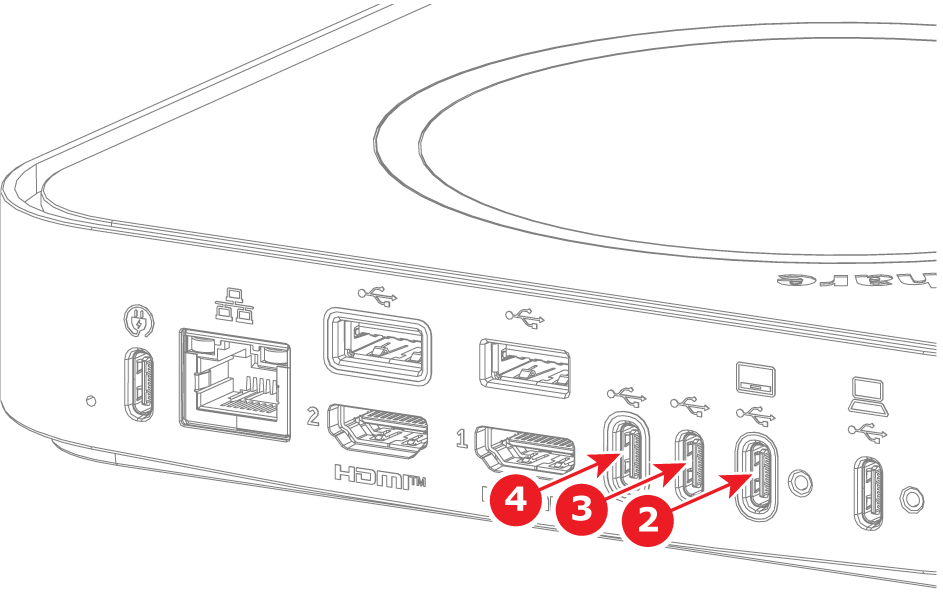
Hub Pro rear USB-C portsButton pairing is started, A message Pairing your ClickShare Button... will appear at the top-right corner on the connected display. You'll also notice, the Button's LED ring will start filling up, while the Base Unit's LED will blink white.
-
Wait a while for the Button to pair. Once pairing is complete, a message Finished pairing and updating Button will appear at the top-right corner on the connected display.
You'll also notice, the Button’s LED will turn solid green, indicating a successful pairing. -
Unplug the Button from the Base Unit. The Button is now ready for use.

