Location
- Navigation side bar:
- Central work window:
- Right panel:

Some events need input and destination configurations that are not industry standard. These configurations can be saved as sharable custom files. There are three types of custom files:
Each of these files can be used to simplify modifying inputs or destinations that must have the same custom configuration. These files are stored in the memory of the unit and can be shared using a ShowFile. For more information, see:
These files can be created by editing inputs (for HDR metadata) and by editing destinations (EDID). For more information, see “Editing inputs” and “Editing screen destinations”.

Must a new format file be created?
 ) after (reference 2).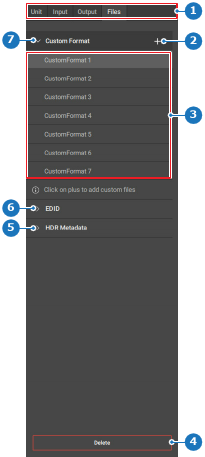
Click on the desired format in the list (reference 3, Image 8–72).
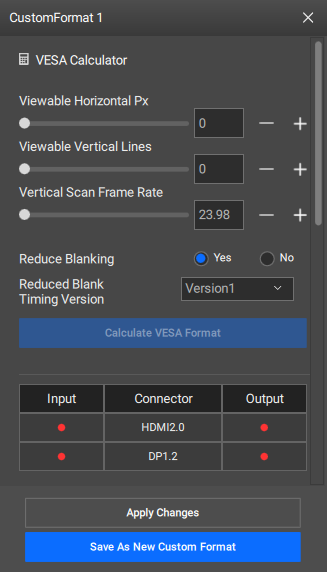
A pop-up is shown in the central work area.
Edit the settings using the pop-up.
Double click the name of the desired custom format from the list (reference 3, Image 8–72) in the right panel to rename the custom format.
 ) in the header.
 ).
).