
This article provides instructions on how to connect and configure Atlona AT-OME-MS42-KIT with ClickShare Conference CX-50 Gen2 for BYOD setup. It contains the following sections:
Connections
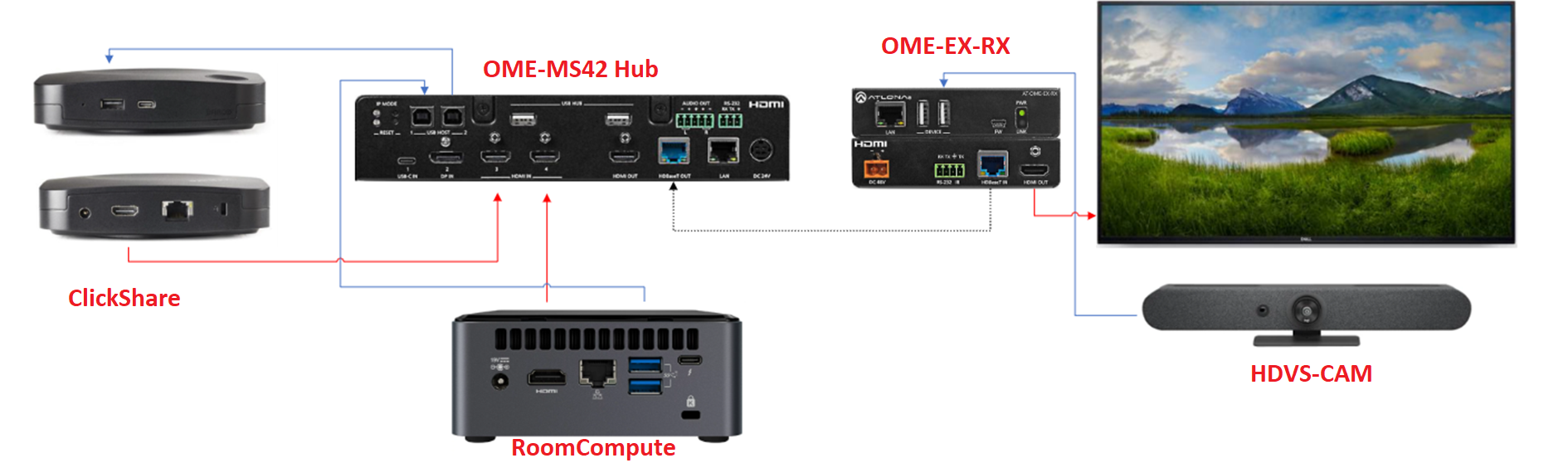
with OME-EX-RX
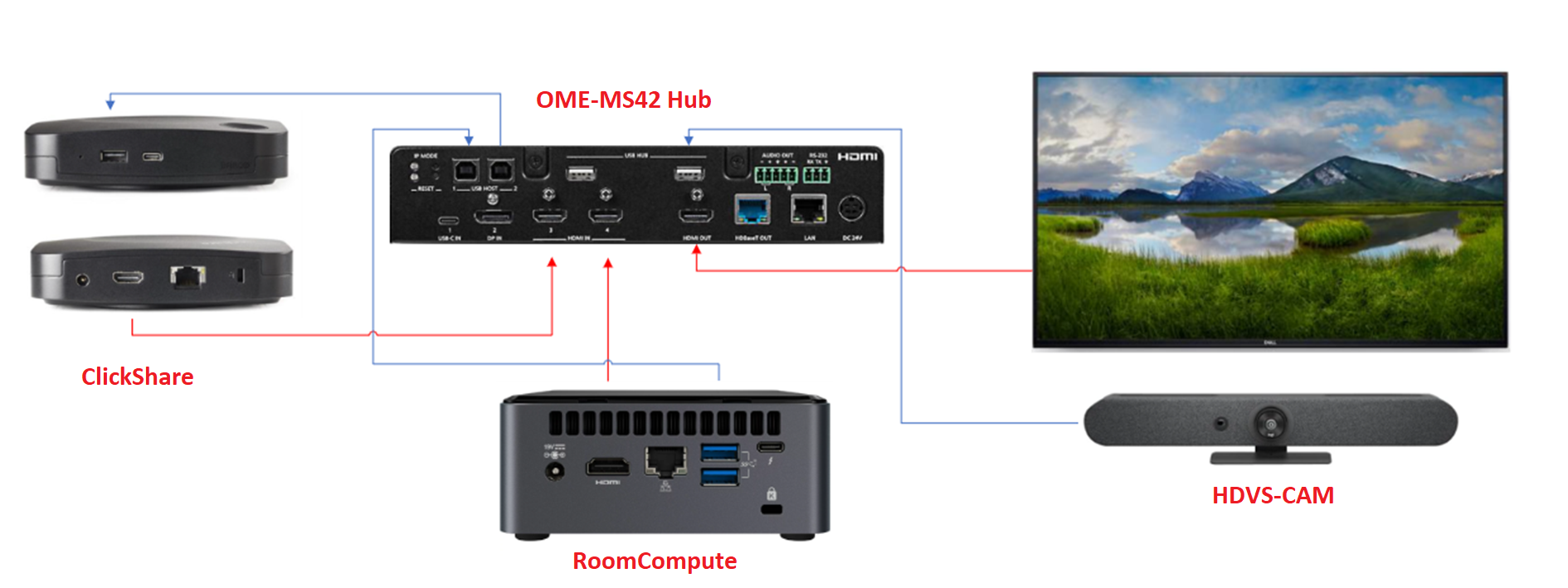
without OME-EX-RX
-
Connect ClickShare HDMI™ out to HDMI™ In 3.
-
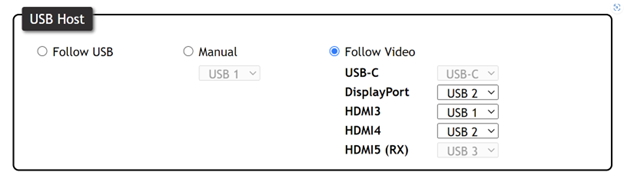
Connect RoomCompute to USB Host 1
-
Connect ClickShare USB to USB Host 2.
-
Connect HDVS-CAM to OME-EX-RX Hub.
-
Connect peripherals to OME-MS42 Hub port.
-
Connect the Display to the OME-EX-RX HDMI™ Out.
-
Connect HDVS-CAM to OME-EX-RX Hub (with OME-EX-RX), Or
Connect HDVS-CAM to OME-MS42 Hub port (without OME-EX-RX).
Info! For support on these use cases and configuration, please contact Atlona Support at, please contact Atlona Support.
Atlona AT-OME-MS42 Settings
- Login to the OME-MS42 using the default username and password:
- UN: admin
- PW: Atlona
- Setting up Auto-Switch mode with Barco Clickshare as the Default Input.
- The User Experience: When users walk into the room, they will see the room computer or licensed environment (Teams or Zoom). When User want to go away from licensed room environment and or conference from laptop; plug in ClickShare button and room will be agnostic with wireless presentation and wireless room peripherals. This will provide the ability to present video and audio while accessing the USB peripherals in the room. When the user is done presenting, they can disconnect the button, and the OME-MS42 will return to the room compute after 1 minute.
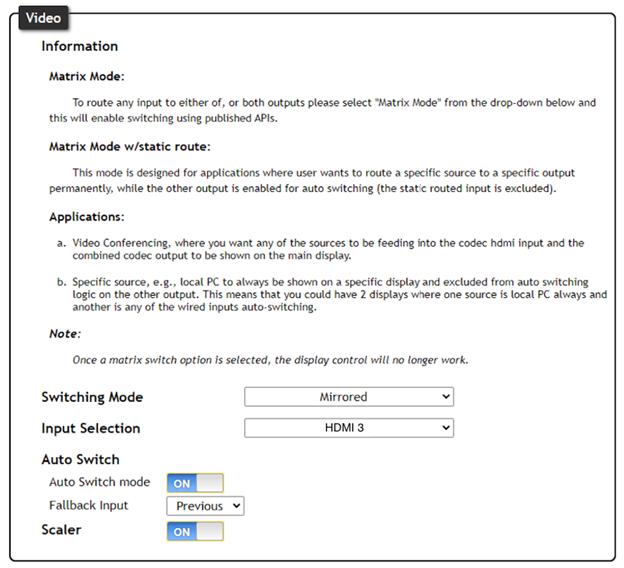
- Navigate to the AV Settings tab:
- Turn Auto Switch mode on (enabled by default)
- Set the Fallback Input to HDMI™ 3 (RoomCompute)
CX-50 Gen2 Settings
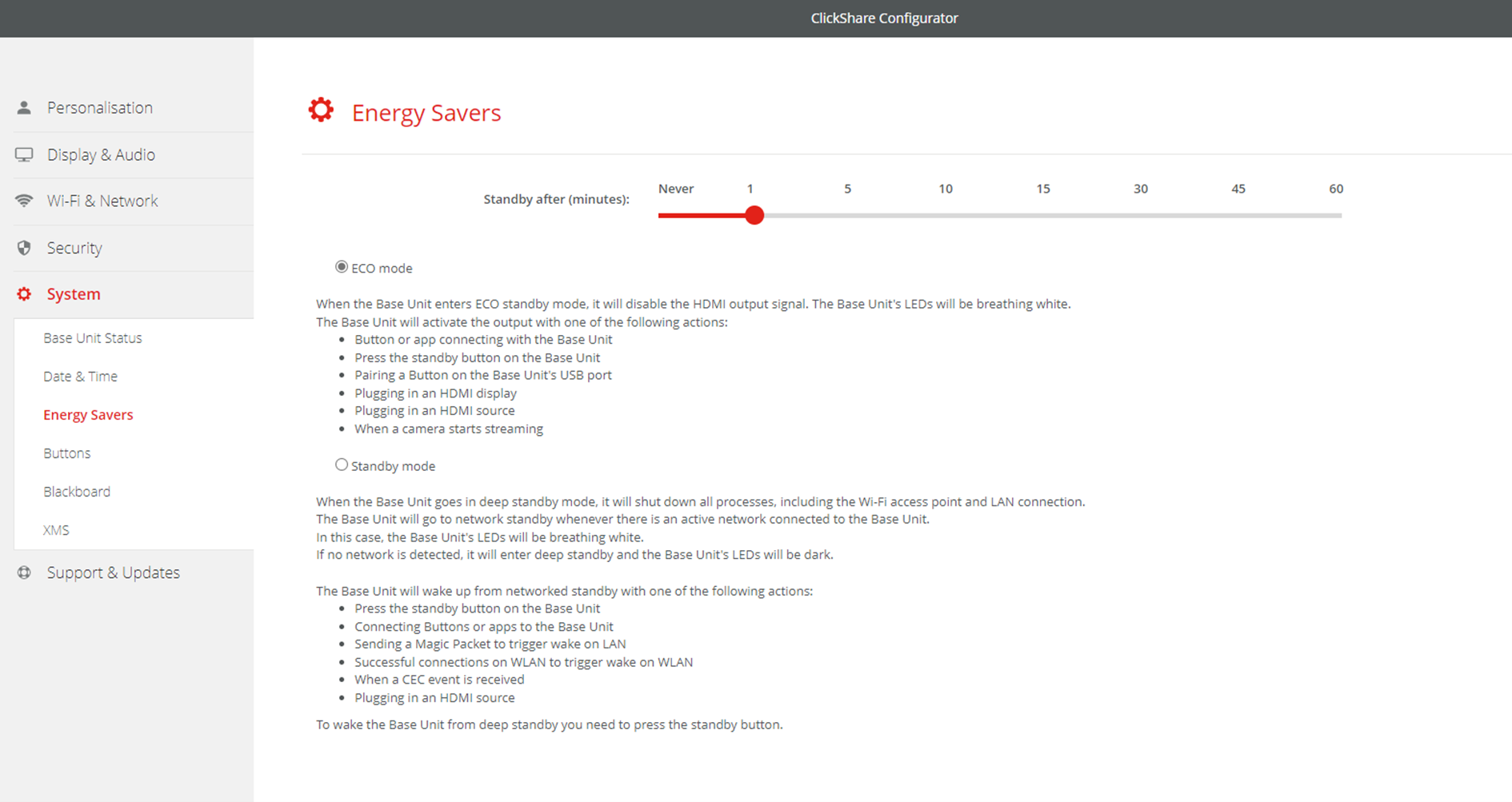
Configure the Energy Saver & Sleep Timer on the ClickShare to 1 minute (go to System > Energy Savers in the ClickShare Configurator, see KB9653 for details). This will allow the OME-MS42 to auto-switch to the Room PC after 1 minute of inactivity on the ClickShare.

