
Purpose of the TG18-OIQ Visual Test
The AAPM TG18-OIQ test pattern is part of the AAPM Task Group 18 suite, designed to evaluate the visual performance of diagnostic imaging displays.
It specifically assesses:
🔍 Visual Perception of Low-Contrast Details
- The test pattern includes the phrase “QUALITY CONTROL” rendered in varying contrast levels across black, gray, and white backgrounds.
- It evaluates just noticeable differences (JNDs) in grayscale, a critical factor in detecting subtle features in medical images, especially in mammography.
🧪 Environmental and Display Factors
- The test helps assess how ambient lighting, display calibration, and monitor characteristics affect visibility.
- It is used during acceptance testing, routine QA, and troubleshooting of diagnostic monitors.
Why the “L” in QUALITY CONTROL Is Difficult to See
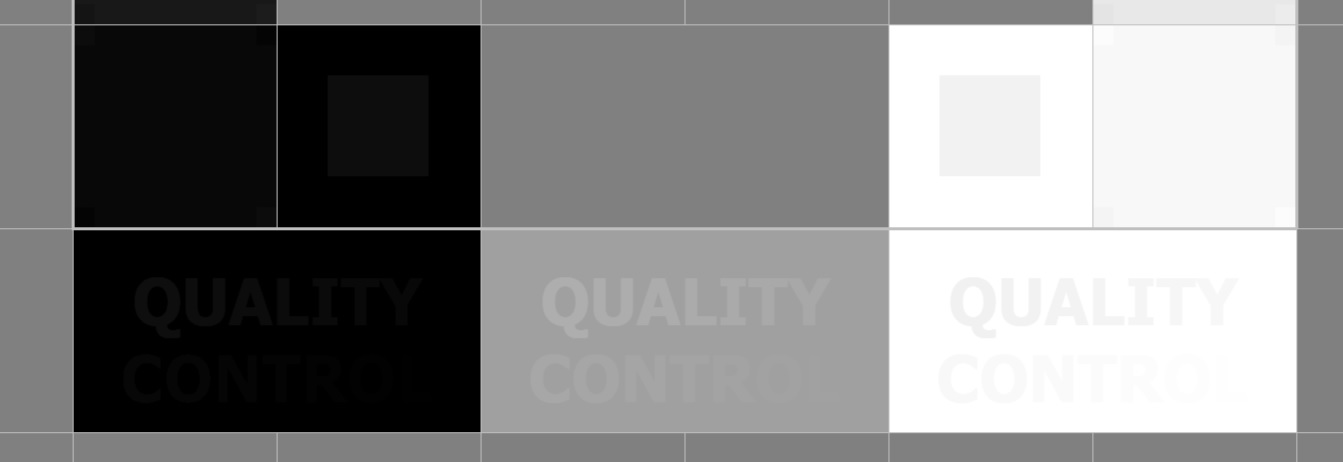
During mammography acceptance testing, it is common for users to report difficulty seeing the final “L” in the word “CONTROL” on the TG18-OIQ test pattern. This is not necessarily a hardware quality issue of the display; it reflects the extreme sensitivity of the test.
As mentioned in the section 3.1.5 from the attached .pdf document, for Mammography Quality Assurance tests, the alphanumeric characters “CONTRO” must appear sharply focused. The final “L” must be detectable.
🧠 Technical Explanation
- The last “L” in “CONTROL” is designed to be barely perceptible, with only one grayscale level difference from the background.
- This tests the limits of human visual perception under realistic diagnostic conditions.
- The pattern includes three zones:
- Black background
- Gray background
- White background
- In each zone, the visibility of the “L” varies due to contrast interference from surrounding areas.
⚠️ Common User Feedback
- “I can't see the last L clearly.”
- “I can see something, but I can't recognize the letter.”
- “I can see the vertical part of the L, but not the horizontal part.”
Factors Influencing Visibility
-
Human Vision Variability
- Each person perceives contrast differently.
- The eye adapts to ambient light and can be trained to detect subtle differences.
-
Ambient Light Interference
- Bright areas in the room or on the screen can mask low-contrast details.
- Reflections and glare reduce perceptibility.
-
Display Calibration
- Calibration ensures consistent grayscale rendering.
- It compensates for ambient light (Lamb) and ensures compliance with DICOM GSDF standards.
Recommended Actions
✅ Check Ambient Conditions
- Ensure the room lighting matches matches the calibration setting (typically 35 lux).
- Close curtains, turn off ceiling lights, and eliminate reflections.
✅ Recalibrate the Display
- Use QAWeb Enterprise Agent to recalibrate after setting the correct ambient light policy.
✅ Masking Technique:
- Cover or dim surrounding areas of the test pattern to reduce distraction.
✅ Use Software Tools
-
Barco SpotView: Focus contrast on the area of interest.
- Requires the Barco MXRT graphics card and MXRT drivers to be installed on the workstation.
- Open the TG18-OIQ Test pattern from QAWeb Enterprise and press CTRL+Shift+X to activate Spotview
- Press then CTRL+Shift+S to activate Spotview Mag (Zoom Function of Spotview)

If no MXRT drivers are present on the workstation, use the "Windows Magnifier Tool":
-
-
Use
Windows key + "+"to zoom in.
-

