
The instructions below provide the necessary information to obtain and install a software key that will allow use of the NMS 1.12 or lower according to the purchased capabilities.
- You can find the license key and serial number on the inlay card of the CD.
- Obtain the server-unique pin code
The pin code uniquely identifies the server on which NMS is installed. This pin code is generated by NMS and is deployment specific. To obtain the pin code.- Start NMS
- Go to https://<ipaddress>:8443/nms
- (where <ipaddress> should be replaced by the IP address of your NMS server).
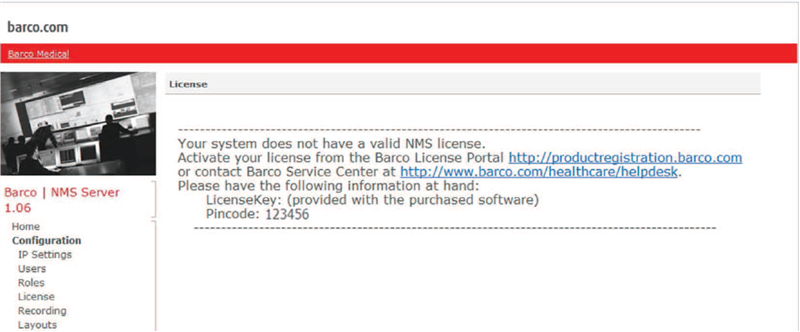
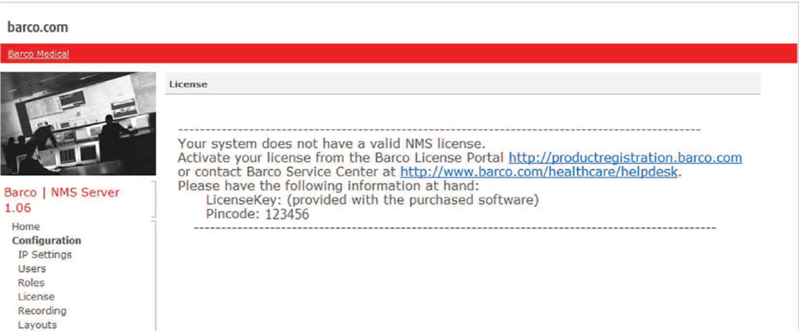
- Go to the ’License’ page. You should see a message as in the example screenshot below.
- Write down the pin code on the inlay card of the CD.
- Obtain the software key from Barco
You can generate your software key via the web application at http://productregistration.barco.com/
You will be asked for the NMS license key and the server-unique pin code.
The product registration portal will provide you with a NMS software key that you can download on your computer. - Install the software key
Copy and rename the software key to “<appdatapath>\jboss7\standalone\data\license\nms.lic” on the NMS server (where <appdatapath> should be replaced by the application data folder of the NMS software, for example C:\ProgramData\Barco\NMS).
Restart the NMS service. - Verify installation
Go to https://<ipaddress>:8443/nms (where <ipaddress> should be replaced by the IP address of your NMS server) and go to the ’License’ page. The content of the software key should be displayed as in the screenshot below.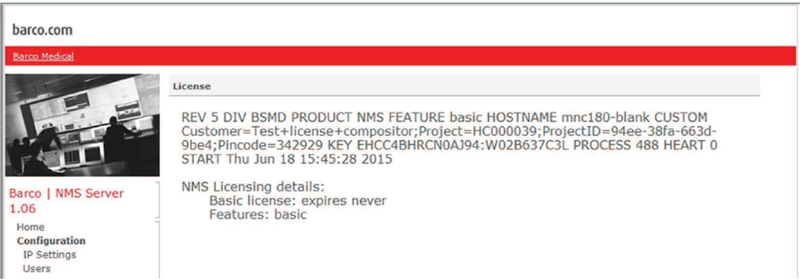
- All purchased capabilities should become operational and no "Demo" overlay text may appear on the displays.

