
Introduction
You have a QAWeb Agent installed on a physical workstation. This QAWeb Agent has a built-in ID which is linked with a 'virtual instance of itself' on QAWeb Server. Because of this link, the messaging is possible between QAWeb Agent and QAWeb Server.
Should this link not exist anymore because for instance a QAWeb Agent was reinstalled on a workstation and the link was not re-established, then a 'Workstation connectivity issue' can occur on QAWeb Server.
Tip: Read all about Workstation connectivity issues in the following knowledge base article: [KB7993].
How to re-establish the link between a QAWeb Agent and its instance on QAWeb Server
- Install QAWeb Agent and connect the QAWeb Agent to QAWeb Server (find out more information about this process in the QAWeb Agent user guide which is linked to this article).
- Make sure that the QAWeb Agent user interface is closed on the workstation before proceeding.
- Browse to the QAWeb Server and log in with your personal credentials.
- Locate the 'Workstation not registered' issue on the QAWeb Server. Should there be more, make sure to open the issue and check the hostname and/or IP address in the issue to be sure that you have the correct one)
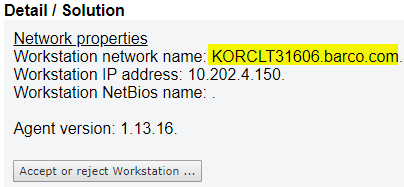
- Click [Accept or reject Workstation ...]
- Choose the option 'Accept this workstation as reinstalled workstation'

- Click [Next >>]
- Now, select the department where the workstation is located on the server from the drop-down list.
- Once the department has been selected, choose the workstation from the 'Workstation' drop-down list. This is a very important step. Make sure to select the correct workstation here!
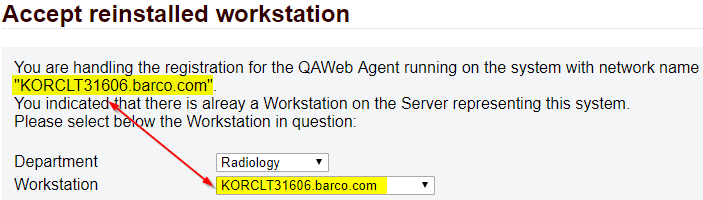
- Click [Next >>] (Note: This will not confirm this action yet, additional confirmation is asked in the next step)
- The next step is your last chance to do a final verification. Check again if the match you are about to make is correct and confirm by clicking [Finish].
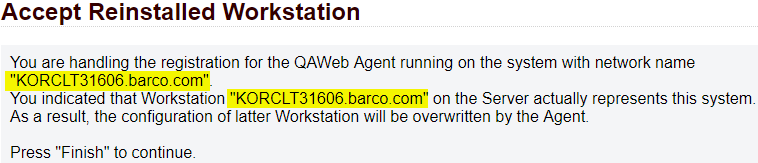
Note: Even though the default workstation name on QAWeb Server is the hostname of the workstation, you can still change this name into something which makes more sense. In our example here, the hostname in the 'Workstation not registered' issue matches the actual workstation name on QAWeb Server. Should you have used more meaningful names (like for instance 'Dr. Phil's workstation'), then you may need to do a bit more research to make sure you are linking the correct workstation.

