
What is a pending task?
A pending task is a task that is due but cannot be executed or finished automatically. Therefore the task is waiting for user interaction. A task can be pending in two different use cases:
- The task is scheduled and becomes due.
- A remote action is run from the QAWeb Server and needs user interaction to complete.
The following tasks can become pending:
| Task name | Context | Why pending? |
|---|---|---|
| Auto-calibration (full) | Generic displays (non-Barco) | The displays do not have an internal sensor QAWeb can use for calibration. Therefore an external sensor needs to be connected and used before starting the task manually. |
| Auto-calibration (full) |
| Even though these displays do have an internal sensor that can be used for fast calibration, a full calibration requires more measurements which cannot be done with these sensors. Therefore an external sensor needs to be connected and used before starting the task manually. |
| Compliance test |
| A DICOM compliance test measures 18 values along the entire grayscale range. These displays do not have a sensor that can measure these 18 values. Therefore an external sensor needs to be connected and used before starting the task manually. |
| Visual test | Any display | A visual test always requires manual intervention and therefore can become pending in certain situations. Please refer to the chapter 'Visual tests and pending actions' to find out more. |
| Mammo Compliance Test |
| This test combines a DICOM compliance test with other tests. Since the DICOM compliance test needs a sensor that can measure 18 grayscale values, the test cannot be executed on displays that do not have a compatible sensor. Therefore an external sensor needs to be connected and used before starting the task manually. |
How can I see that a task is pending?
On QAWeb Server:
On any facility, department, or workstation overview on the QAWeb Server, you have a list with 'Issues and Actions: Manual intervention needed'.
In this list, you will find your pending actions, if any are available. Other items in this list are issues that need a manual resolution.
Example:

In QAWeb Agent:
Open QAWeb Agent and click the 'Status' button. You will see your pending actions here:
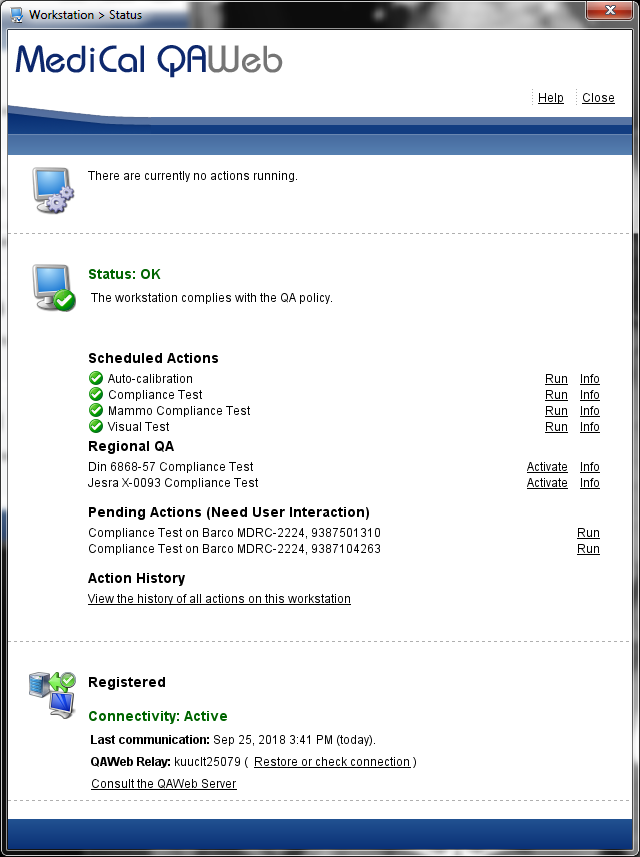
Visual tests and pending actions
Depending on the way a visual test is set up, it can become a pending test. Here's why.
If a visual test is scheduled, it will generate a popup when the test is due. The administrator has the choice to either set this popup as being snooze-able or not:
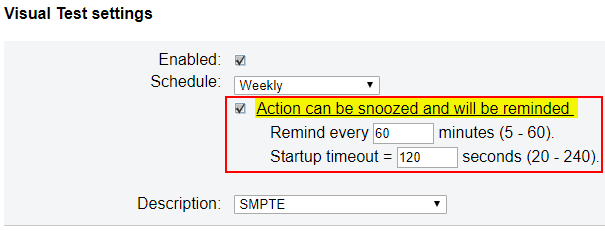
This is where the difference in behavior is:
- Check the 'Action can be snoozed and will be reminded' box and the task will not show up as a pending task.
- Do not check this option: Then the task will show up as a pending task in case a user cancels the test.
How can I get rid of these pending actions?
In case the pending action is an action you want to or must execute, then the only way to remove the pending action is to go to the workstation and run the test from within QAWeb Agent (see screenshot above). Note that you may require a connected sensor to run this test in case measurements are needed.
Should you not wish to run this particular test on this particular display or display type, then you can remove the pending actions by unscheduling the task. An example of how this is done on the QAWeb Server:
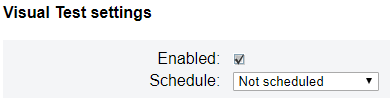
Please refer to the QAWeb user guide for more scheduling information.

