
Determining the capabilities on a monitor
It is impossible to test every vendor, and every model of monitor or HDMI™ attached video device. However, we can obtain the EDID block that developers can use for troubleshooting (or you as a help desk member may be able to determine the issue with the results).
In order to obtain the required information please follow the steps in the procedure below:
Prior to that, please download and install MonInfo here:
-
Connect the computer to the same HDMI port on the display where the ClickShare would normally be connected.
-
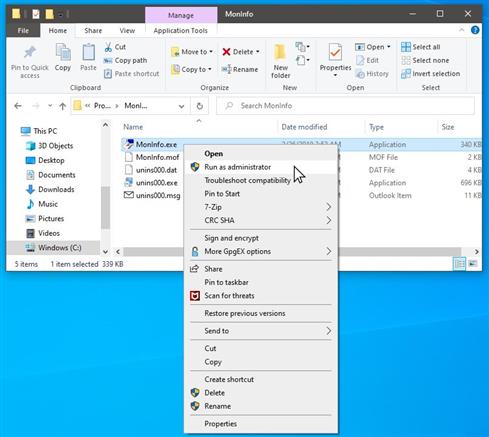
Run MonInfo as administrator by right clicking the .exe file and then selecting Run as Administrator from the contextual menu.
-
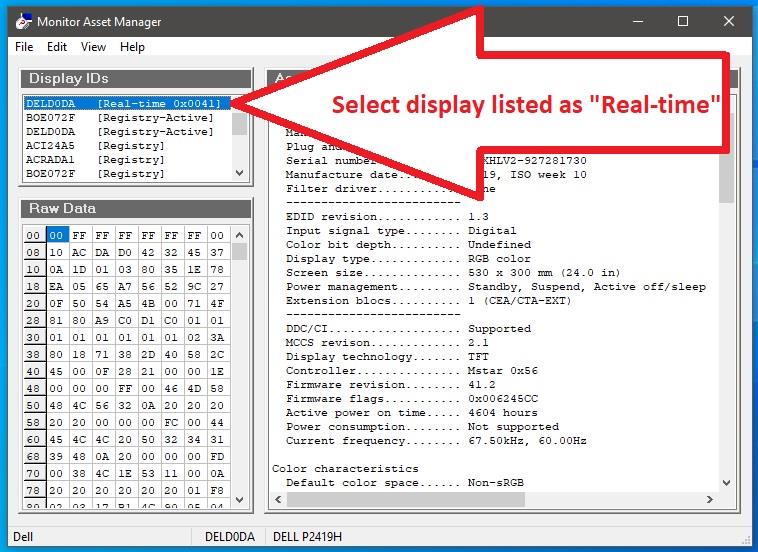
Select the display that is listed as Real-time on the left-hand pane.
-
Select File > Save as... to save the monitor information to a bin file.
-
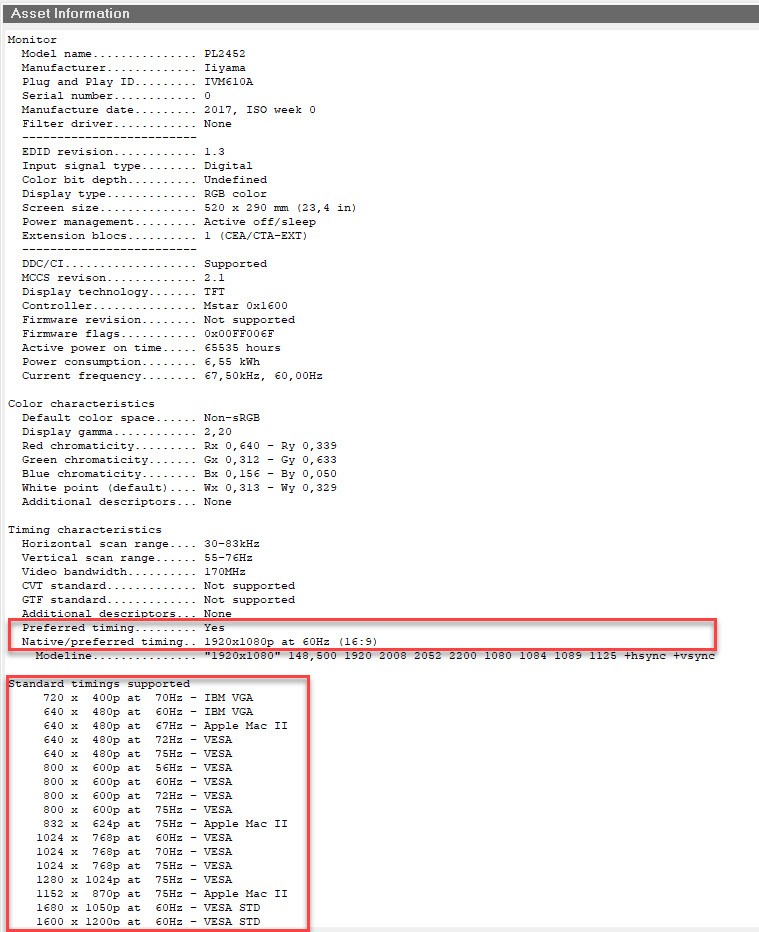
Preferred timing will be the timing the screen is negotiating towards the ClickShare device. This can be up to 4K30Hz (not 60Hz).
-
Standard timings supported are the resolutions the screen supports.
-
Note:
For additional assistance, create a support ticket with Barco (refer to KB6024 for instructions). Make sure to attach the saved monitor information file to the ticket for faster troubleshooting.

