
The GEN 4.1 revision of the ClickShare Button consumes more power, exceeding 500mA. This change may cause unexpected behavior during pairing or usage due to compatibility issues with certain USB ports, especially USB 2.0 controllers, that do not support this increased power consumption - see the impact scenarios below.
USB port requirements for ClickShare Button GEN 4.1 on laptops:
To ensure optimal performance and connectivity, the following USB ports are recommended:
- USB 3.0
- USB Type-C
Impact scenarios
1. Pairing with Base Units via USB-A port:
When pairing GEN 4.1 Buttons with ClickShare CX-series or C-series Base Units using a USB-A port, the Button may draw more current than the Base Unit can deliver. This results in, Base Unit restarts the Button:
- The Button will restart 3 times
- Button will start in safe mode, where it’s using less power
- Successful pairing in this safe mode
During the restart of the Button, you’ll see:
- White LEDs of the Button filling up, then stop and restart from full black
- Once paired, a full green LED circle appears on the Button.
Note: Pairing the Buttons with a ClickShare CX-series and C-series Base Unit with a USB-C port is not impacted.
2. Connecting to older laptops with USB 2.0 ports:
When you plug in the Button on a USB 2.0 port of an older laptop:
- The Button restarts 3 times.
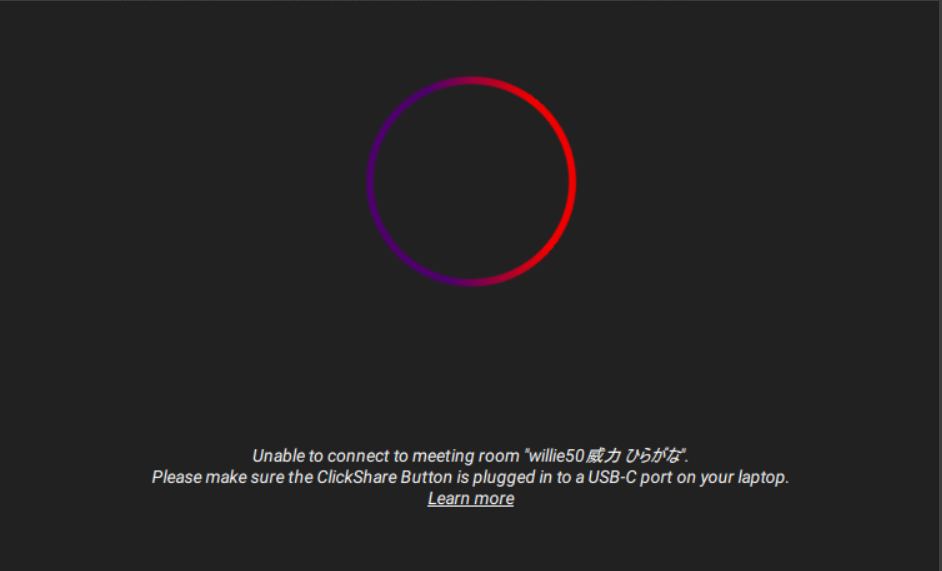
- Button will start in safe mode but fails to connect to the Base Unit.
- The ClickShare App displays an error Unable to connect to meeting room...
Resolution
Plug in the Button into a different USB port, preferably a USB 3.0 port.
Note: With older versions, the error will indicate that we can’t find the SSID, re-pairing the Button is recommended (how-to, see KB5924).

