
This article provides information on the configuration of ClickShare Conference (CX-20/30/50 Gen1) with Poly Studio X or G series for wireless conferencing in Appliance mode.
Remark:
The main goal of this article is to provide recommended setups and use cases. Please refer to specific product documentation (installation and reference manuals, spec sheets, etc.) for specific product information, e.g. wiring, specific port functions and supported features and limitations.
- Users mainly use the UC service supported by the room application (e.g. MTR) but occasionally need BYOM for calls which are not the native room app.PS: versus the Direct Join, the laptop UC Client will provide in most cases a richer solution. Moreover, users are usually more familiar with this.
- Single display wireless presentation and BYOM are acceptable.
- Sharing video only content is acceptable when the videobar is in Appliance mode.
- Manual Appliance/Device mode switching is acceptable for end users.
To setup this configuration:
- Connect CX-20/CX-30/CX-50 Gen1 HDMI™ Out to Poly Studio X or G series HDMI™ In.
- Connect Poly Studio X or G series USB to CX USB.
- Connect Poly Studio X or G series HDMI™ to one or two displays.
- Support for dual display depends on the Poly model and the UC (MS Teams or other) license.
- Connect Poly Studio X or G series and ClickShare to the network.
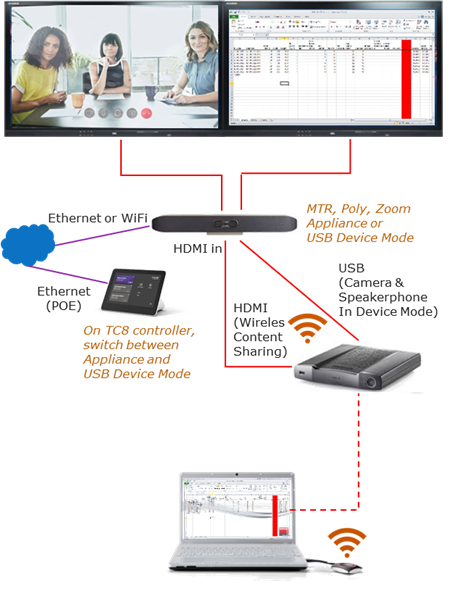
Info! Since every Poly Studio X or G series is different, please check in the installation manual for the exact ports to connect to. This is an example for the Poly X52: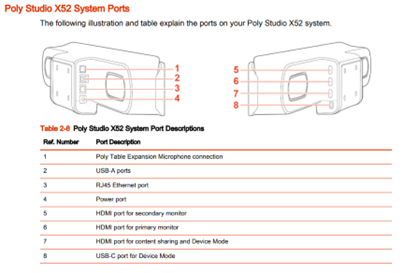
ClickShare Conference Configuration
See the ClickShare AV Integration Whitepaper for further instructions on how to deploy the best experience. The main recommendation is to configure an Eco Standby time (not deep standby) and disable the Show the wallpaper when no one is sharing their screen so that only content is shown when someone is sharing.
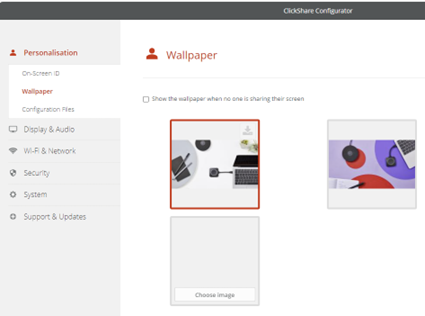
In general, make sure that the ClickShare device is up to date and install the corresponding firmware on the Poly Studio X or G series device to the matching version as published on the Barco website for specific product-related remarks
Poly Studio X or G Series Configuration
The Poly Studio X or G series will be set up in Appliance Mode running MTR, or other as default UC application.
On Poly Lens, make sure that in “General Settings” – “System Settings” the “Enable Device Mode” is switched on.
When using the WebUI, go to “General Settings” – “System Settings” and enable Device Mode in the “Collaboration Tools”. The admin can also set the Idle Timeout there. Per user preference, this can be immediate or any of the options, e.g. 5 seconds.

PS: Refer to the Poly Studio X or G series installation guide for more information on any of the Poly configurations.
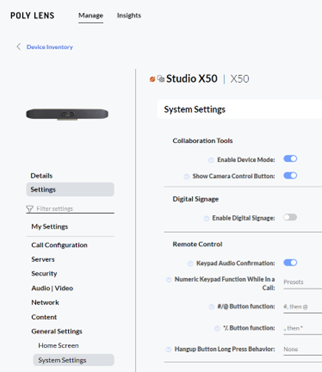
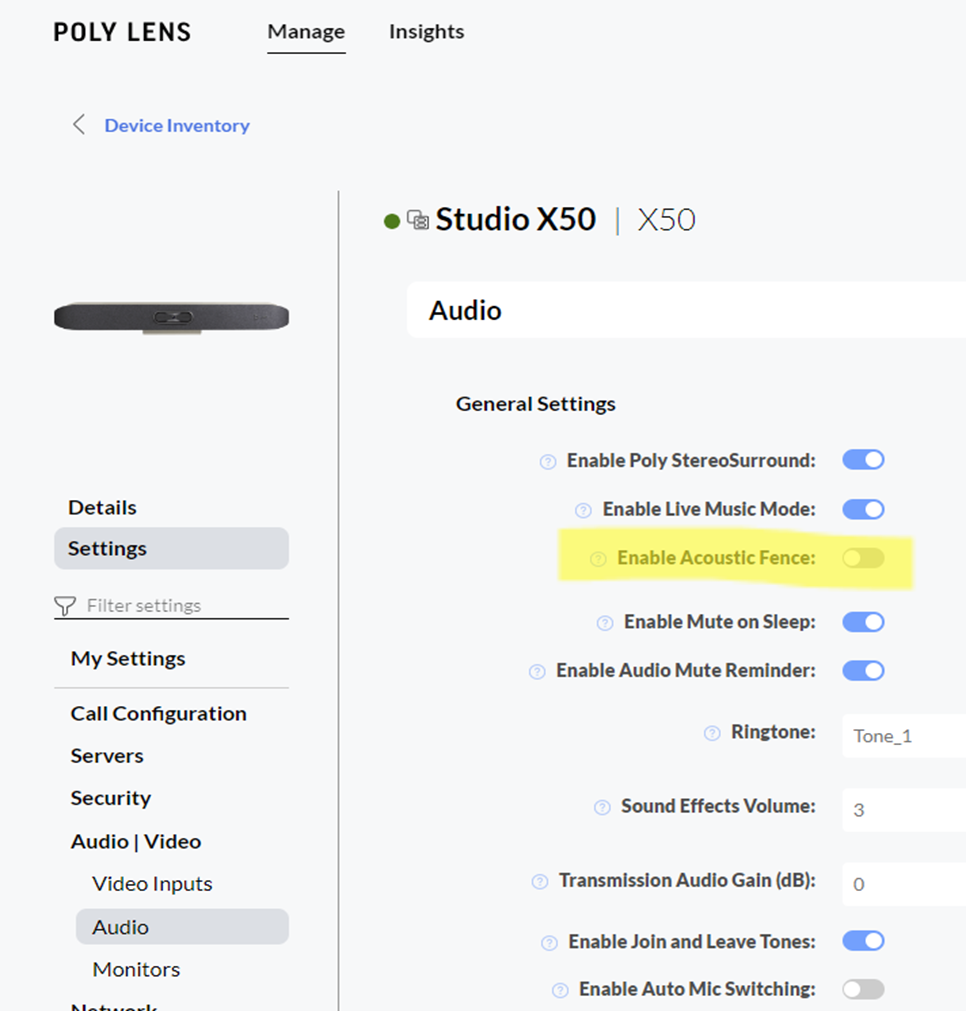
It is also recommended to switch off the “Enable Acoustic Fence” on the Studio X or G series since it can interfere with echo cancelling via ClickShare.
After this setup and configuration, users can now:
-
Wirelessly connect to ClickShare with the Button or the ClickShare App.
-
In Appliance Mode, ClickShare can be used to (locally) wirelessly present. In this mode, only video (no audio) content is shared.
Trick: to locally play content with audio and video, switch the videobar in Device mode and then share content (see further).
-
Start a UC session on the Studio X or G series and wirelessly share content into this session. Content will be shown locally and to remote users. In this mode, only video (no audio) content is shared.
-
When the videobar is not running a UC session (otherwise it remains in that session), start any UC client on the user laptop.
The user can switch to USB Device mode by swiping on the TC8 controller from the right and selecting “Device Mode”.
-
Once the user makes sure that the “Room Camera” and “Echo Cancelling Speakerphone” are selected in the UC client, they can enjoy using the Poly Studio X or G series camera and speakerphone with all its capabilities in the conference call.
-
When content is shared, audio is played over the USB connection.
-
Once the call is finished on the laptop, the user will have to exit Device Mode on the TC8 controller.
-
The CX-50 Gen 1 also allows to share content by connecting the laptop via HDMI to the CX-50 HDMI™ input.
Remarks:
For automatic sharing must (1) be supported by the MTR Application running on the bar and (2) be activated in the MTR settings. Otherwise, select the share function on the Poly Studio X or G series controller to get the content from the ClickShare even when the button or App is already sharing. The detection happens on discovery of a new HDMI™ connection, important to have an Eco standby time set and disable the show wallpaper for this functionality.
Known issues
- For other known issues and an overview of different configurations for ClickShare Conference with Poly Studio X or G series, see KB5652.

