
Issue
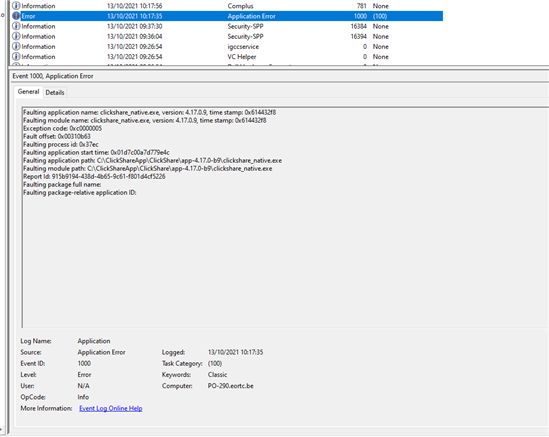
There have been instances where the ClickShare Desktop App fails to start correctly. In some cases, a Windows popup displays error code 0xc0000005, while in others, no popup appears at all. These issues can present in different ways, as explained below:
Possible causes and solutions
1. Driver related issue
Cause: The device’s installed drivers interfere with correct app startup.
Solution:
- Run the ClickShare Cleanup Tool
- Download the ClickShare Desktop App Uninstaller archive - see Related files section below.
- Extract and run Update_UninstallClickshare.ps1 using Run with PowerShell.

- Reinstall the latest ClickShare Desktop App. Download the most recent version from here.
Note: Cleanup is already included in MSI installers from version 4.20+; for older MSI or Single-App installers, run cleanup manually.
2. Outdated OpenGL (version below 2.1)
Cause: Due to a very old OpenGL version causes the application to crash (identified through dump-file analysis).
Solution:
- Check your graphics card manufacturers' websites for the latest graphics drivers and install them, mainly for:
- Intel
- AMD
- NVIDIA
- Ensure the updated driver supports OpenGL 2.1 or higher.
3. App installation blocked by antivirus software
Cause: Some antivirus solutions block the ClickShare App during install or runtime.
Solution:
- Ask IT to verify if the antivirus is blocking the app.
- Add ClickShare app to the whitelist/allowed applications.
- Installation may require elevated privileges, depending on the network and antivirus security software used (Example: Cylance and Blackberry).
4. Outdated Windows DLL files
Cause: Some PCs contain outdated Windows system DLLs, verified via the Windows Event Log.
Solution:
-
Update the relevant DLL via Microsoft update resources.
-
Example: updating ntdll following Microsoft documentation.
5. Windows 11 privacy settings blocking camera access
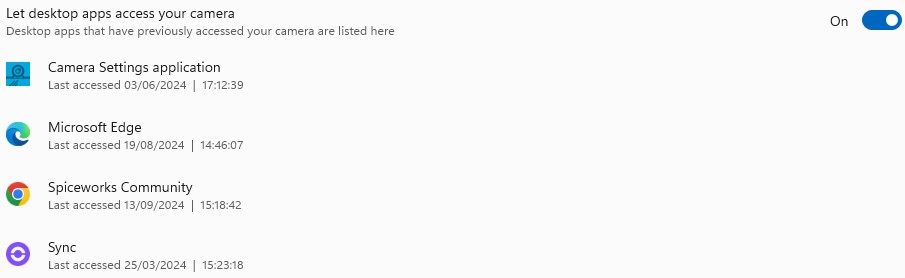
Cause: Windows privacy settings prevent the ClickShare Desktop App from accessing the camera.
Solution:
- Go to Settings → Privacy & Security → Camera.
- Enable Let desktop apps access your camera.
If the issue still occurs:
In case the issue is not resolved with the above steps we will require a Windows process dump file (how-to, see KB2938) to be collected from the system to analyze the problem. Please provide this dump file to the Barco helpdesk during the service request. (how-to, see KB6024).

