ClickShare enables digital signage in meeting rooms by displaying content on the Base Unit when it's not actively used for sharing meetings or presentations. This content can appear as static or dynamic wallpaper or video (without sound), sourced from any signage vendor via a web URL. You can also showcase internal communications such as company news, tips, or updates from URLs hosted within your corporate network.
Supported devices:
- Wireless presentation solutions: C-5 & C-10
- Wireless conferencing solutions: CX-20, CX-30, CX-50 (Gen 1 & Gen 2)
Digital signage is primarily intended to enrich the meeting room experience by displaying corporate or informational content when no active sharing is taking place. It can also serve as a signage solution in spaces that benefit from wireless presentation or conferencing capabilities.
Digital Signage guidelines for ClickShare devices:
Depending on the platform/model used, care should be taken what signage content is used
- C-5, C-10, CX-20, CX-30:
While digital signage remains available on these models starting from firmware version 2.22, it is no longer officially supported due to critical security enhancements. These updates have significantly impacted performance, often causing signage content to load slowly or fail entirely depending on the platform and media used. For details, see KB15221.
Recommended usage:
-
Use simple content: mostly static pages with minimal animations and a short playlist.
-
Avoid video or heavy transitions.
-
If dynamic content is necessary, configure the display output resolution to 720p via the ClickShare Web Configurator to reduce memory usage.
-
- CX-50 (Gen1 & Gen 2):
These models support more complex and dynamic signage content, including transitions. However, it's still recommended to test content thoroughly before deployment to ensure stability.
General considerations
- ClickShare is a wireless presentation and conferencing solution that can play web-based signage when no one is sharing. It is not intended to be a full-featured digital signage player.
- Always verify the type of content your signage provider supports on web-based players, as there may be limitations compared to dedicated signage hardware.
Table of Content:
Enable Digital Signage
Use the XMS Cloud to enable and configure Digital Signage on your Base Unit.
-
Connect to the XMS Cloud and log in with your credentials (how-to, see KB2534).
-
If you have rights to more than one organization (aka tenant), select the right organization name in which your Base Unit is located.
-
Go to Manage > Baseunit > CONFIGURATION and activate Barco Digital Signage feature.

Note: The Explore workflow can help you to select the different digital signage providers.

-
Select the corresponding signage content URL on the list to apply the change.
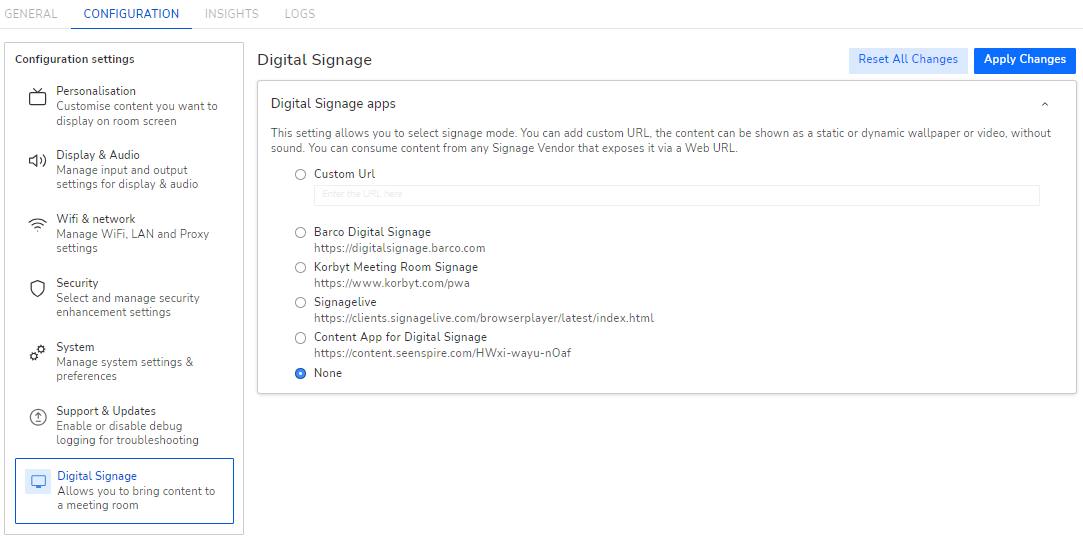
You can access content from any Signage Vendor through a Web URL that uses an SSL certificate. Additionally, you can display company news, tips, tricks, or other internal information from a URL within your company network. Please note that URLs with self-signed SSL certificates are not supported.
Deployment guidelines
This section describes some practical recommendations to successfully run signage on your platform.
Run 2.16 or newer release on ClickShare. This release includes important reliability improvements.
On the C-5, C-10, CX-20, CX-30 limit the complexity of the signage content:
- Use mostly static pages
- Limit the transition effects
- Limit the playlist
- If more complex content is used it should be thoroughly tested before deploying it.
On the CX-50/CX-50 Gen2 more complex, dynamic content with more transition effects can be used. However, it is always recommended to thoroughly test the content during an extended period before deploying to operational systems.
From 2.16, ClickShare includes a mechanism to monitor the internal memory used by the signage application. To keep the system healthy for presentation and conferencing, it will restart the signage application when this application starts using too much memory, e.g. when complex content is used, or when the content web application doesn’t properly clear memory.
Specs and limitations
Firmware version 02.16: Chromium version 102, Qt WebEngine version: 6.4.1
Rendering
-
GPU Acceleration has been enabled
-
Video playback for H264, VP9 and VP10 is enabled
Video performance
It's advised to not exceed the following values for video content:
-
Resolution: max 1080p
-
Bitrate: max 8Mbps on CX-50 (Where possible, use a bitrate of 5Mbps or lower, especially on CX-30 or CX-20).
These values come from practical experience on ClickShare + Youtube's recommendations on bitrate
-
FPS: max 30fps video
-
It does not mean the Digital Signage can be played with ClickShare if the content bitrate is under above values. Please always have a trial test on the content before deploying it.
Storage
-
Since firmware version 02.16 total browser storage is limited to 1.9GB (= 2GB minus some reserved partition space)
Per domain, storage is limited to 60% of the total browser storage. (IndexedDB, Local and Session storage combined)
-
This storage can be used to store media offline
-
-
Local/Session storage APIs are limited to 5MB. (Browser default)
-
LocalStorage should be used to store client configuration/credentials/licenses
-
Note that storing configuration in IndexedDB might work but we strongly discourage this. We cannot guarantee that your configuration will remain stored in IndexedDB since Chromium can freely decide to free up IndexedDB
-
-
LocalStorage is persistent through reboots and upgrades
-
https://developer.mozilla.org/en-US/docs/Web/API/Window/localStorage
-
Memory
JavaScript heap memory is limited to ±1.5GB (CX-50), this is significantly lower for the (C5, C10, CX-20 & CX-30) hence they only support limited (static) content. Exceeding this will kill the render window. The Base Unit is still capable of sharing/conferencing but can become slow in response or reboot. If the Base Unit becomes completely unusable, then please report this back to Barco.
Behavior
-
Digital signage has options to select the different digital content providers.
You can select “none” to disable the digital signage.
-
The digital signage endpoint is Chromium-based and should support content/functionality as one would expect from a Chromium browser
-
When digital signage is enabled, the content from the signage URL is shown only if the HTTP response status code is in the 200 to 399 range. When this is not the case, then the Base Unit will display the wallpaper.
-
User requests (camera/microphone access, screen capturing, file saving, …) are refused by default
Known limitations and issues
-
Audio is not supported currently
-
Touch input is not supported currently
-
Using XMS to configure multiple units for digital signage is not yet supported at this time
-
Not all time zones are correctly supported for signage content. This can affect time-related functionality on web pages, as well as scheduled content deployment for some signage providers.
-
Configuring Digital Signage: In case there is no possibility to connect to XMS Cloud in order to enable Digital Signage there is an alternative to activate it over API. It is advised to not use API method in combination with an active XMS Cloud connection to avoid conflicting configurations.
Important considerations
Checking the bitrate of Digital Signage content
-
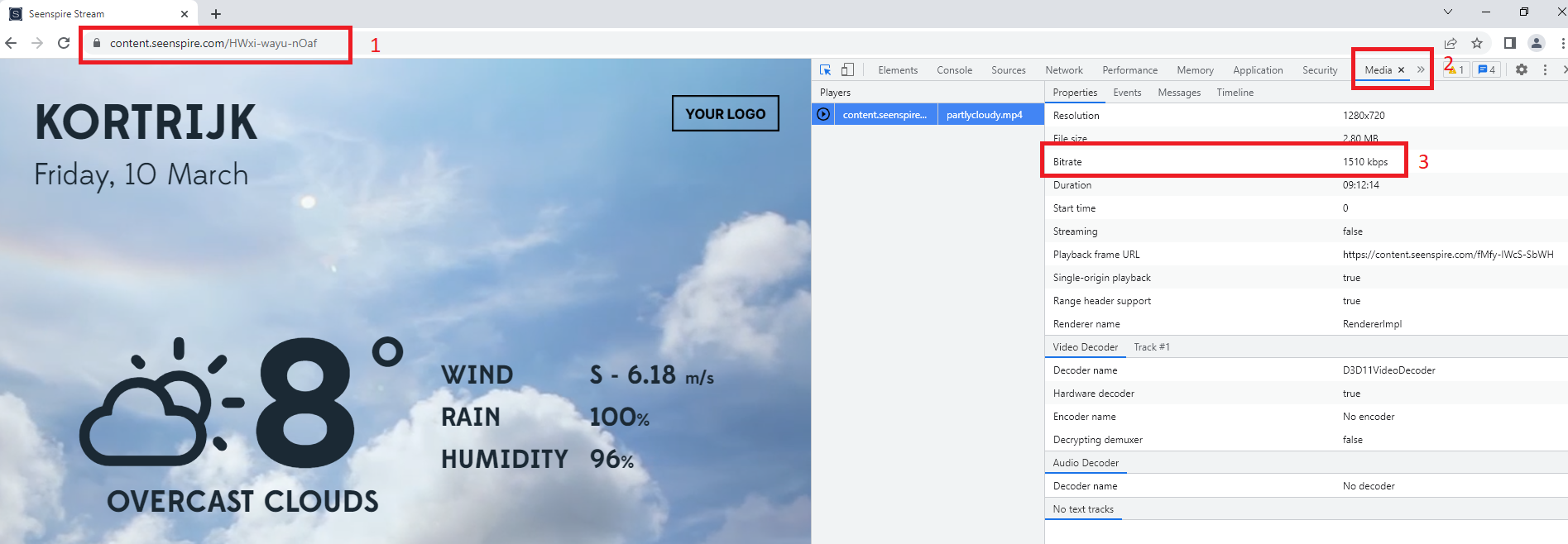
Open the Digital Signage content URL in the Chrome web-browser - label 1.
-
Open the console menu by right clicking the webpage and then clicking Inspect (or press Ctrl+Shift+C).
-
Ctrl+Shift+I on Windows/Linux
-
Command+Option+I on macOS
-
-
Open the Media panel - label 2.
Note: If Media panel is not visible, click here for the related information.
-
Check the bitrate of your Digital Signage content - label 3.