
The ClickShare Windows Driver automatically starts the ClickShare App from the Button when plugged in. However, in case this would not happen the file explorer window should open showing the ClickShare drive allowing you to run the ClickShare_for_Windows.exe.
On certain computers, the automatic opening of File Explorer when inserting a ClickShare Button might be disabled. To resolve, enable AutoPlay feature on your windows computers:
- Windows 11: click here.
Make sure the default action for Removable drive is set to Open folder to view files (File Explorer). - Windows 10: see the instruction below:
- On your computer, click the start icon and select Settings (cogwheel icon).

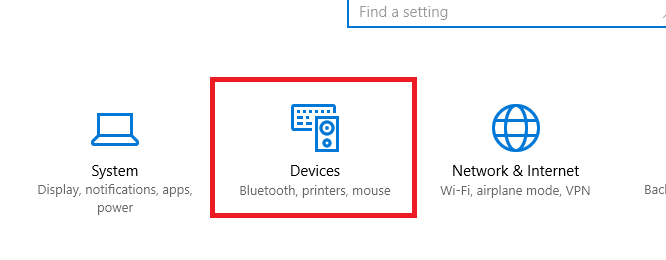
- Click Devices.
- In the Devices settings, click AutoPlay.
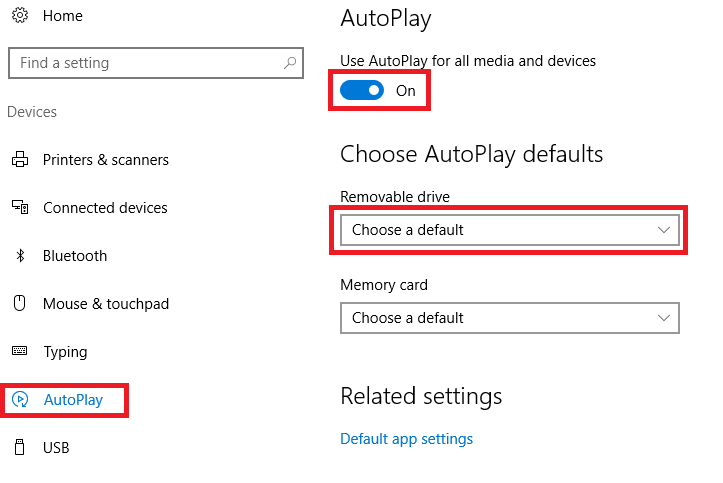
Here you can enable or disable AutoPlay and set the default action to Open folder to view files (File Explorer).
- On your computer, click the start icon and select Settings (cogwheel icon).

