ISSUE
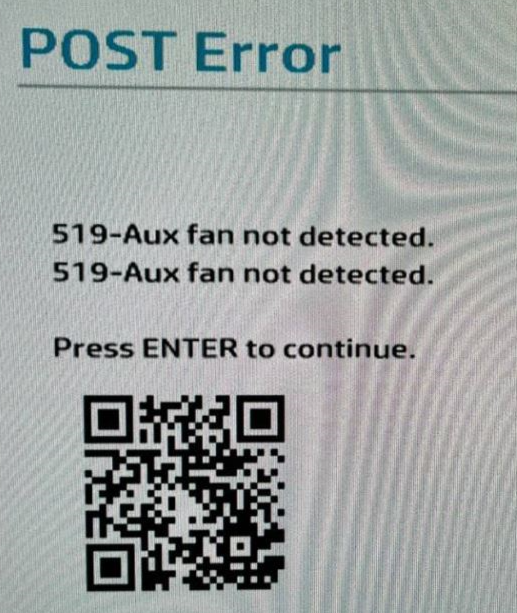
When powering ON the HP Z4 G5 or HP Z6 G5 workstation, without the Front Fan and Front Card Guide Kit and with the installed MXRT display controller, you can get a POST error message after the short beep, saying '519 Aux fan not detected' as seen below. If you press ENTER the workstation will normally boot up, but the same message will show after each fresh boot of the workstation.
ROOT CAUSE
System BIOS shows POST error '519 Aux fan not detected' for any display controller that it does not support. The reason for this error is that the non-HP branded GPUs are not in the HP BIOS fan table which defaults to the system requiring the following components:
- HP Fan and Front Card Guide
- PCIe Retainer with Fans
SOLUTION
1. Make sure the HP workstation is configured with the Fan and Front Card Guide and the PCIe Retainer with Fans if the customer is planning to add a non-HP branded GPU
*For workstation HP Z4 G5 --> AMP kit 56Q84AA can be ordered to add the PCIe retainer fan to the system.
*For workstation HP Z6 G5 --> AMP kit 56Q85AA can be ordered to add the PCIe retainer fan to the system
Note: For systems currently being ordered and have not been built yet, the PCIe retainer fan is an optional component that needs to be specified. Then the PCIe retainer fan will be installed in the production.
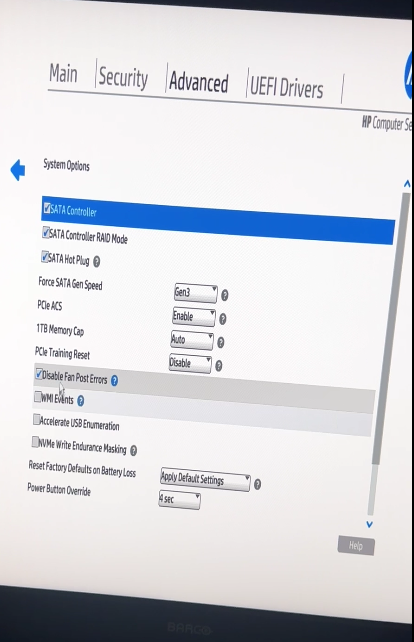
2. HP committed to introduce a new BIOS in the 2024 April Refresh called “Disable Fan Post Errors” which will eliminate this error, especially for low power non-HP branded GPUs like the BARCO.
3. Download the new BIOS file from the HP website and install it on the concerned workstation.
4. Immediately after powering on your HP Z4 or Z6 workstation, start repeatedly pressing either the "Esc" key or the "F10" key to enter into the BIOS. Identify the "Disable Fan Post Errors" and uncheck the option.