
When installing a new MXRT or MXRV graphics board, users sometimes do not know the exact model and may install an incorrect driver. The following methods allow you to identify the correct GPU model without reopening the workstation.
Method 1 — Identify the MXRT / MXRV Model via Device Manager
(Recommended – works even without drivers)
- Press Windows + X
- Select Device Manager
- Expand Display adapters
- Look for an entry such as:
- Barco MXRT‑xxxx
- Barco MXRV‑xxxx

If the driver is not installed, the GPU may appear as “Microsoft Basic Display Adapter.”
Method 2 — Identify the MXRT / MXRV Model Using the QAWeb Enterprise Web Portal
(Very useful in managed hospital environments)
You can verify the exact graphics board model registered on your workstation directly from your QAWeb Enterprise Organization.
- Login to your QAWeb Enterprise Organization using your credentials.
- Navigate to Assets → Workstations.
- Select the relevant workstation from the list.
- Open the Components tab.
- Click on the listed Barco GPU Model to view:
- The exact MXRT/MXRV model installed
- The driver version currently in use
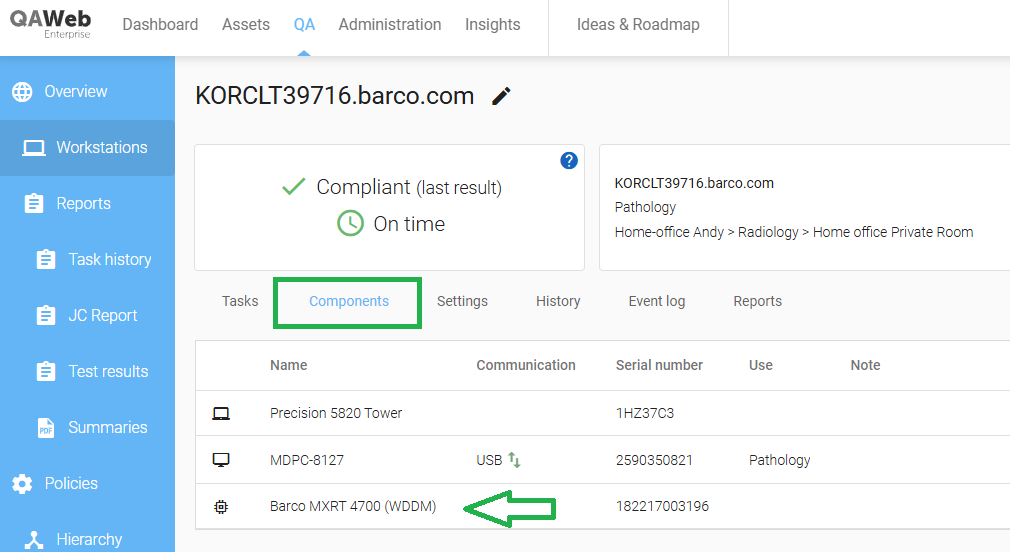
This method works even if the user has no direct access to the workstation, making it ideal for remote support or fleet management.

