
Overview:
When the QAWeb Enterprise Agent displays “Not Connected”, it means the workstation cannot successfully establish a secure connection to the cloud‑based QAWeb Enterprise Server.
This can be caused by:
- Network restrictions (firewalls, filtering, proxies)
- Missing or blocked root certificates
- TLS/SSL inspection
- CloudConnector service limitations
- Incorrect configuration or outdated local settings
This article provides clear steps to diagnose and resolve the issue.
1. How to recognize the Issue:
In QAWeb Enterprise Agent:

In QAWeb Enterprise Server:
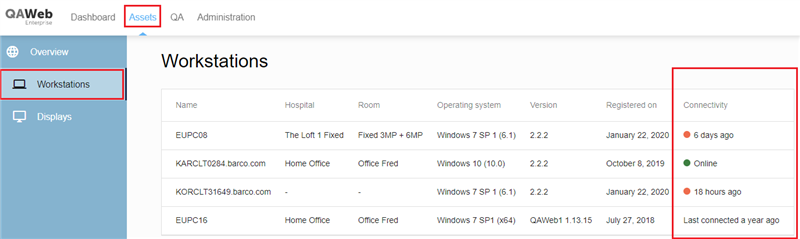
Connectivity issues can also be seen on QAWeb Enterprise Server, in Assets --> Workstations
2. Documentation to Consult First
- Network Requirements section in the QAWeb Agent User Manual .
- The attached "QAWeb Enterprise Security and Connectivity FAQ.pdf"
3. Required Network Configuration
Outbound HTTPS (port 443) must be allowed name‑based, not IP‑based.
Note: From the Security & Connectivity FAQ: “URL firewall rules must be name‑based as IP addresses may change.”
Mandatory URLs
auth.barco.com– Authenticationciam.cmp.barco.com– Identityqawebdata.healthcare.barco.com– Agent backendqaweb.healthcare.barco.com– Portal front-endqawebapi.healthcare.barco.com– Portal backenda3n9amleodurj6-ats.iot.eu-west-1.amazonaws.com– Secure MQTT over WSS (real‑time agent status)documentation-qaweb-agent.healthcare.barco.com– Online user guidedocumentation-qaweb.healthcare.barco.com– Portal documentation
All traffic must bypass SSL inspection, as man-in-the-middle inspection breaks TLS and results in a Not connected status.
4. Use the QAWeb Configurator Tool
-
-
- Open C:\Program Files\Barco\QAWeb\Configurator.exe
- Review all settings
- Apply changes and allow the Agent to restart
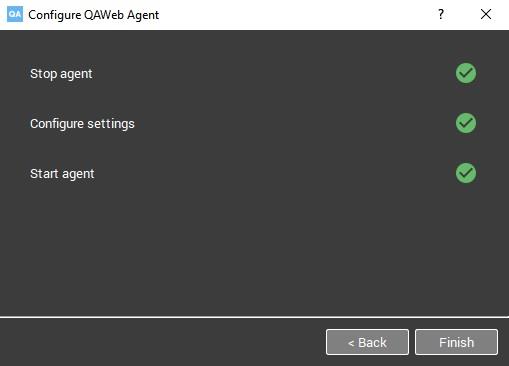
- In case of a test failure, a red cross will be marked.
-
5. CloudConnector Service Account Validation (Important Troubleshooting Step)
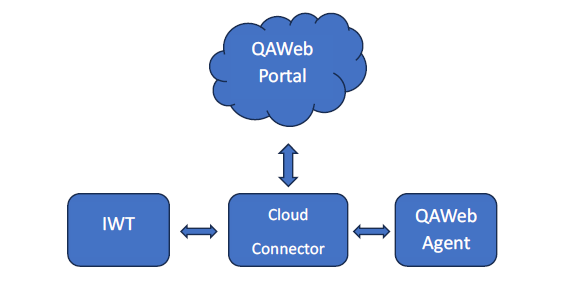
Since QAWeb Enterprise v2.14, the CloudConnector acts as a secure network bridge. It runs under the Local Service account by default. If Local Service lacks permissions, QAWeb Agent may stay offline.
- Verify whether the Windows Service named Barco CloudConnector Service, which runs by default under the Local Service system account, has sufficient permissions to establish outbound HTTPS and secure WebSocket (WSS) connections.
Why this matters?
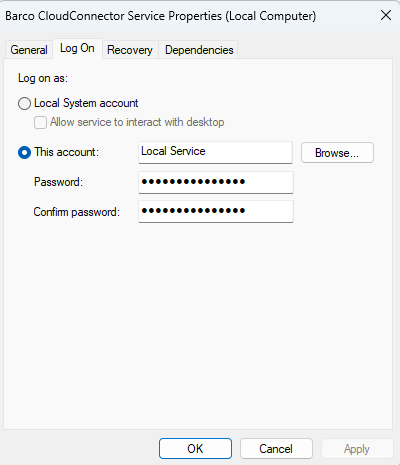
- Open services.msc. as an Administrator
- Locate Barco CloudConnector Service.
- Open Properties → Log On tab.
- Temporarily change the Log On account from:
- Local Service → Local System
- Click Apply, then Restart the service.
- Restart the QAWeb Agent Service as well.
Interpretation:
- If the QAWeb Agent successfully reconnects after CloudConnector runs under Local System, this indicates the Local Service account has insufficient permissions.
✔ Security Principle: Least Privilege
✔ Reduced Attack Surface
✔ Intended Architecture
- Access the Windows Trusted Root Certificate Store
- Establish outbound HTTPS (TLS 1.2+) connections
- Establish outbound WSS/MQTT connections to QAWeb cloud servers
6. Certificates & SSL/TLS Inspection
QAWeb relies on the Windows Trusted Root Certificate Store.
If the workstation cannot validate the server certificate, the secure tunnel cannot be created and the Agent remains offline.
Verify with help of the hospital IT department if:
- Windows trust store includes AWS/Amazon root CAs
-
No SSL/TLS inspection rewrites certificates
-
No proxy injects custom certificates into TLS traffic

7. Run a Test-NetConnection in Windows Powershell
-
- The Test-NetConnection cmd displays diagnostic information for a connection. It supports ping test, TCP test, route tracing, and route selection diagnostics. Depending on the input parameters, the output can include the DNS lookup results, a list of IP interfaces, IPsec rules, route/source address selection results, and/or confirmation of connection establishment.
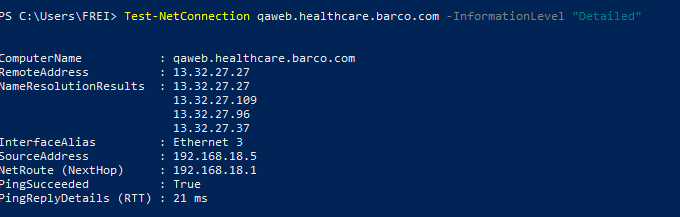
- This command can be re-used for all QAWeb Server URLs:
8. Run the cURL Connectivity Test
cURL is a tool that execute HTTP requests. It can be used to test if a webservice is reachable.
-
-
- Download this tool from the attachment section of this KB (see bottom page)
- Unzip the file to the workstation
- Run qaweb-curl-check.bat
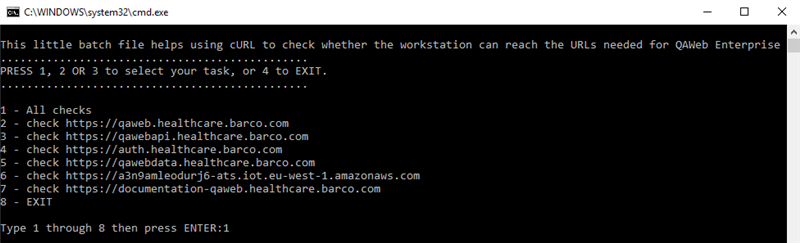
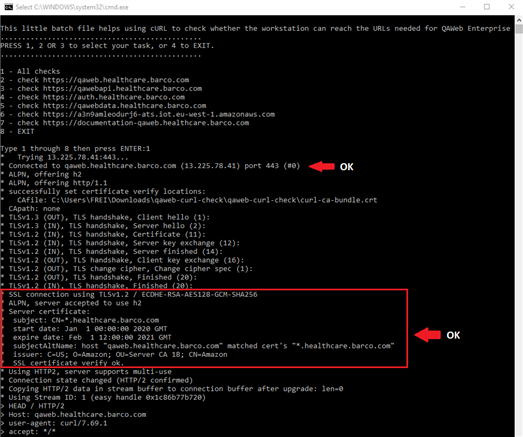
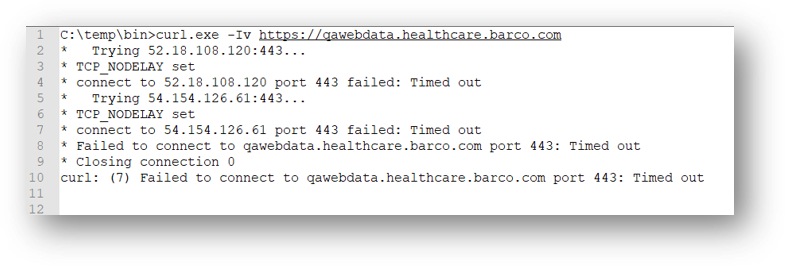
- Example when the firewall blocks the connection to port 443: Timed out . The solution is to contact the IT Department to allow outbound HTTPS traffic (name-based whitelisting)
- Example certificate problems - Sometimes the network inspects SLL certificates and performs some manipulation for security reasons. The solution would be to ask the IT department to add an exemption from SSL inspection for this URL
-
9. Collect Files
If the problem persists, please collect and attach the following files to a Barco Service Case opened on the Barco eSupport Portal (KB6024 )
-
-
-
- The cURL logs (see Step 8)
- The QAWeb Enterprise Agent Log files (KB9560)
- The CloudConnector Logs (C:\ProgramData\Barco\CloudConnector\logs)
-
-
Even when the workstation is offline:
- QA tests & calibrations still run locally
- Results are stored and delivered once connectivity returns
- Up to 4 weeks of history is transmitted after reconnection

