
When the ClickShare Desktop App is trying to share a content, it can happen that it generates a notification for granting the permission in case screen recording is not allowed. The standard required permissions are Screen Recording and Location Services.
On some devices and in combination with an already installed ClickShare Desktop App we noticed that it is not possible to change the screen recording setting to ON; the slider always reverts back to OFF.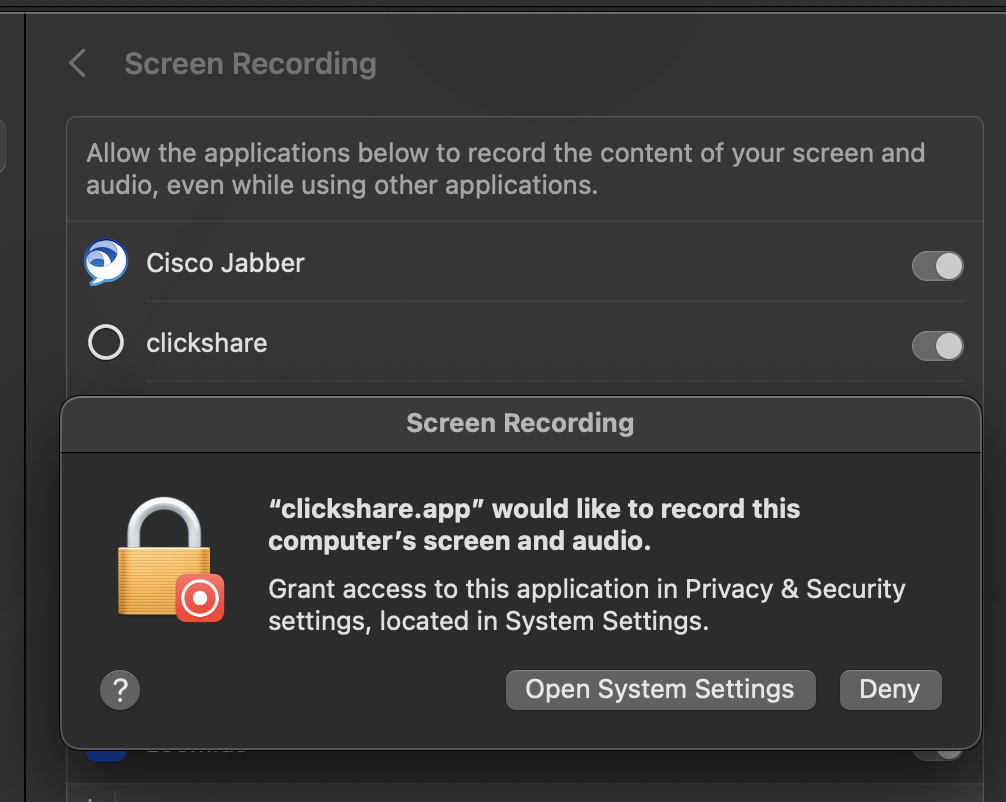
For general instructions on enabling the required macOS permissions for ClickShare Desktop App, see KB3619.
Solution
1. Preliminary checks
- Make sure you are running the latest version of the ClickShare Desktop App (for latest version, click here).
- Make sure your macOS is up to date.
- Quit the ClickShare Desktop App completely and make sure it is not running in the backgtound.
- Disconnect the ClickShare Button, if connected.
- Verify that Screen Recording permission is enabled for ClickShare in the macOS privacy settings.
In case the issue still persists – permission is enabled but ClickShare still does not recognize it, continue with the steps below
2. Troubleshooting steps: Remove and reinstall the ClickShare Desktop App
- Disconnect the ClickShare Button and quit the ClickShare Desktop App completely (make sure it is not running in the background).
- Completely remove the ClickShare Desktop App from the Mac.
Tip: Use Mac AppCleaner, you can drag the ClickShare Desktop App into this tool, and it will completely remove it. - Once done, go to the Screen Recording settings and verify whether if ClickShare is still visible.
- If ClickShare still visible in the Screen Recording settings use the following command to remove the ClickShare Bundle ID from the screen recording settings:
tccutil reset ScreenCapture com.barco.clickshare - Reinstall the Clickshare Desktop App (for latest version, click here).
- Launch the ClickShare Desktop App and enable the permission for ClickShare when macOS prompts for the Screen Recording permission.
Workaround
If the previous steps do still not solve the issue, pleasure continue on with the following workaround mentioned below:
- IMPORTANT: Make sure that the ClickShare Desktop App has already been stopped before running the script.
- After the ClickShare Desktop App has been quit, you can use command "
sudo bash Cleanup_ClickShare.sh" in combination with a self-made script to cleanup any remaining Bundle Id's.Example of a script
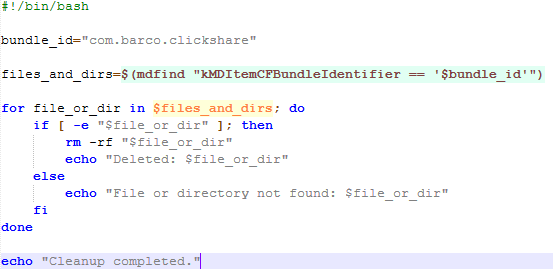
- After completing the cleanup, launch the ClickShare Desktop App from the macOS Applications folder or connect the ClickShare Button.
- If macOS prompts you to grant Screen Recording permission again, enable the permission for ClickShare, then quit and reopen the ClickShare Desktop App.
IT administrator information
In a managed macOS environment, organizational restrictions or security policies may prevent the required permissions from being applied correctly.
Your IT administrator may need to configure the required permissions through a Privacy Preferences Policy Control (PPPC) profile.
The ones used by ClickShare are:
com.barco.clicksharecom.barco.clickshare.updater
Note:
If the macOS is managed by your organization, contact your IT administrator before changing system-managed privacy or security settings.
Contact Barco Support:
If the issue still remains unresolved after completing the steps above, please contact the Barco Support by creating a service ticket (how to: see KB6024).