
This article provides information on the configuration of ClickShare Conference (CX-20/30/50) with Poly Studio X or G series for wireless conferencing in Device mode.
Remark:
The main goal of this article is to provide recommended setups and use cases. Please refer to specific product documentation (installation and reference manuals, spec sheets, etc.) for specific product information, e.g. wiring, specific port functions and supported features and limitations.
It is recommended to use a CX with Poly USB speakerphone (e.g. Sync series), camera (e.g. E70), and USB bars (e.g. Studio and R30).
Recommended for environments where:
-
Users use a variety UC service.
-
Users want to drive UC meetings from their laptop (easier flow with their data and apps).
-
Users want to use 21:9 display (supported on all Gen2 CX).
-
Users want to use dual screen support (supported on CX-50 Gen2) in BYOM mode as well as for local wireless presentation.
To set up this configuration:
-
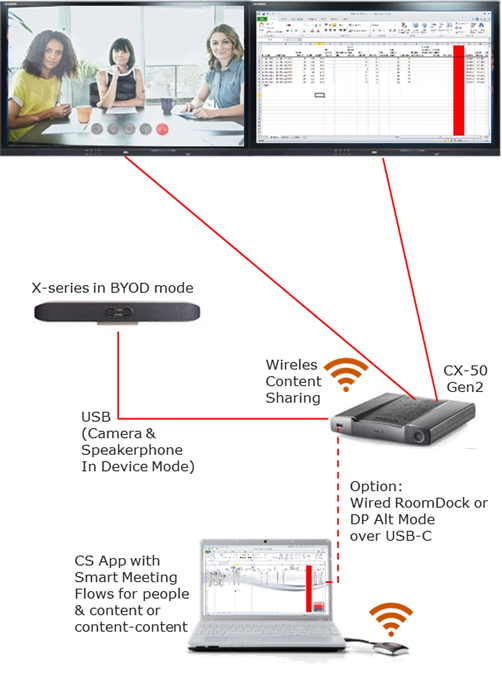
Connect ClickShare to the display.
-
Standard is to connect ClickShare HDMI™ to display HDMI™ input.
-
For 21:9 display, connect CX-20/30/50 Gen2 to the display via DP over USB-C connection. For details, see KB8919.
-
CX-50 Gen2 can be connected to 2 displays (one HDMI™ and one DP over USB-C).
-
-
Connect Poly Studio X or G series USB to CX USB.
-
Connect Poly Studio X or G series and ClickShare to the network.
Info! Since every Poly Studio X or G series is different, please check in the installation manual for the exact ports to connect to. This is an example for the Poly X52: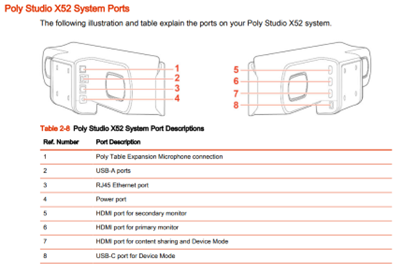
ClickShare Conference Configuration
In general, make sure that the ClickShare device is up to date and install the corresponding firmware on the Poly Studio X or G series device to the matching version as published on the Barco website for specific product-related remarks:
Poly Studio X or G series Configuration
Set the Poly ‘Conference Provider’ to ‘Device mode’ which means for a permanent USB device. On Poly Lens go to “General Settings” – “Provider”.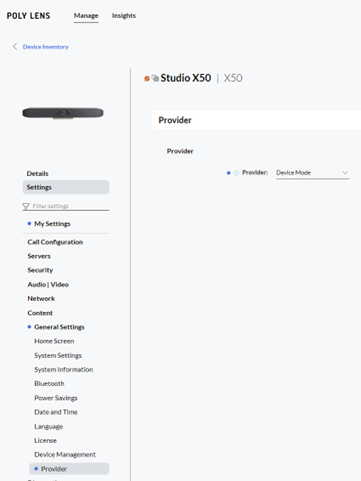
On the Poly Studio X or G series WebUI go to “General Settings” – “Provider”
In USB Device mode, the Poly Studio X or G series function as any other USB device. Users might prefer the videobar over another USB-only device because they want to keep open the option to run in the future the UC room application on it.
When set up in this configuration, CX only plays audio over USB.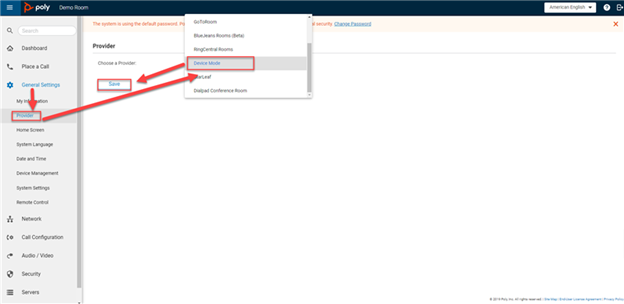
After this setup and configuration, users can now
-
Wirelessly connect to ClickShare with the Button or the ClickShare App.
-
Start any UC client they like to use on their laptop.
-
Once they make sure that the “Room Camera” and “Echo Cancelling Speakerphone” are selected in the UC client, they can enjoy using the Poly Studio X or G series camera and speakerphone with all its capabilities in the conference call.
-
On the CX-50 Gen2, they can share content-content on two displays, or by using Smart Meeting Flows show people and content on the two displays. This is currently implemented for the Microsoft Teams client. Other UC clients to follow in future releases.
Remark:
In this scenario the Poly X series are being used as pure USB peripherals. Poly has several other very good USB solutions for this that can be considered as alternative. The main reason to consider Poly Studio X or G series would be if users want to start with BYOM but consider adding the UC Appliance Mode at a later point in time.
Known Issues
- When initially sharing audio via HDMI™, the volume level on the Poly Studio X or G series is very low. As soon as the volume level is changed in the Poly Studio X or G series, it goes to normal level.
- For other known issues and an overview of different configurations for ClickShare Conference with Poly Studio X or G series, see KB5652.

