
-
When clicking the Button to share, a message appears: Display Composition is full. Click and hold the ClickShare Button to show content fullscreen.
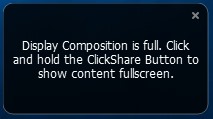
The reason this message appears is that the maximum amount of ClickShare Buttons sharing to the screen has been reached. The table below outlines the current specifications:
Product Max simultaneous connections (with Buttons and/or App) Max sources simultaneously on screen CB Core 32 1 CB Pro 32 2 C-5 32 1 C-10 32 2 CX-20 32 1 CX-30 32 2 CX-50 Gen1 32 2 CX-50 Gen2 32 2 CS-100(H) 8 1 CSE-200(+) 16 2 CSE-800 40 4 on a single screen
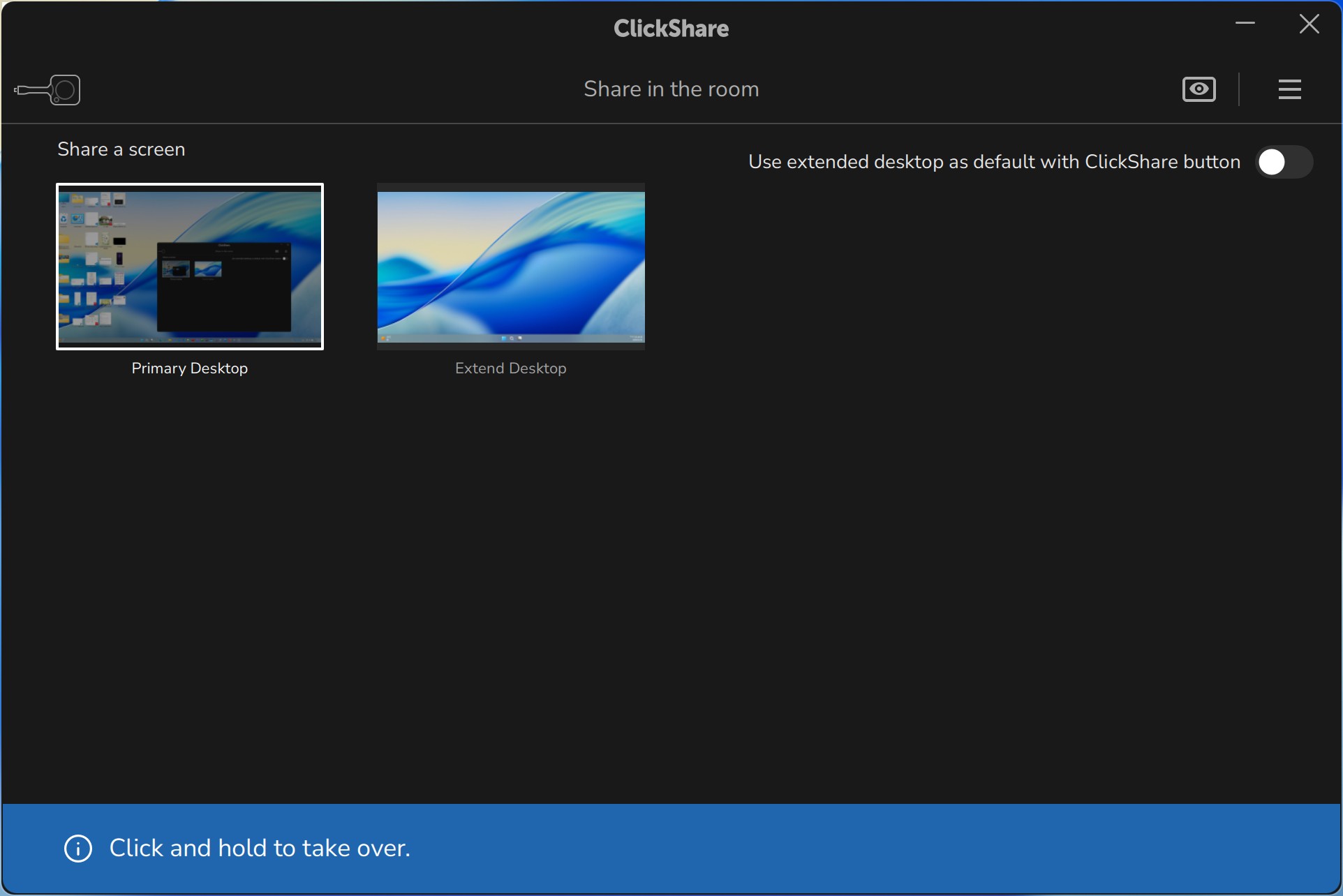
8 on dual-screenCSC-1 64 4 CSM-1 8 2 Note: If you see the following message at the bottom of your ClickShare Desktop App interface when connecting to the ClickShare device, it indicates that the maximum allowable room view limit for the connected ClickShare device has been exceeded. For information on Local View restrictions for your ClickShare device, see KB11203.

Note: If you're experiencing any issues with maximum simultaneous connections or maximum sharing to the screen with ClickShare, please contact Barco Support by raising a service ticket (how to: see KB6024).

- Technical questions
- Return Material Authorization (RMA)
- Status tracking of pending service requests
- Consumable and spare parts orders
